




✨ Introduction #
To ensure consistent productivity tracking, it’s important to mandate the use of Kaamfu Workstation Connect across your organization. This guide helps you enforce usage and enable screenshot tracking for all employees.
👤 Who Should Read This #
This guide is for organization owners and admins who want to ensure that all team members are using the desktop application consistently.
📝 What This Guide Covers #
Learn how to enforce application usage and activate screenshot tracking for team members.
📄 Where You Mandate Application Usage #
Mandating usage and enabling screenshot tracking is done via the Team Panel in the Kaamfu Web App. This is where admins can configure monitoring settings for each employee.
🎯 Why This Feature Matters #
Mandating the application ensures uniform tracking, accurate reporting, and better visibility into team performance.
💡 Key Benefits #
- Standardized tracking
- Real-time visibility
- Improved accountability
🛠️ Step-by-Step Instructions #
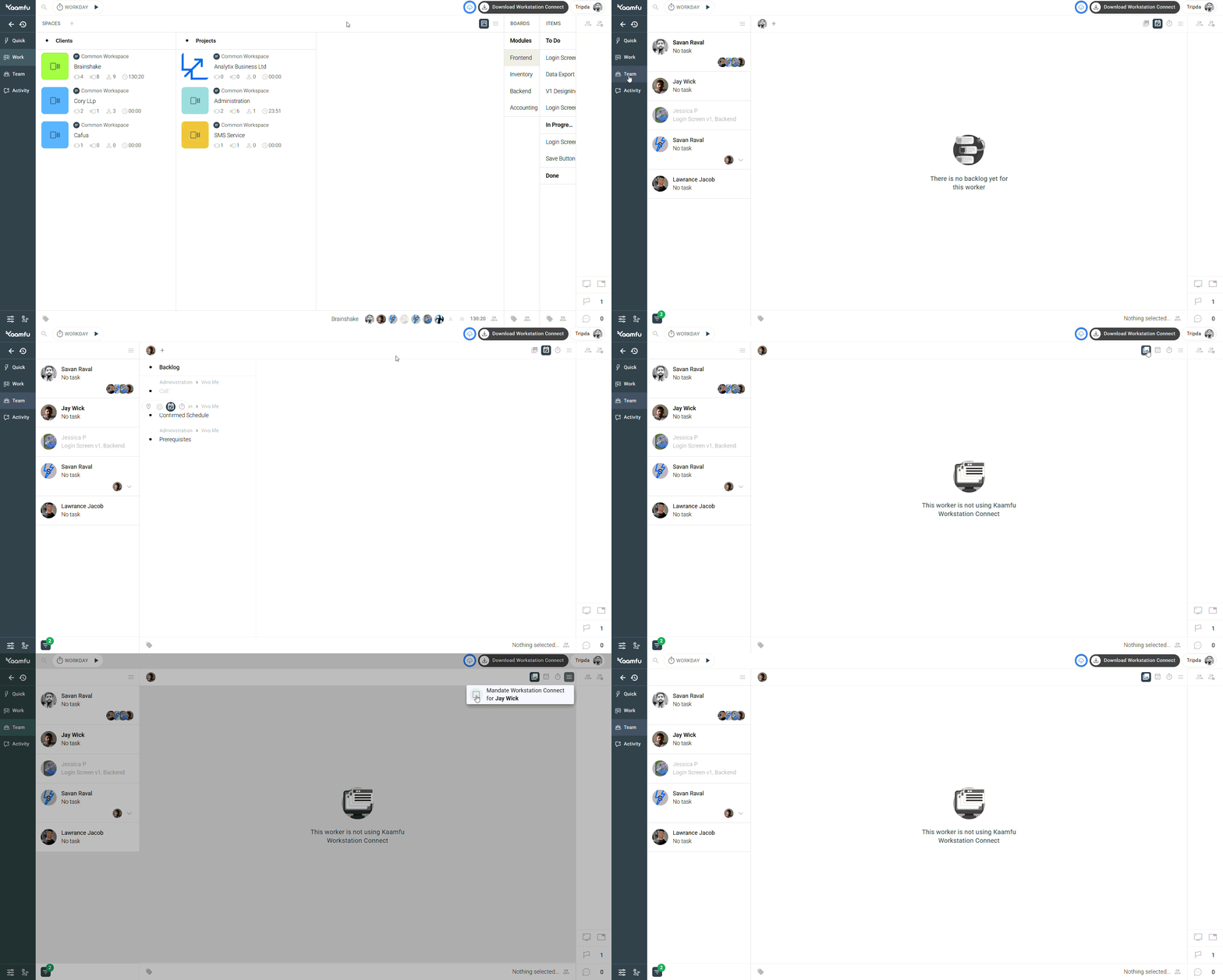
Step 1: Navigate to the Team Panel #
Open the Team Panel from the left-hand menu.
Step 2: Select an employee #
Select an employee’s profile and click the Screenshots tab.
Step 3: Enable Desktop Tracking #
Click the burger icon and click the checkbox to enable desktop tracking
.
 .
.
Step 4: Repeat for All Employees (Optional) #
If needed, repeat this process for each team member to ensure the Workstation Connect application is mandated for everyone required.
Related Resources
- [How to download the Kaamfu workstation Desktop application?]
- How to Use the Kaamfu Workstation App?