




✨ Introduction #
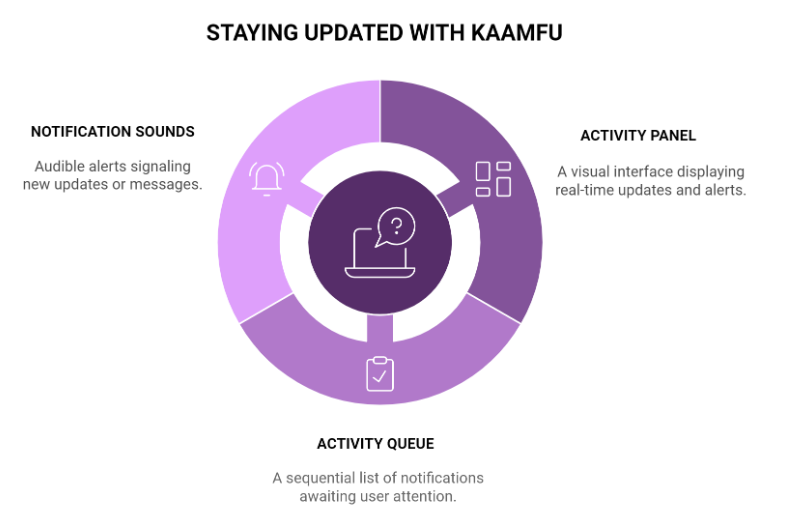
Kaamfu keeps you updated on tasks, conversations, and shifts through an integrated notification system: Activity Panel, Activity Queue, and Notification Sounds.
👤 Who Should Read This #
- Employees
- Team Leads / Managers
- Admins & Owners
📝 What This Guide Covers #
- What each notification component does
- How to quickly check updates
- When sound alerts are triggered
📄 Feature Overview #
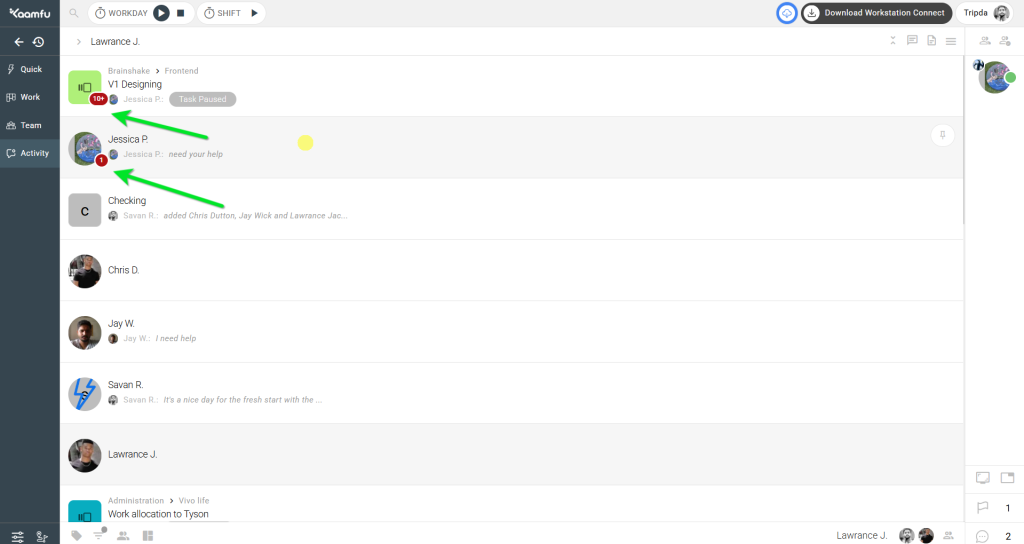
- Activity Panel: All-in-one hub showing activities you’re part of across Items, Boards, Spaces, Groups, and DMs. New updates are indicated with a count
.
.
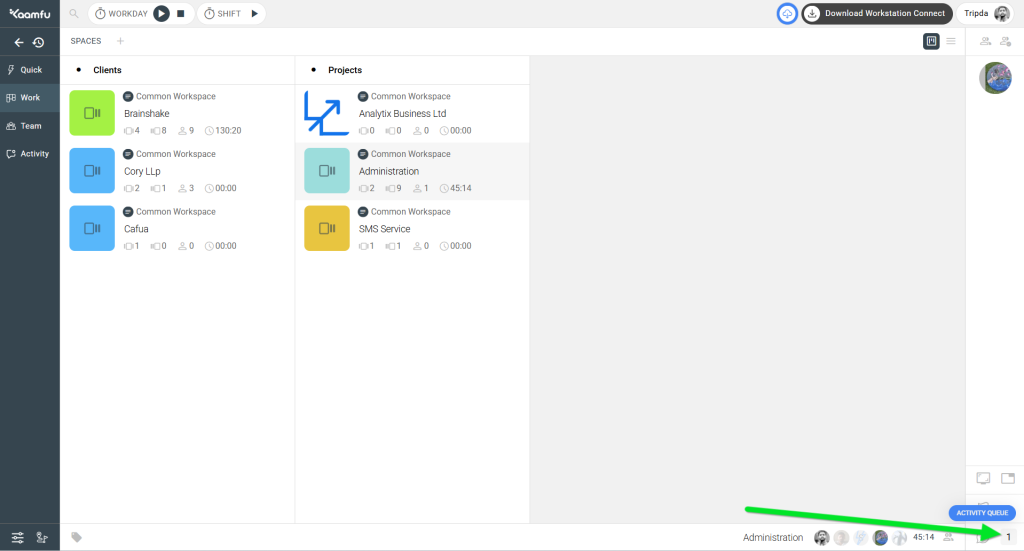
- Activity Queue: A bottom-right queue that surfaces new updates sequentially; click through them one by one
.
. - Notification Sounds: Real-time audio alert for new updates (uniform tone).
🎯 Why This Feature Matters #
- Prevents missed updates across busy projects
- Centralizes activity tracking and navigation
- Supports quick responses without context switching
💡 Key Benefits #
- Real-time visibility
- Faster follow-up on tasks/chats
- Lower chance of overlooking critical updates
🛠️ Step-by-Step Instructions #
1: Activity Queue: How to use the Activity Queue button?
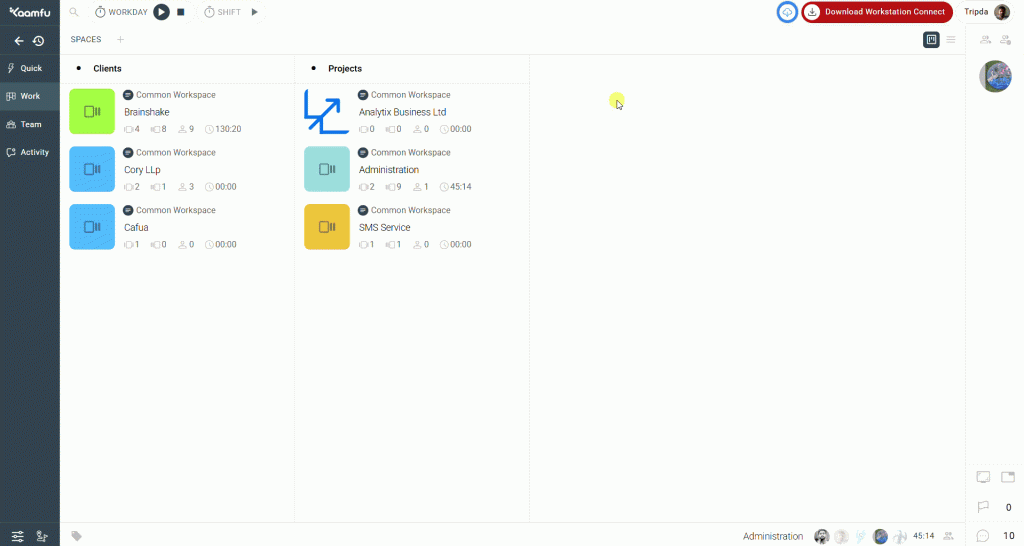
- Step 1: Look at the bottom-right Activity Queue icon; note the number badge (e.g., “4”).
- Step 2: Click the icon to open the first new update.
- Step 3: Click again to move to the next update until the count clears
.
 .
.
2: Activity Panel: How are notifications shown in the Activity Panel?
- Step 1: Open the Activity Panel in the left navigation.
- Step 2: Find activities with a red circle + number.
- Step 3: Click an activity to jump into its conversation/task and review updates
.
.