




✨ Introduction #
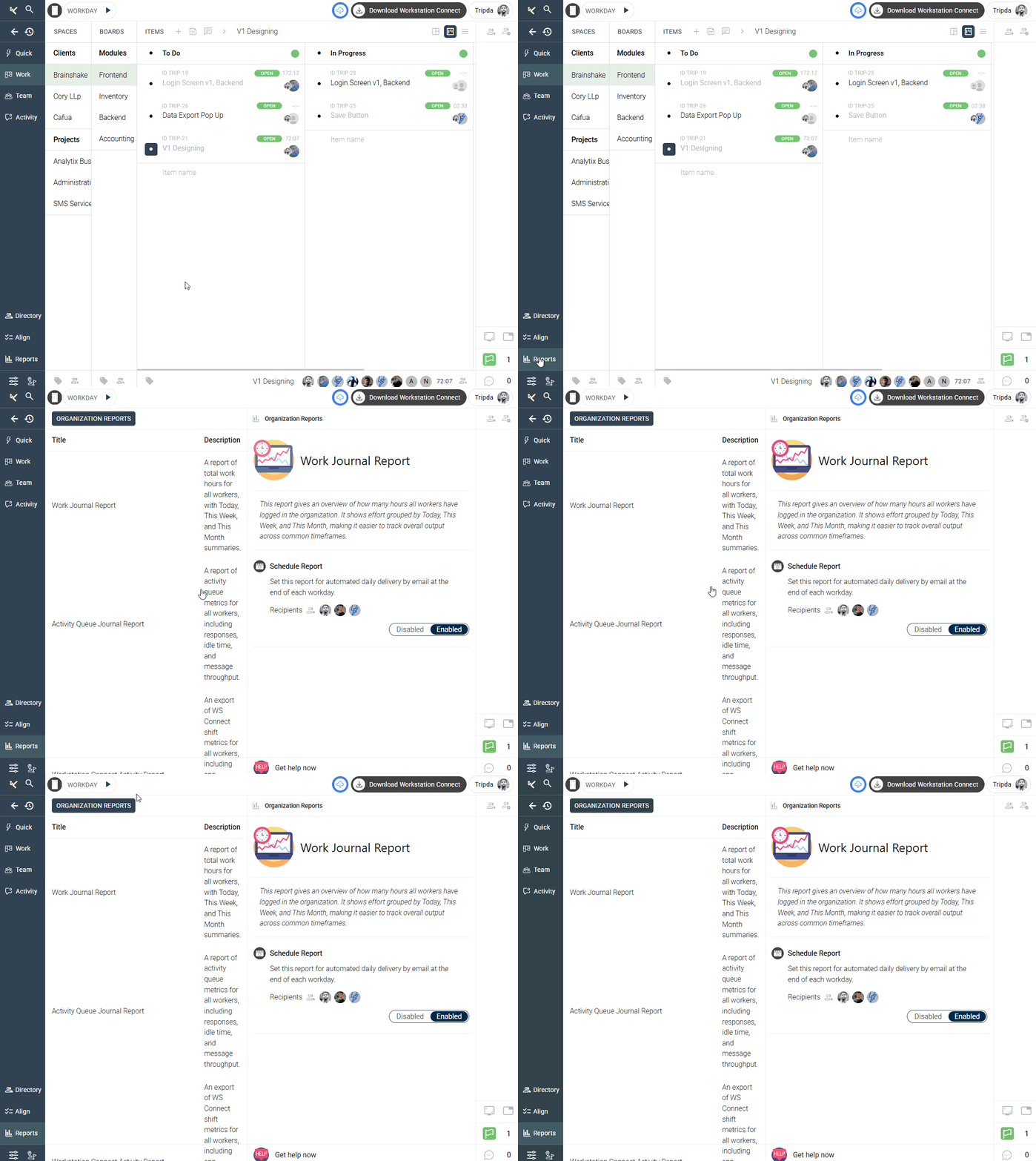
Kaamfu’s Report Scheduling feature lets you automate the delivery of important performance and activity reports directly to your inbox. Instead of manually exporting data every day, you can schedule reports to be emailed automatically at the end of each workday — ensuring you and your team always stay informed.
This feature saves time, promotes accountability, and ensures that key stakeholders always have the latest organizational insights without any manual effort.
.
🎯 Why This Feature Matters #
Regular reporting is vital for maintaining visibility, productivity, and operational awareness. By scheduling reports in Kaamfu, you can:
- Eliminate the need for manual exports or daily checks.
- Receive automated insights on effort, activity, and engagement.
- Keep team leads, admins, and organization owners updated daily.
- Reduce delays in decision-making by having data delivered proactively
With scheduled reports, Kaamfu helps leaders focus more on action, not data collection.
.
👤 Who Should Read This #
This article is intended for:
- Organization Owners who want daily visibility into performance metrics.
- Workspace Admins managing productivity and compliance.
- Managers who rely on timely data to track team output and responsiveness.
📝 What This Guide Covers #
In this article, you’ll learn:
- Which reports can be scheduled in Kaamfu.
- How to enable or disable automated delivery.
- How to add or remove teammates as report recipients.
- Best practices to manage and maintain scheduled reports effectively.
📄 Feature Overview #
The Reports Panel in Kaamfu allows users to schedule four main types of organizational reports for automatic email delivery:
- Work Journal Report — Tracks total logged hours (Today, This Week, This Month).
- Activity Queue Journal Report — Measures responsiveness, idle time, and engagement.
- Workstation Connect Activity Report — Displays shift duration, breaks, and input metrics.
- Effort Distribution Report — Summarizes logged man-hours and task counts across workspace areas.
All these reports can be configured to deliver daily email summaries to selected recipients.
💡 Key Benefits #
Scheduling reports ensures that data always stays within reach. Benefits include:
- Time Efficiency: No more manual downloads or repetitive exports.
- Automation: Daily delivery keeps insights consistent and timely.
- Accuracy: Reports are system-generated, eliminating manual errors.
- Visibility: Key metrics reach the right people automatically.
🛠️ How to Schedule Reports in Kaamfu #
Follow these simple steps to enable, manage, or stop scheduled reports:
1. Open the Reports Panel #
- Go to the Navigation Panel on the left side of your workspace.
- Click on the Reports icon to open the Reports Panel.
2. Locate the Desired Report #
- You’ll see the list of available organizational reports:
- Work Journal Report
- Activity Queue Journal Report
- Workstation Connect Activity Report
- Effort Distribution Report
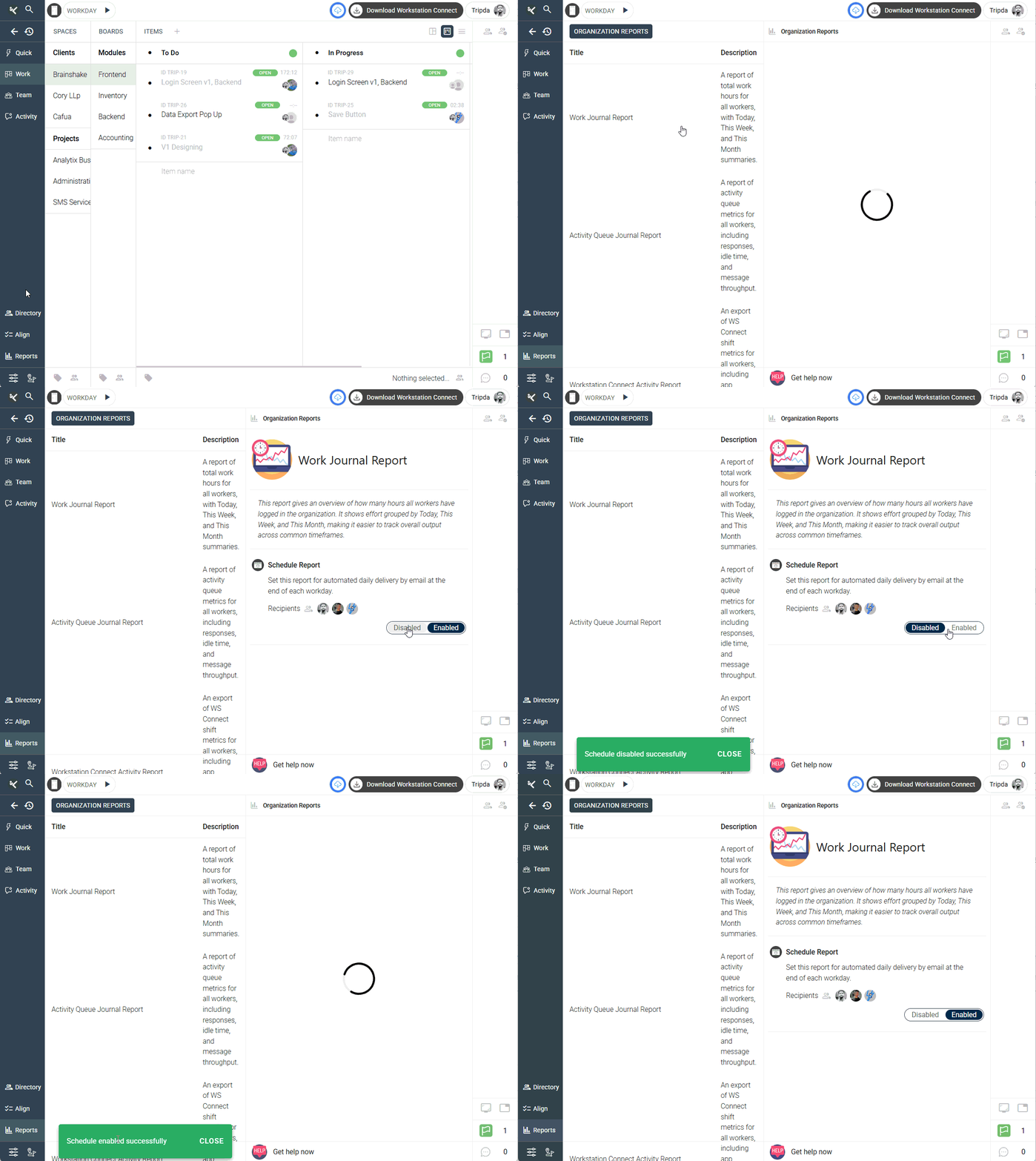
3. Enable Scheduling #
- Find the report you wish to automate.
- Use the toggle switch beside it to enable scheduling.
- Once enabled, Kaamfu will automatically send the report daily via email at the end of each workday.
4. Add or Remove Recipients #
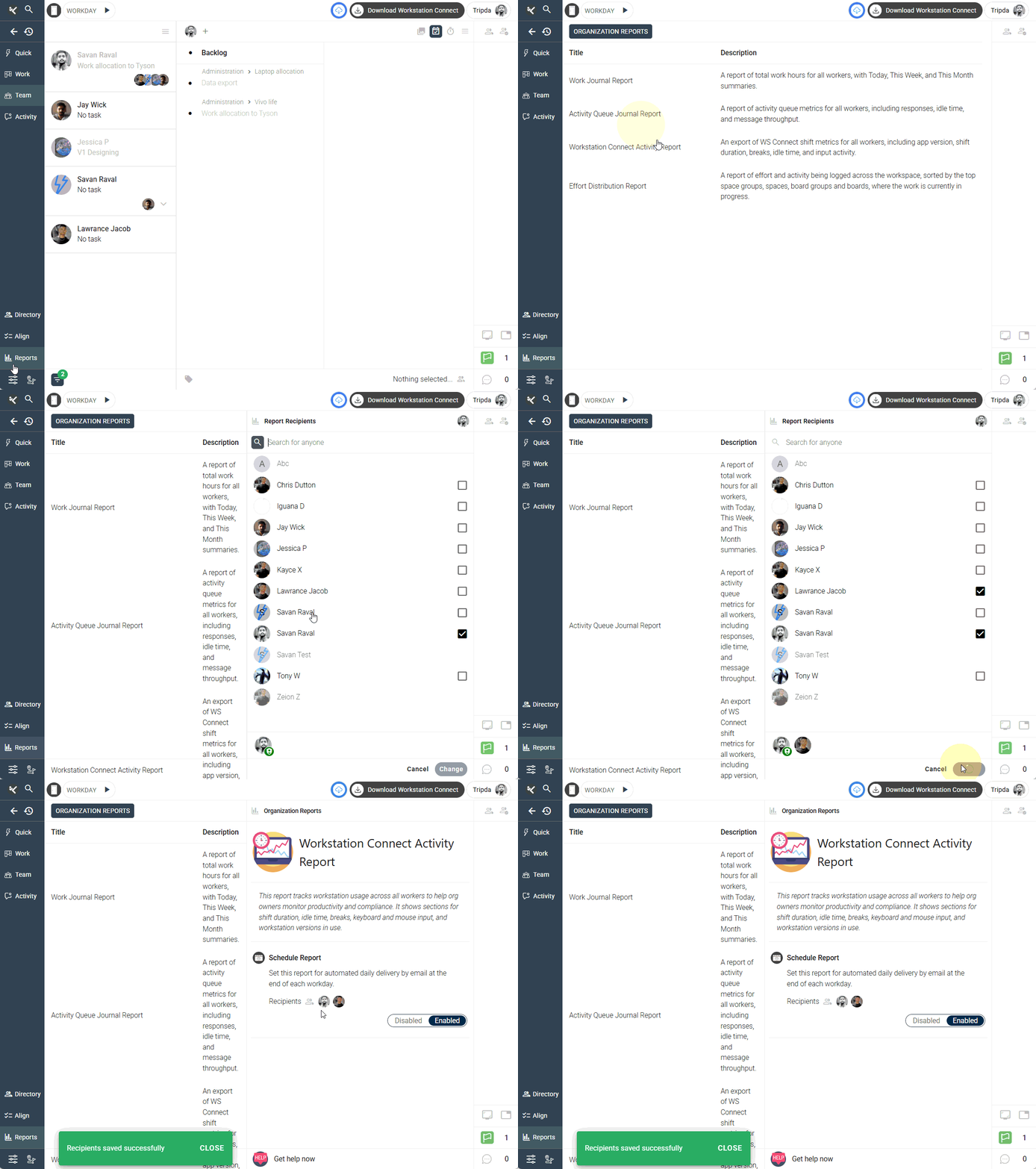
- Click on the report title to open its detailed view.
- In the right-side panel, click on the Recipient button.
- Select the teammates you want to receive the scheduled report.
- Click Change to confirm and save your selections.
5. Disable Scheduling (If Needed) #
- To stop receiving a specific report, simply turn off the toggle switch next to it.
- This immediately disables the daily delivery of that report.
💡 Tips:
- Review your report recipients periodically to ensure accurate delivery.
- Combine Effort Distribution and Work Journal Reports for the most complete operational overview.
- Encourage managers to use scheduled reports as part of weekly review meetings.
Following these tips will help you use scheduled reports more effectively.
🔗 Related Resources #
- What is the Reports Panel?
- How to Export Work Journal Reports
- Effort Distribution Report Overview
- Understanding Activity Queue