




Introduction #
When a Space, Board, or Item is no longer in use, deleting it helps maintain an organized and clutter-free workspace. Kaamfu allows you to delete individual items or entire groups, depending on your needs. This article explains both methods in detail.
Why This Feature Matters #
Over time, your workspace can accumulate unused data—old projects, completed tasks, or inactive boards. Deleting these helps:
- Keep your workspace clean and easy to navigate
- Improve focus by removing outdated or irrelevant information
- Reduce confusion across teams
Regular cleanup ensures your workspace reflects only the work that truly matters.
Who Should Read This #
This guide is helpful for:
- Workspace Admins managing structure and data
- Team Leads cleaning up department boards
- Individual users removing their own outdated tasks
Understanding who can delete what prevents accidental data loss and keeps workspace management efficient.
What This Guide Covers #
In this article, you’ll learn how to:
- Delete an entire group of Spaces, Boards, or Items
- Delete an individual Space, Board, or Item
- Safely confirm and finalize deletion actions
By the end, you’ll know how to maintain a well-structured and up-to-date Kaamfu workspace.
Feature Overview #
Each Space in Kaamfu acts as a container for Boards and Items. Depending on your access permissions, you can delete either an entire group (such as a Space or Board with all its Items) or a single element.
Deletions are permanent, so Kaamfu always prompts for confirmation before removal. It’s highly recommended to export a CSV backup of any important data before deleting.
Step-by-Step Instructions #
Kaamfu provides two ways to delete data: deleting an entire group (Space or Board) or deleting an individual element. Follow the steps that best match your needs.
Deleting a Group of Spaces, Boards, or Items #
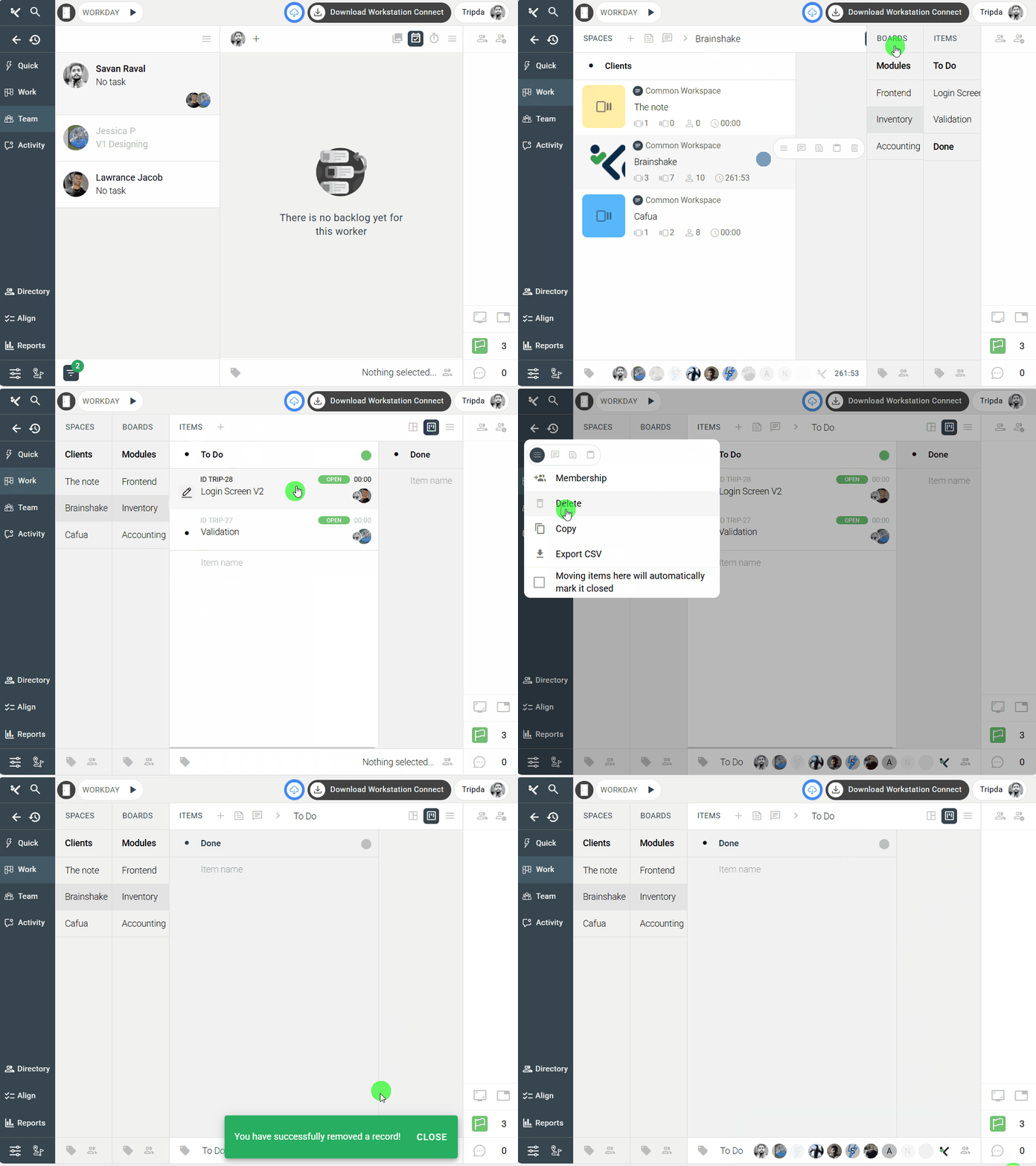
Use this option to remove an entire set of content—including all nested Boards or Items.
Step 1 #
Click on the desired group of Space, Board, or Item you want to delete.
Step 2 #
Click on Options located at the top-right of the group panel.
Step 3 #
Select Delete from the dropdown menu.
Step 4 #
Confirm your action by clicking Yes when prompted.
Once confirmed, the group and all its associated data will be permanently deleted from your workspace.
.
.
Deleting an Individual Space, Board, or Item #
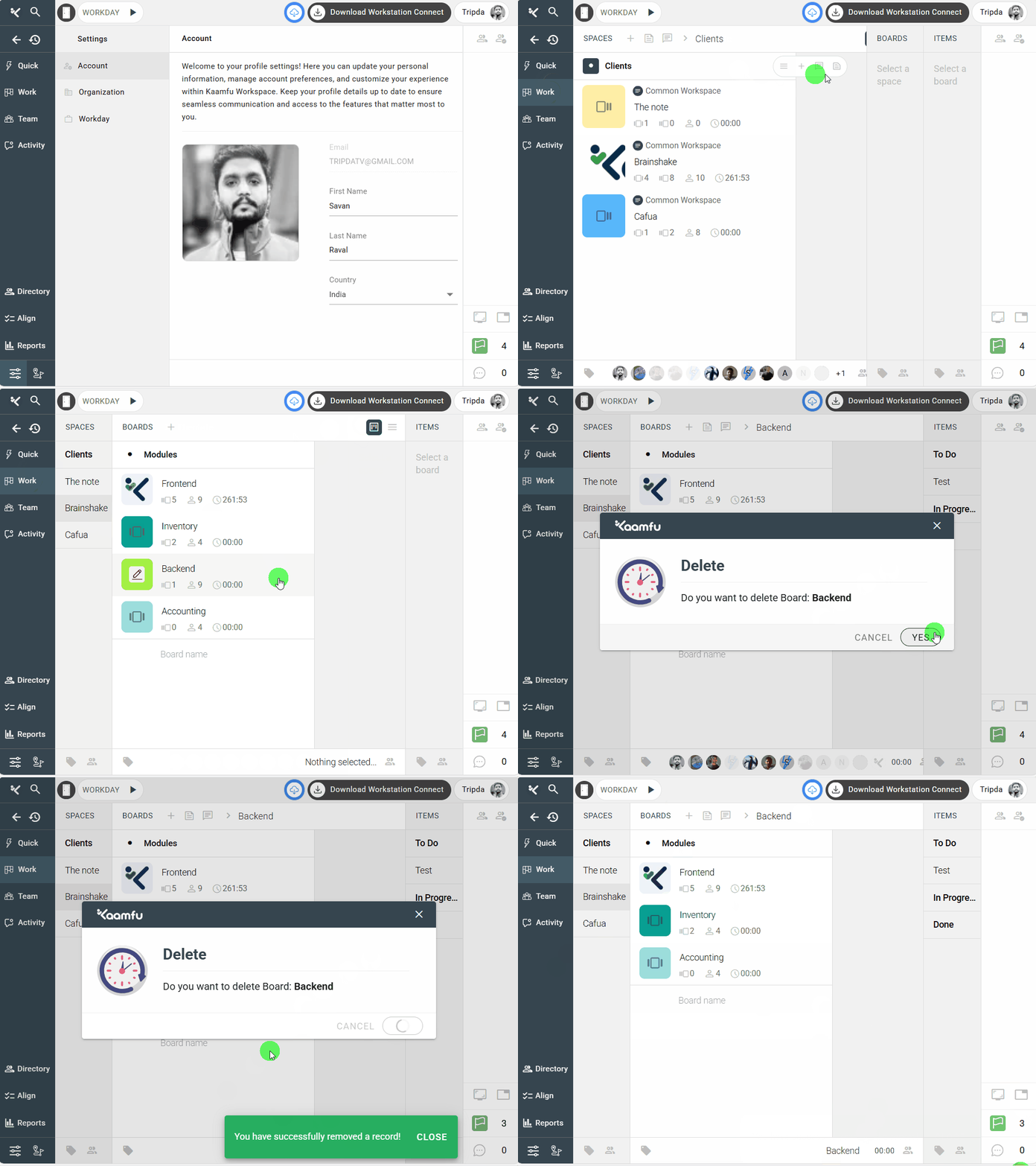
Use this method when you only want to delete one specific element without affecting others.
Step 1 #
Locate the specific Space, Board, or Item you want to delete.
Step 2 #
Click on it to open the detailed view.
Step 3 #
Click on Delete.
Step 4 #
Confirm your action by clicking Yes when prompted.
The selected element will now be removed permanently.
.
.
Related Resources #
For better workspace management and data safety, explore these helpful articles:
- How to Export Data as a CSV File in Kaamfu
- Managing Spaces and Boards Efficiently
- Understanding Roles and Permissions in Kaamfu
These resources will help you organize and maintain your workspace more effectively.