




✨ Introduction #
The Navigation Panel in Kaamfu is your central hub for managing work, tracking updates, and supporting your team. It brings together all essential components — workspaces, updates, team insights, and quick shortcuts — in one organized view to streamline collaboration and keep projects on track.
.
🎯 Why This Feature Matters #
Managing multiple projects, departments, and conversations can easily become overwhelming. The Navigation Panel solves this challenge by:
- Organizing departments, projects, and tasks into a clear hierarchy.
- Centralizing conversations so updates stay contextual.
- Giving managers visibility into team activity and progress.
- Providing instant shortcuts to create or access work faster.
Together, these features reduce noise, improve productivity, and keep your entire team aligned.
.
👤 Who Should Read This #
The Navigation Panel is designed for:
- Team Members → to manage tasks and updates.
- Project Managers → to track workflows and conversations.
- Team Leads/Admins → to monitor team progress and blockers.
No matter your role, the Navigation Panel ensures you can quickly find what matters.
.
📝 What This Guide Covers #
This guide walks you through each key section of the Navigation Panel:
- Work Panel → Organize spaces, boards, and items.
- Activity Panel → Stay updated with real-time notifications.
- Team Panel → Monitor team progress and performance.
- Quick Actions Menu → Instantly create new tasks and elements.
By the end, you’ll know exactly how to use each section to manage your daily work effectively.
.
📄 Feature Overview #
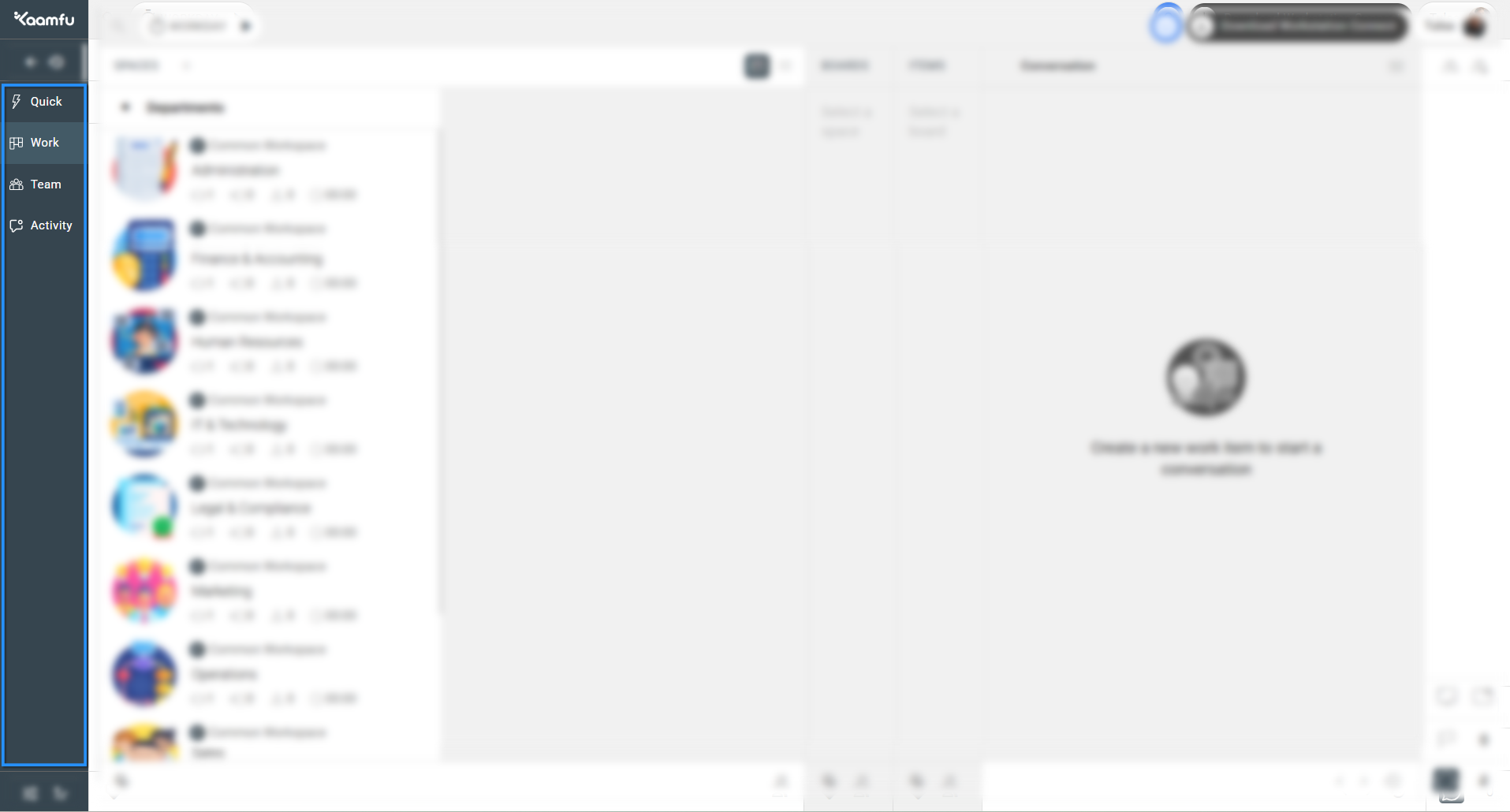
The Navigation Panel is divided into four main sections:
.
 .
.
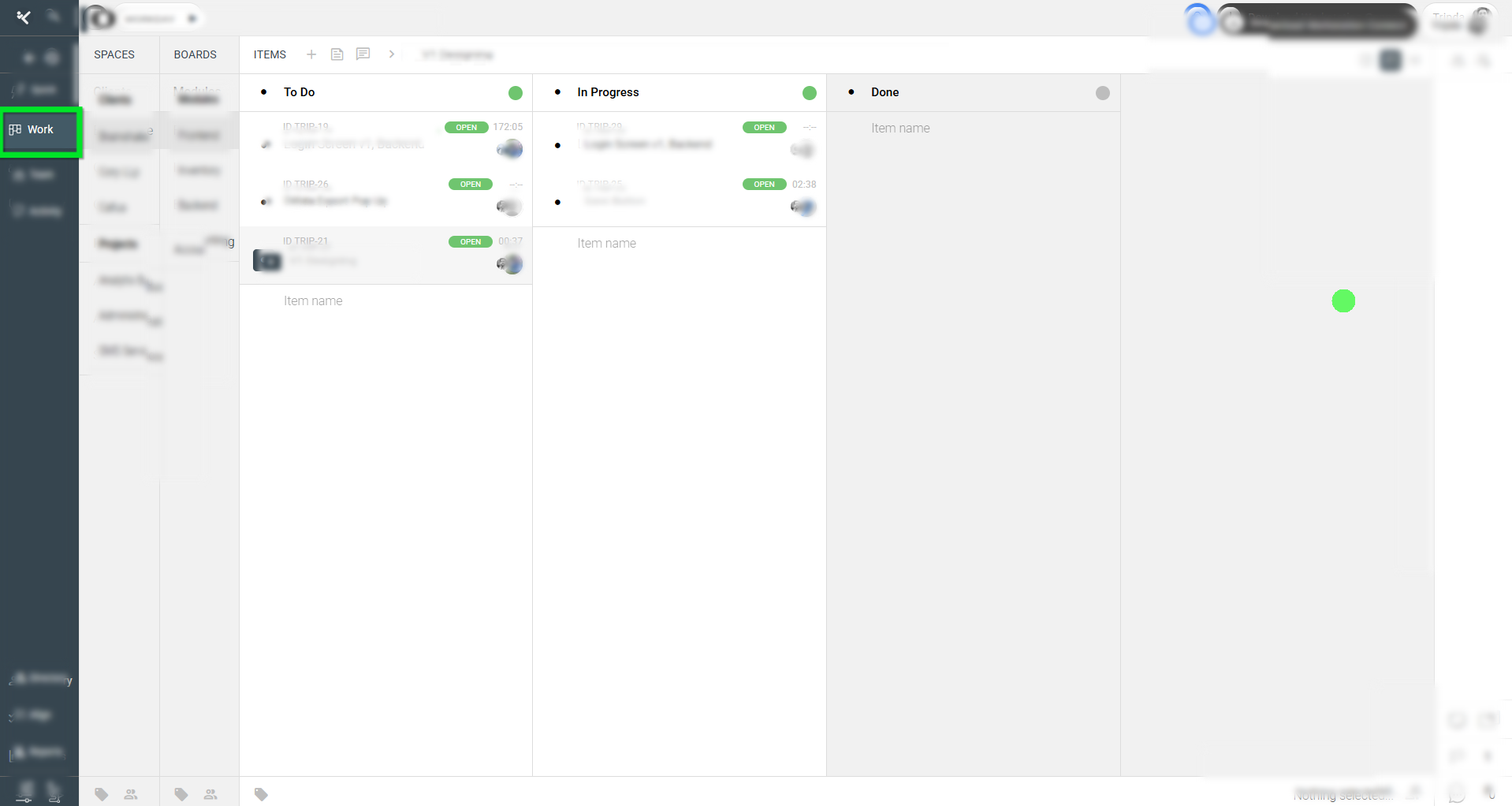
- Work Panel → Structure your company’s departments and projects.
- Spaces: Represent departments, each with a dedicated conversation area
- Boards: Represent projects or workflows within a Space.
- Items: Represent individual tasks or deliverables, complete with contextual chat and notes.
Together, these create a clear hierarchy for managing work.
.
 .
.
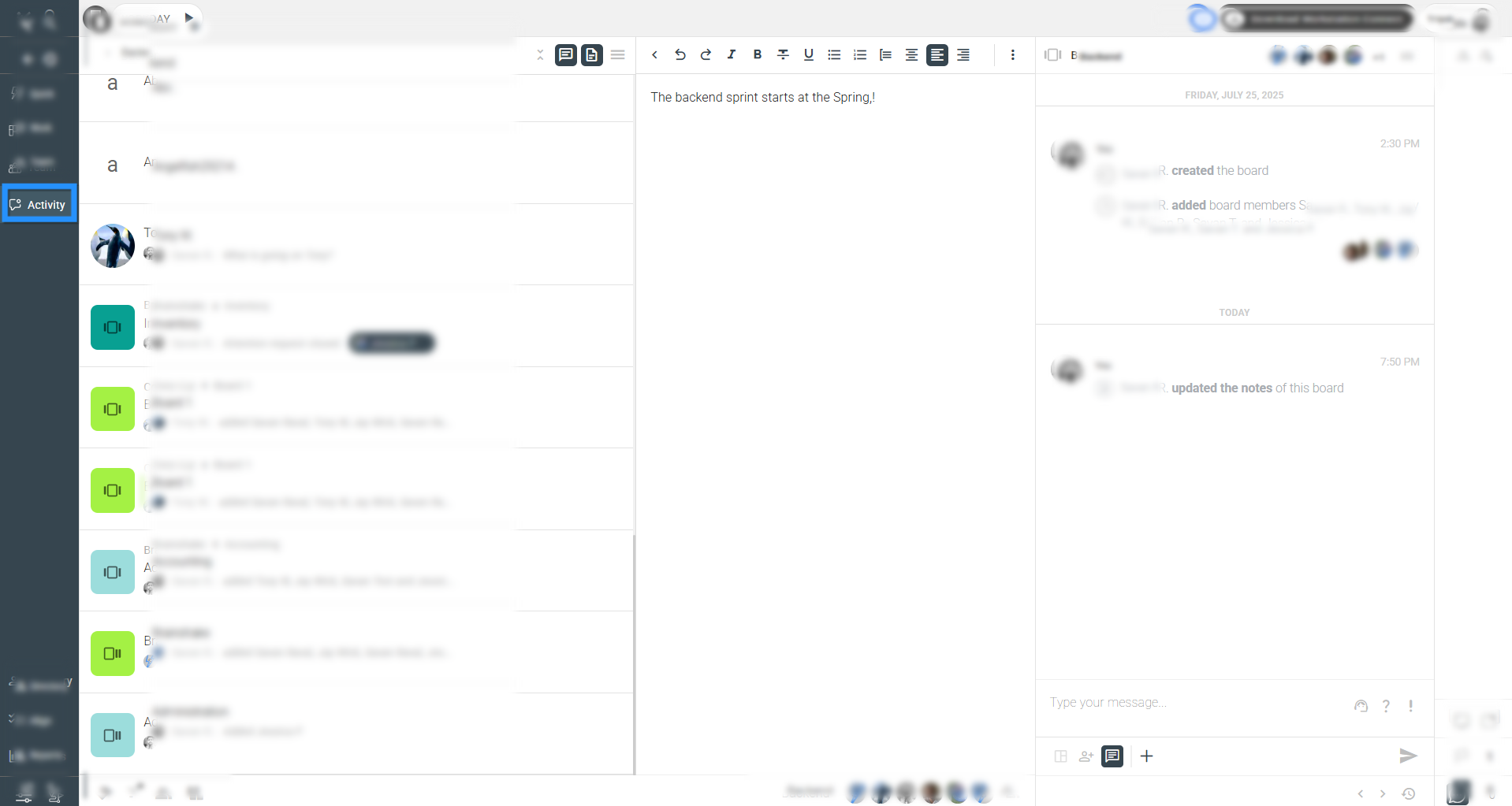
- Activity Panel → Your real-time update hub.
- Displays new messages, updates, and notifications across chats, Spaces, Boards, and Items.
- Red notification dots and counts highlight what’s pending since your last visit.
- A single click takes you directly to the relevant conversation.
.
 .
.
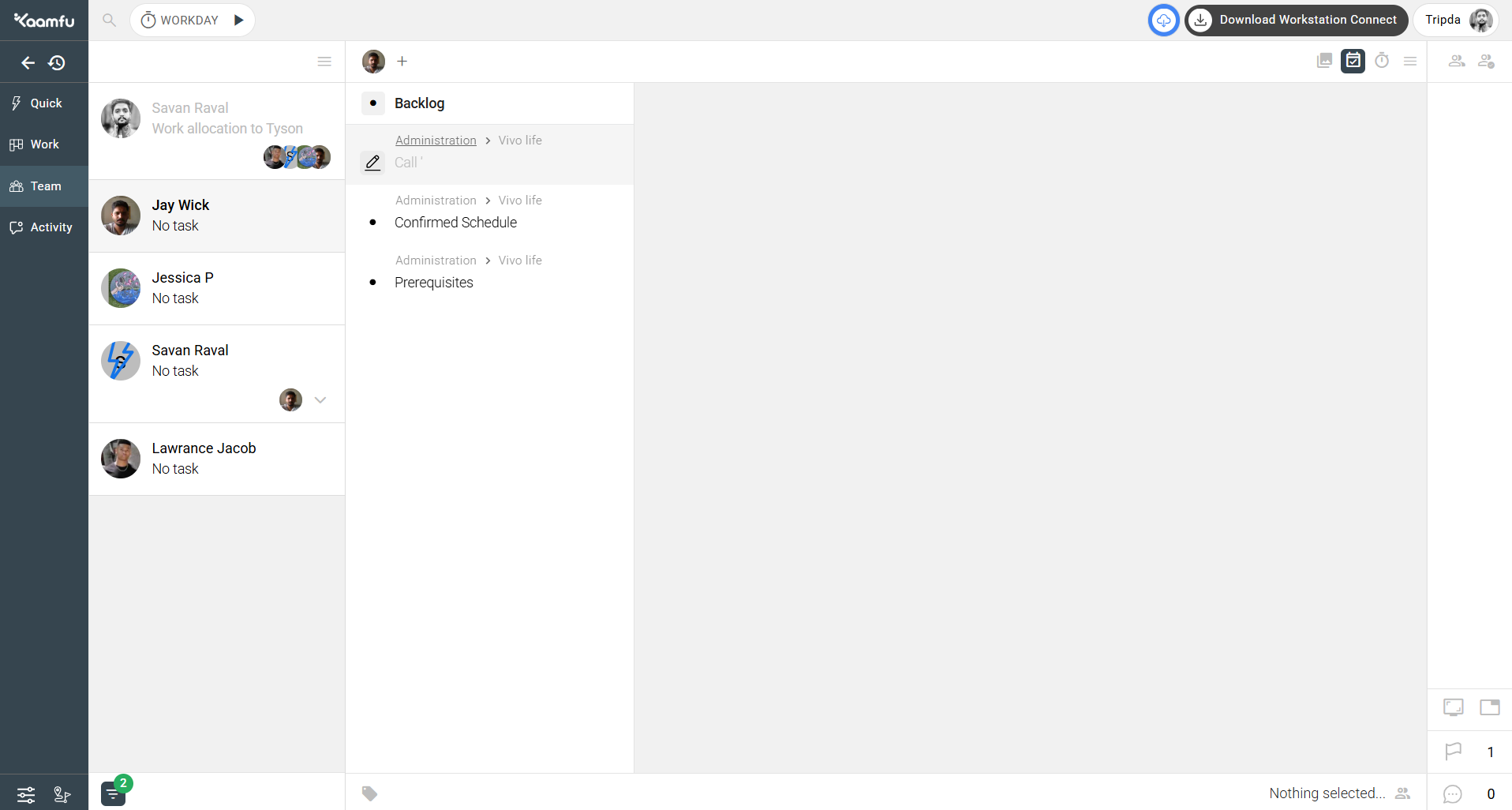
- Team Panel → Manager’s view for oversight.
- Shows all members under your supervision.
- Provides insights into workdays, timestamps, and backlogs.
- Integrates with Kaamfu Workstation Connect to capture screenshots and productivity metrics.
.
 .
.
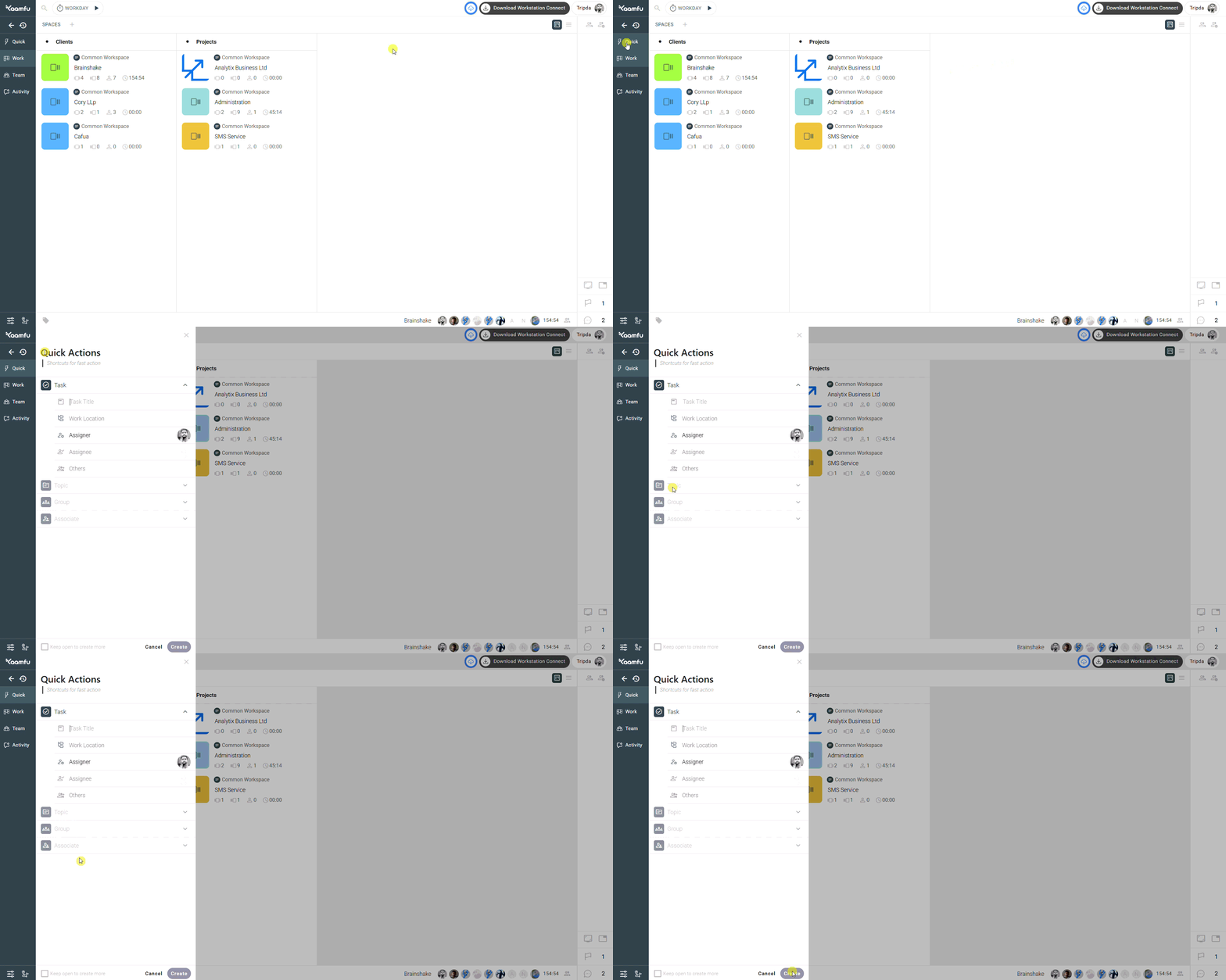
- Quick Actions Menu → Work smarter, faster.
- Accessible directly from the Navigation Panel.
- Lets you instantly create Spaces, Boards, Items, or Notes.
- Reduces clicks and navigation time by acting as a shortcut hub.
.
 .
.
💡 Key Benefits #
The Navigation Panel helps streamline your work in several ways:
- Clarity → Easily separate departments, projects, and tasks.
- Efficiency → Access updates and create new work instantly.
- Transparency → Give managers and leads visibility into team activity.
- Speed → Use Quick Actions to cut down repetitive clicks.
With these benefits, teams save time, reduce miscommunication, and stay aligned on priorities.
.
🔗 Related Resources #
Here are other resources to deepen your understanding:
- Exploring the Work Panel in Kaamfu
- How to Use the Activity Panel in Kaamfu
- How to Monitor Teams with the Team Panel
- How to Use Quick Actions Menu
These related articles expand on each section, helping you master the Navigation Panel step by step.