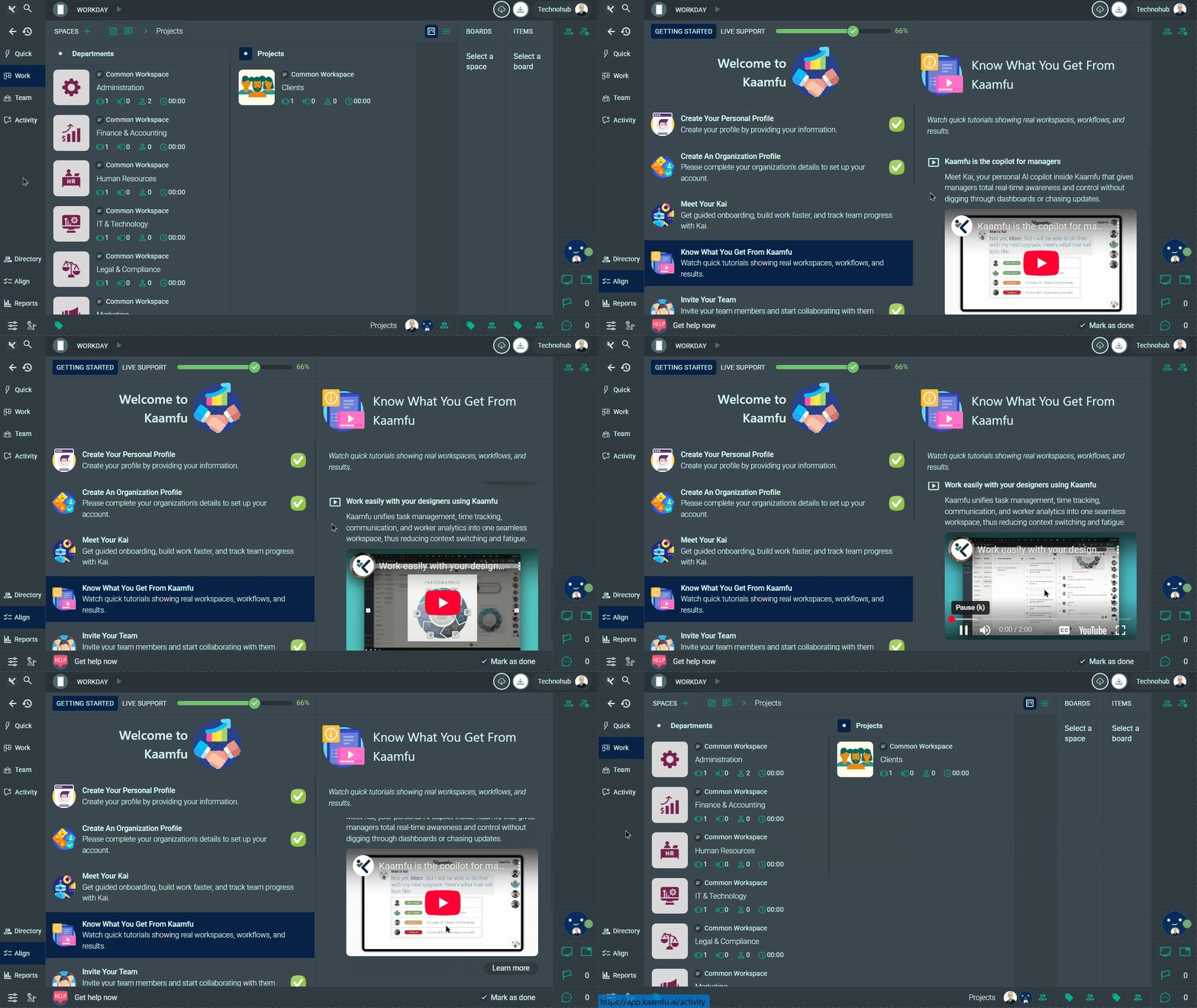


Kaamfu Workspace

Version : 2.1.8

The unified browser platform where teams manage work, communicate, and stay aligned in real time.

Kaamfu 2.1.9.9 — Seamless Migration, a Smarter Conversation Panel, Direct Access to the Team, and More

Kaamfu 2.1.9.9 addresses three things that have a direct effect on how teams adopt and use the product day to day. Teams moving from other tools need a reliable way to bring their history across without rebuilding from scratch. The surfaces teams use every hour should keep getting more capable with less friction. And when a team needs help, that help should be immediate and personal.

This release touches all of those areas. The import system has been rebuilt end to end, covering six platforms. The Conversation Panel has been extended into a more complete work surface. Mobile has its own dedicated experience for the first time. The Shift Bar surfaces the active task across more of the product. KAI takes a more proactive role in keeping managers informed. And direct access to the Kaamfu team is now built into the product on both desktop and mobile

Import From Anywhere

Kaamfu now imports full work history from Jira, Asana, Slack, Trello, Excel, and Prospus. Tasks arrive with their structure intact, conversations and comments are preserved, and file attachments travel with the items they belong to. Team members are mapped automatically, and if someone already exists in Kaamfu, the system identifies them without creating duplicates.

Former employees are handled separately: their history is preserved, but they are not re-invited. The import flow has been redesigned as a clear, step-by-step process with real-time progress tracking and a 100MB file size limit. Jira imports preserve parent-child task relationships. Slack imports include private channels. Asana imports support configurable field mapping. Each source is treated with the specificity the data requires.

Why This Matters

Migration has historically been one of the biggest barriers to switching project management tools. Here’s what what changes with this release:

  • History moves with the team: Teams can switch to Kaamfu without accepting data loss as a condition. Tasks, conversations, attachments, and member history all transfer.
  • Six platforms supported: Jira, Asana, Slack, Trello, Excel, and Prospus are all covered, with source-specific handling for how each platform structures its data.
  • The process is predictable: Duplicate user detection, former employee handling, duplicate import warnings, and validation errors at every step mean the import behaves consistently and gives teams full visibility into what is happening.

For teams that have been holding off because of what migration requires, these three points address the core of that concern directly.

Supported Sources

Each source has been implemented with handling specific to how that platform exports its data. The level of fidelity varies by source but in each case the goal is the same: 

  • Jira: CSV and API automation. Parent-child task relationships and conversation history are preserved.
  • Asana: CSV and API automation with configurable field mapping.
  • Slack: Includes private channels.
  • Trello: JSON and CSV, with correct status and archive handling.
  • Excel: Custom template with updated column naming for clarity.
  • Prospus: ZIP file import. Board structure, columns, and tasks are created automatically based on the data provided.

Support for these six sources covers the majority of the tools teams are moving from, and the list will continue to grow. For teams that have been reluctant to switch because of what migration requires, this release removes the primary obstacle. The work already done in other tools belongs to the team, and Kaamfu is now built to receive it fully.

Connect With Our Founder in One Click

When a team runs into a problem, the path to getting help matters. A ticket queue adds delay and distance between the question and the answer. A knowledge base assumes the team can find and interpret what they need on their own. Neither approach works well when a team is onboarding, evaluating the product, or navigating something unfamiliar for the first time.

Kaamfu now gives org owners and admins direct access to Marc, the founder, from inside the product on both desktop and mobile. On desktop, Marc’s avatar appears on the Workline Status Panel with a green online indicator, in the same position where teammates appear. Clicking his avatar opens five ways to connect: book a session, call, text, WhatsApp, or email. A HELP button in the main application header provides the same access from any screen. On mobile, Get Support appears in the profile dropdown and connects to the same five options. Every interaction is logged, so the team can see when and how support is being used.

Why This Matters

Support that is visible and immediate changes how teams feel about using a product, especially during onboarding and early adoption. This is what it looks like in practice:

  • Direct access to the founder: Org owners and admins can reach Marc without going through a support queue or searching for contact details.
  • Available on every screen: The same five contact options are accessible from the Workline, the app header, and the mobile profile menu. The path to support is consistent regardless of how the product is being used.
  • Visibility into support usage: Every click is tracked and logged, giving the team a clear picture of when and why users are reaching out.

Making support visible and immediate is a product decision, and it reflects a belief that the best software is built with the people using it close at hand.


The Conversations Panel Is Now Even More Powerful

The Conversation Panel is where most of the active work in Kaamfu happens. Discussions, decisions, file sharing, effort tracking, and task context all live there. Over time, accessing related tools such as Notes and the active task has required navigating away from the panel, which breaks the flow of the work being done.

The panel has been extended to keep more of what users need within reach, without adding navigation or complexity. Every addition in this release is accessible from within the panel itself:

  • Notes in the footer: Toggle the Notes panel directly from the conversation footer without navigating away or losing your place.
  • Active task icon on the chin: The currently running task is visible at all times, regardless of which conversation is open, giving users a fixed reference point throughout the working session.
  • Effort timer, side by side: Today’s clocked time and the assignee’s total clocked time are displayed together, readable at a glance without opening anything else.
  • Scroll-to-latest arrow: When reviewing older messages, a single click returns to the most recent message in the conversation.
  • Larger file uploads: Files up to 100MB can be uploaded directly in the conversation, including SVG files.
  • Redesigned request icons: Attention Request, Support Request, and Status Request icons now use a pill-style design that makes them easier to identify and act on.

Each of these changes targets a specific moment in the working session where users previously had to leave the conversation or work around a limitation to get something done.

Why This Matters

The value of these changes is in how they reduce the number of times a user has to leave a conversation to do something related to it. Here’s what this means:

  • Fewer reasons to leave the conversation: Notes, the active task, and effort data are all accessible from within the panel. Work stays in context.
  • The running task stays in view: The active task icon on the chin does not change based on which conversation is open, so users always know what is running without needing to check the Shift Bar.
  • The panel handles more: Larger file uploads, SVG support, and cleaner request icons extend what the Conversation Panel can do without changing how it feels to use.

Each of these points addresses a specific friction in how teams currently move through the product, and together they add up to a noticeably smoother working session.

Switch Tasks Instantly with the Active Task Menu

As users move between conversations and panels, the task they are running becomes harder to see and act on without returning to the Shift Bar directly. This release puts the active task in front of users across more of the product, without requiring any extra steps.

The active task icon now appears on the Conversation Panel chin and stays there regardless of which conversation is open. Clicking it once opens the task dropdown. Double-clicking opens the task’s conversation directly. The Resume and Start buttons now appear on the task effort display in the Shift Bar, which is where users are already looking when they want to act on a paused task. A visual indicator on the task pill confirms at a glance whether a task is currently running. When a session ends with no task running or paused, the Shift Bar displays a clear prompt to start the next task.

Why This Matters

Task visibility and task switching are related problems. When users cannot easily see what is running, deliberate task management becomes harder. These points explain how this release addresses both.

  • The active task stays visible: The chin icon persists across all conversations, so users always have a reference point for what is running without leaving what they are doing.
  • Task switching requires fewer steps: The dropdown from the chin icon and the Resume button on the effort display both reduce the number of actions needed to switch between tasks.
  • Gaps in tracking are surfaced: The prompt that appears when no task is running gives users an immediate signal that time is passing untracked, rather than letting it go unnoticed.

These three changes work together: visibility leads to awareness, awareness leads to action, and the prompt closes the loop when a session goes quiet.

A Dedicated Mobile Experience

Kaamfu’s mobile website has previously shared the same theme and interface structure as the desktop version. This release gives the mobile website its own foundation.

The mobile website now has its own dedicated theme: clean, monochrome, and built specifically for smaller screens. It applies automatically when users access Kaamfu on a mobile device and is independent of whatever theme is set on desktop. The Team and Activity panels are now available from the mobile footer menu, each with a dedicated page. The header has been simplified to show the Workday icon alongside the current shift duration, giving users a clear view of their session status without the complexity of the desktop version. Get Support appears in the mobile profile dropdown and connects directly to all five ways to reach the Kaamfu team.

Why This Matters

A mobile experience that is purpose-built rather than adapted performs differently for the people using it. These three points cover what this release changes.

  • Mobile has its own visual foundation: The monochrome mobile theme is designed for the screen size it runs on, rather than inheriting settings from a desktop layout that were not built for it.
  • More of the product is accessible on mobile: Team and Activity panels in the footer menu expand what users can see and do when they are away from their desk.
  • Support and session status are always reachable: Shift duration in the header and Get Support in the profile dropdown are accessible from every screen in the mobile experience.

Together, these changes mean that a user on mobile is working with a product that was designed for that context, not one that was compressed to fit it.

KAI Now Alerts Your Manager Automatically

KAI generates hourly user stories throughout the working day: structured, plain-language summaries of what each team member is working on, how far through it they are, and how they are engaging with their tasks. These stories have been available in the Team panel for managers to review, but reviewing them has required the manager to go looking.

When a team member’s task end time is within three hours, KAI now sends that story directly to the member’s manager as a direct message, without any action required from either side. The manager receives the information while there is still time to respond to it.

User stories in the Team panel are now collapsible, making it easier to move through a team member’s history. Story generation is more consistent across weekly and monthly timeframes, and stories are no longer generated for disassociated or inactive users.

Why This Matters

Proactive information delivery changes the dynamic between a manager and their team. These three points explain the significance of this change.

  • Managers receive information when it is still useful: A three-hour window gives the manager enough time to act, whether that means offering support, adjusting scope, or simply acknowledging the situation.
  • The alert requires nothing from anyone: KAI sends the message based on what it observes in the story data. There is no trigger, no request, and no dashboard to check.
  • Stories are more reliable and easier to use: Collapsible views in the Team panel, more consistent generation across timeframes, and filtering of inactive users all make stories a more dependable part of daily work.

The result is a manager who is informed at the right moment, without either side having to do anything to make that happen.

More in This Release

In addition to the features covered above, a range of further improvements have shipped across the Work Panel, visual design, performance, and security. These changes are smaller in scope but consistent in direction: making Kaamfu cleaner, faster, and more reliable across the board.

Work Panel

Three changes improve how spaces, boards, and team members are represented and counted across the Work Panel.

  • Default Space avatars have been updated to more professional icons across the Spaces Subpanel.
  • KAI member counts are now shown separately from human member counts on Space and Board cards, giving a clearer picture of team composition at a glance.
  • Assignee and assigner avatars on the Board Dashboard are now ordered by role hierarchy and sorted alphabetically within each role.

Each of these addresses a specific readability gap that becomes more noticeable as organizations grow and boards multiply.

Collectively, the Work Panel is now easier to scan, easier to interpret, and more consistent in how it represents the structure of the teams and spaces within it.

Visual Design

Two updates affect the default visual presentation of the product, both in the main application and on the pages users encounter before they sign in.

  • The default web theme has changed from blue to monochrome, giving Kaamfu a cleaner out-of-the-box appearance.
  • The Sign In, Sign Up, OTP, and Forgot Password pages have been updated from the previous blue design to a clean white and grey layout.

Both changes move the product toward a more neutral visual baseline, which works better across a wider range of team and organizational contexts.

For new users, these are among the first things they see. A cleaner, more professional presentation sets a more accurate expectation of what Kaamfu is.

Performance

Real-time sync events across the platform are now processed in batches of 100 rather than individually. For organizations with many active users working simultaneously, this reduces load during collaborative sessions and keeps the product performing consistently under pressure.

Security

Cross-Origin security headers have been added across the platform following a scheduled security audit. This strengthens protection against common web vulnerabilities and applies to all accounts with no configuration required.

Taken together, these changes reflect the same principle that runs through the rest of this release: every part of the product should work better than it did before, for everyone using it.

106

Kaamfu 2.1.8: Expanded Kai Stories, Performance Improvements, Workflow Refinements, and more

Kaamfu 2.1.8 builds on the foundation laid in 2.1 with a series of focused improvements that make the platform faster, clearer, and more supportive in day to day use. These updates refine how work is understood, how teams stay informed, and how users are guided through the system from their very first session.

Each enhancement strengthens Kaamfu’s role as a single environment where work is visible, structured, and continuously understood.

Kai Stories Expand Across Timeframes

Kaamfu’s AI Assistant’s user analyses have evolved from an hourly snapshot into a full time intelligence layer.

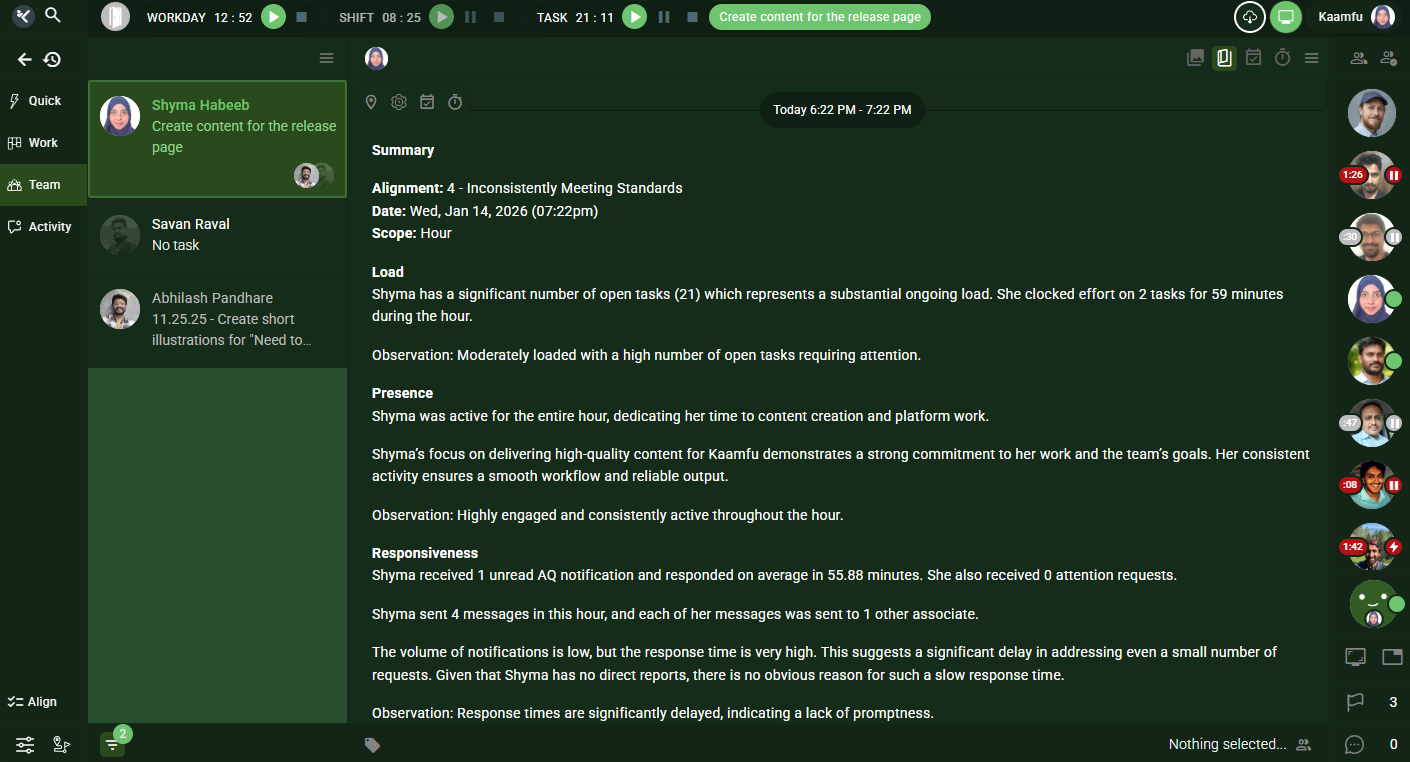
Kai now generates user stories for Day, Week, Month, Quarter, and Year, in addition to the existing hourly view. These stories live in the Team panel, giving managers and teams a deeper understanding of work patterns over time.

This expansion moves stories beyond momentary insight into long range clarity.
Why This Matters

Expanding stories across timeframes sends a clear signal about how Kaamfu understands work.

  • Work as a continuum: Teams can now see how effort, focus, and responsiveness evolve across longer periods, not just single hours.
  • Managerial visibility with context: Leaders gain meaningful insight without relying on fragmented reports.
  • AI that understands work reality: Kai now reflects real work cycles instead of isolated activity snapshots.

This reinforces Kaamfu’s position as a system designed to observe, interpret, and explain work over time.

How It Works
  1. Log in to your account at Kaamfu
  2. Go to the Team panel
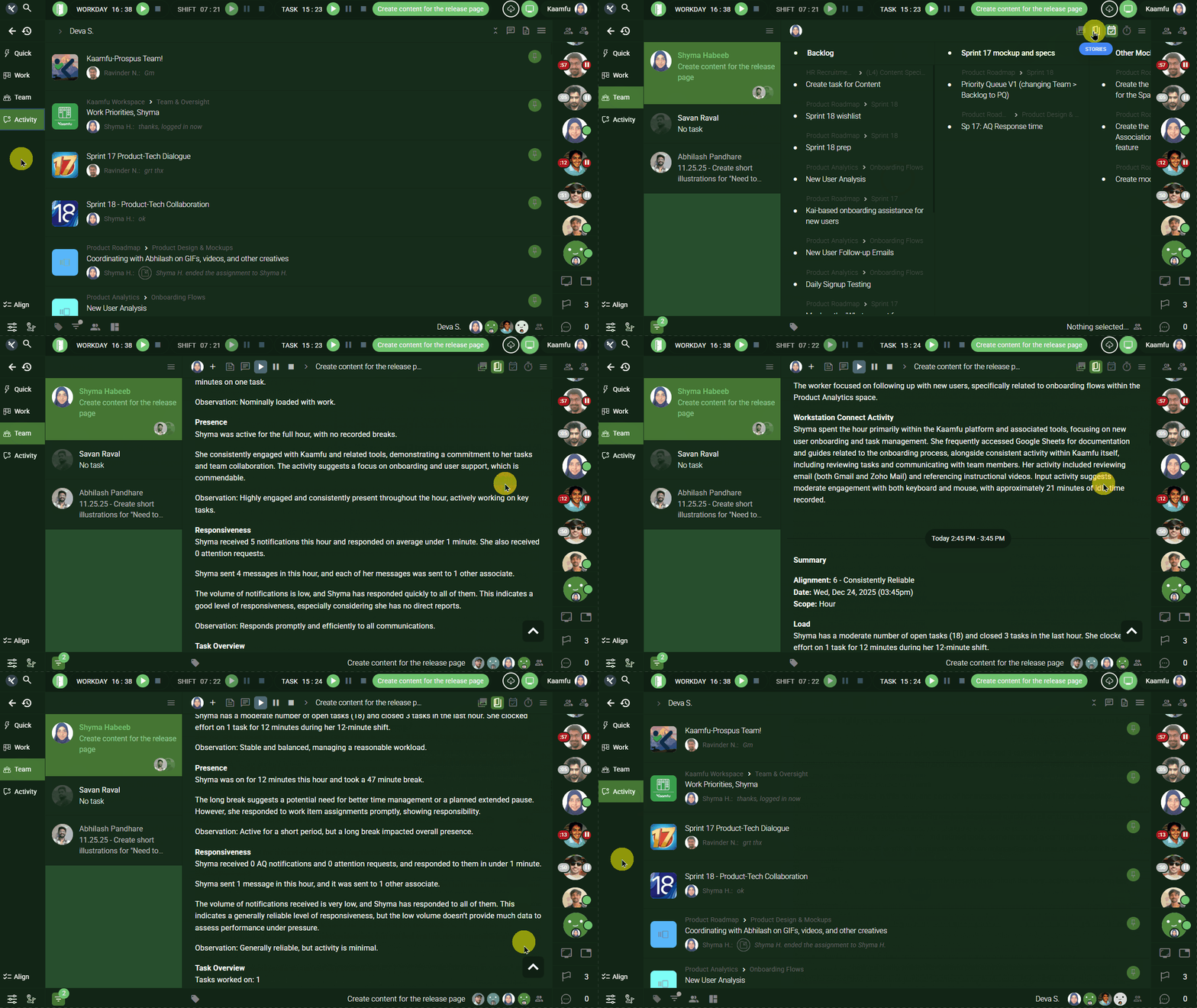
  3. Click the Stories icon in the panel header
  4. The Stories panel opens, showing stories for each worked hour of the day
  5. Scroll down to view stories from previous days

Stories automatically extend backward as you scroll, allowing you to review historical work patterns.

Visibility rules apply automatically
  • Organization owners can view everyone’s stories
  • Assigners can view stories of their assignees
  • Individual users can view only their own stories

What Each Hourly Story Shows

Each hourly story is structured into clear sections that explain what happened and what it means.

Summary
  • Alignment score and reliability classification
  • Date and time of the story
  • Scope of analysis, for example Hour
Load
  • Open tasks count and task effort during the hour
  • Task creation and closure activity
  • Downline effort if applicable
  • Includes an observation that explains workload strain or balance.
Presence
  • Whether the person was active for the full hour
  • Nature of work performed and focus areas
  • Includes an observation describing engagement and depth of focus.
Responsiveness
  • Messages received and sent
  • Median and average response times
  • Unread notifications
  • Includes an observation about communication effectiveness.
Task Overview
  • Tasks worked on
  • Effort clocked
  • Tasks created
  • Includes context on where the work occurred.
Workstation Connect Activity
  • Applications and URLs used
  • Keystrokes and mouse activity
  • Idle time if any

This section grounds the story in real activity signals, creating a complete and explainable view of work.

Task Pill Now Shows All Open Tasks

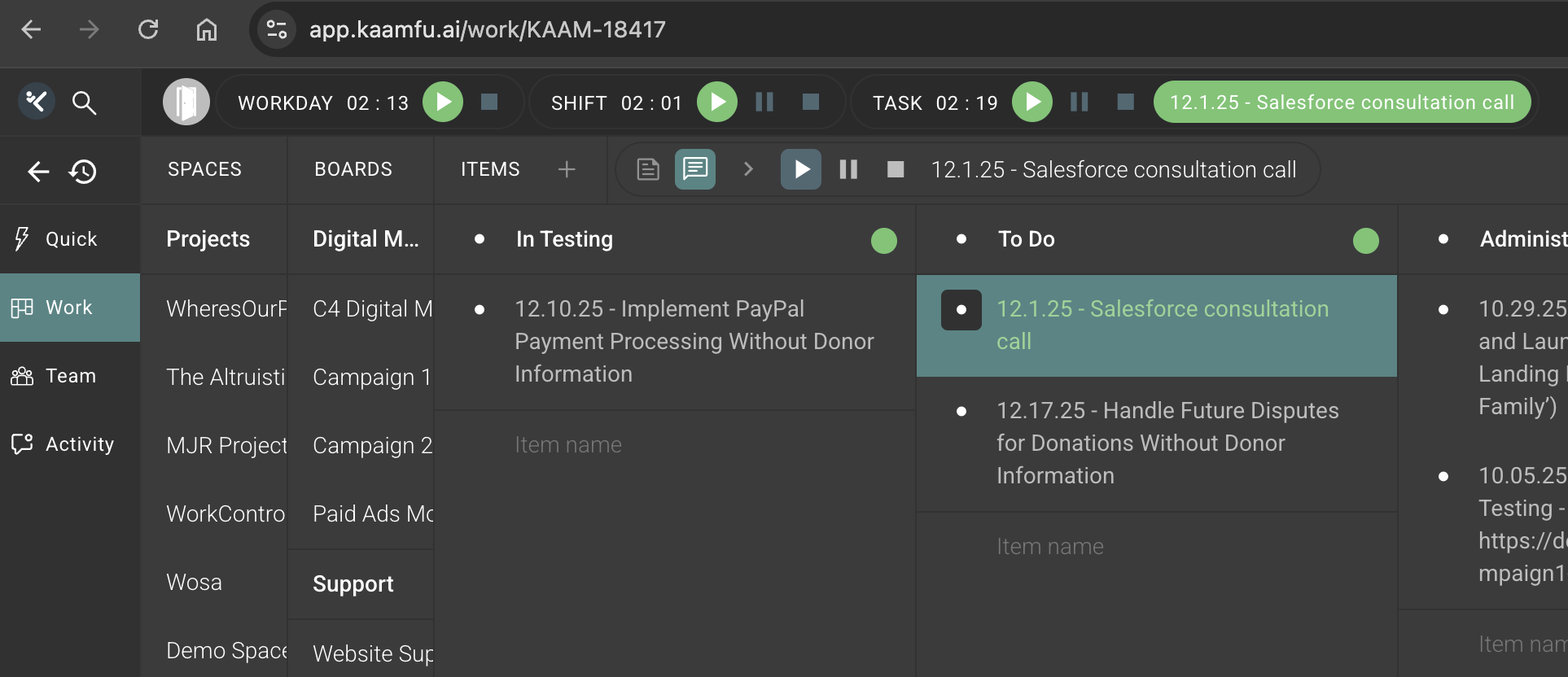
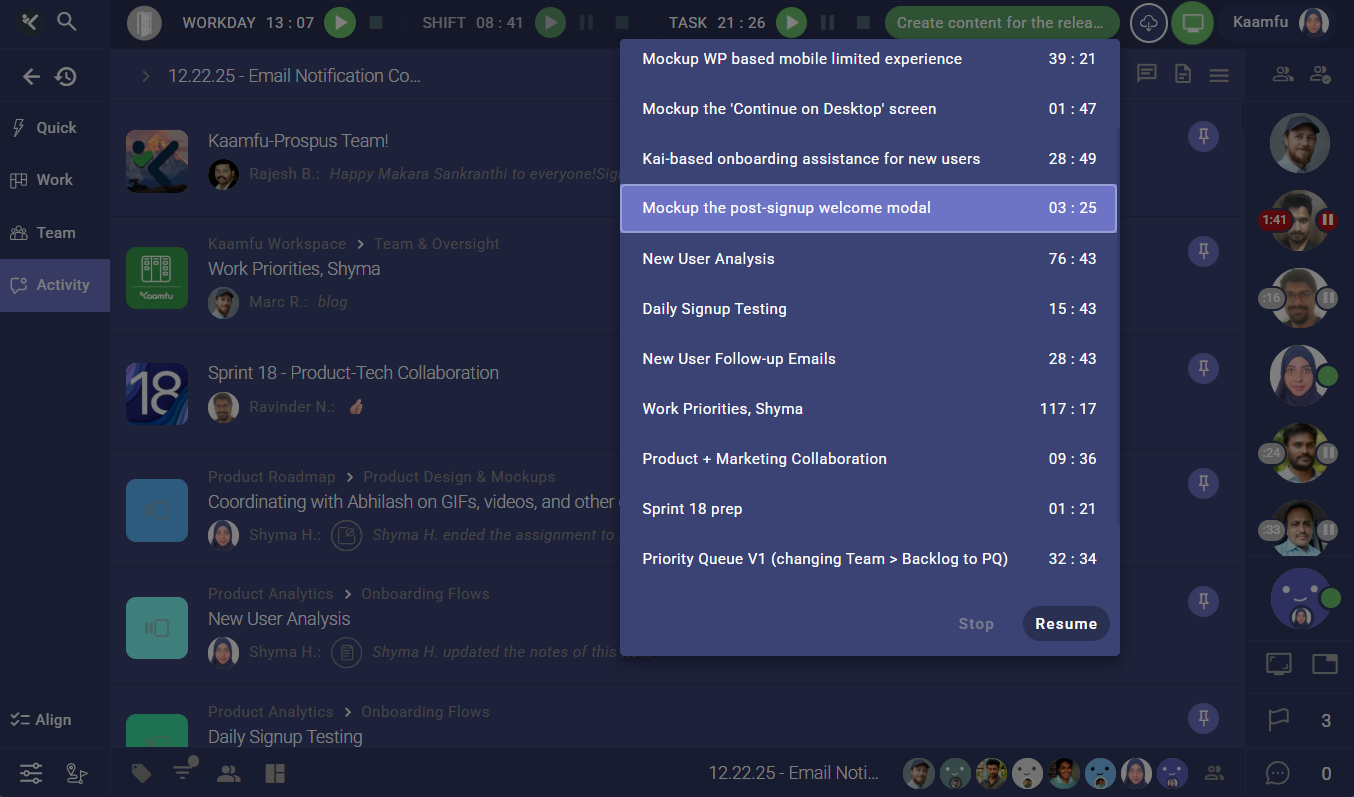
The Task pill in the top time panel has been refined to better reflect active work. Clicking the Task pill now surfaces only your open tasks, so task switching stays focused on what is currently actionable. The top panel continues to show Workday, Shift, and Task pills, each with their own timers.
Why This Matters

This change aligns the interface with how users think about work in progress.

  • Clear task focus: Users see only tasks that are still actionable.
  • Reduced cognitive load: Closed work no longer interferes with active decisions.
  • Better time alignment: Task selection now maps cleanly to task timers.

This keeps attention on what matters now.

How It Works

The Task pill gives you two fast paths, one for managing your full backlog, and one for switching tasks instantly.

Backlog access from the pill
  1. Click Task in the pill
  2. Your backlog opens in the Team panel
  3. The backlog lists all your current open tasks

From there, you can locate tasks in the Work panel, start other listed tasks, and take additional actions available in the backlog view

Quick switching from the pill dropdown
  1. Click the task name inside the Task pill
  2. A dropdown opens showing all your open tasks
  3. Single clickany task to reveal Resume and Stop buttons at the bottom of the list
  4. Click Resume to switch your current task to the selected task and begin tracking effort
  5. Click Stop to end the current task assignment
  6. Double click any task in the list to open its conversation on the right side, without closing the dropdown list

This flow keeps task switching lightweight while still giving you direct access to the full backlog when you need it.

Workday Timer Is Now Visible to Everyone

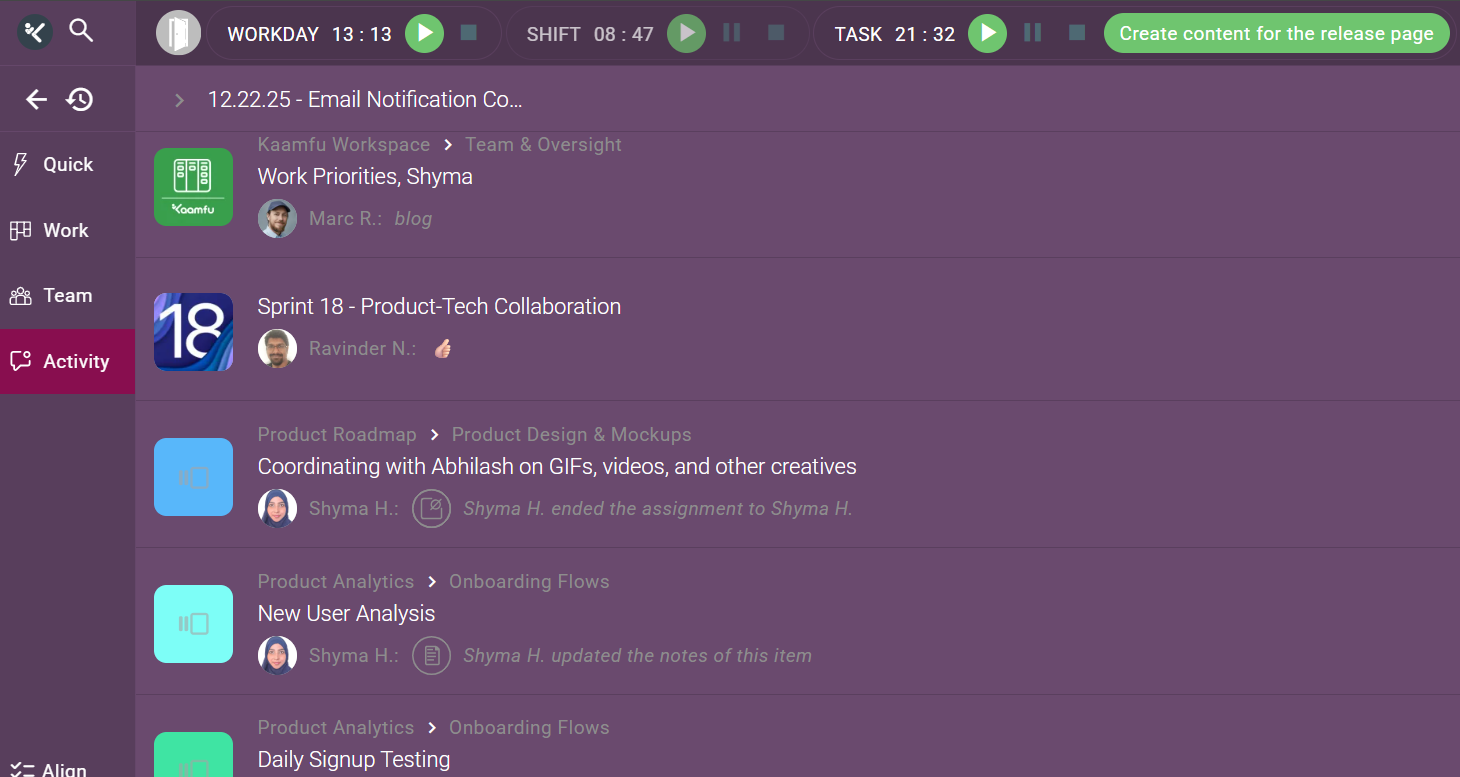
The Workday pill now displays a live timer for all members, not just organization owners and admins.

Previously, only owners and admins could see the workday controls. While they still retain the ability to start and stop the workday, all users can now see how long the workday has been running.
Why This Matters

Visibility creates shared context across the team.

  • Shared awareness: Everyone knows how far into the workday the team is.
  • Clear boundaries: Work time becomes explicit rather than assumed.
  • Leadership without opacity: Control remains centralized while visibility is shared.

This supports healthier, more transparent work rhythms.

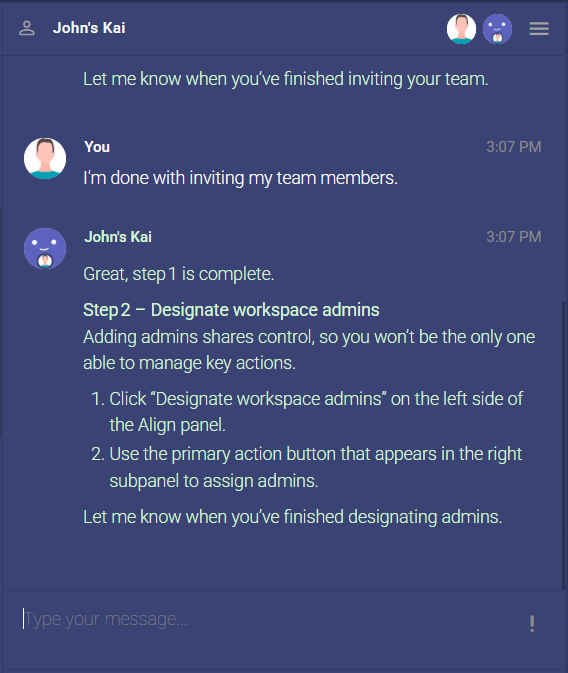
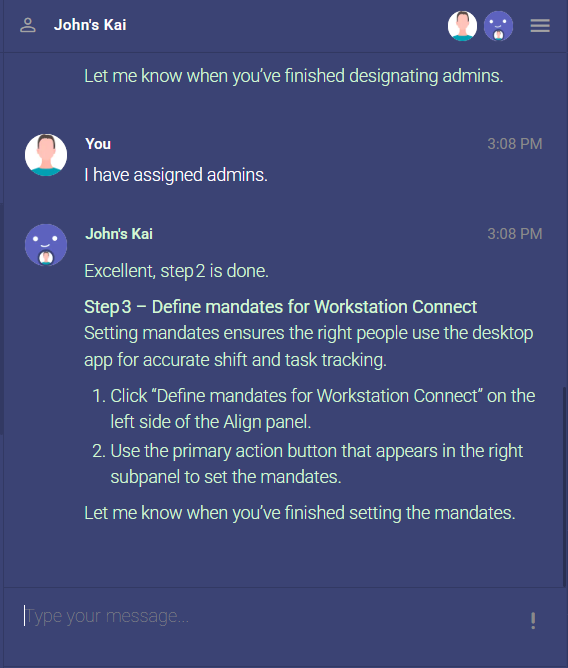
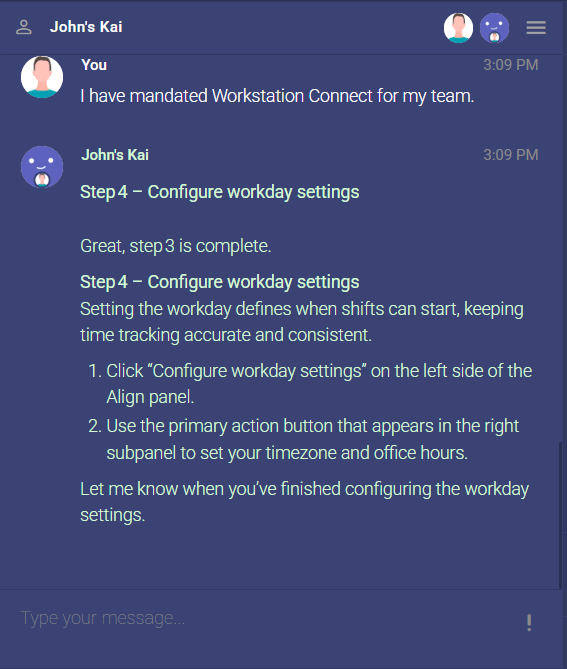
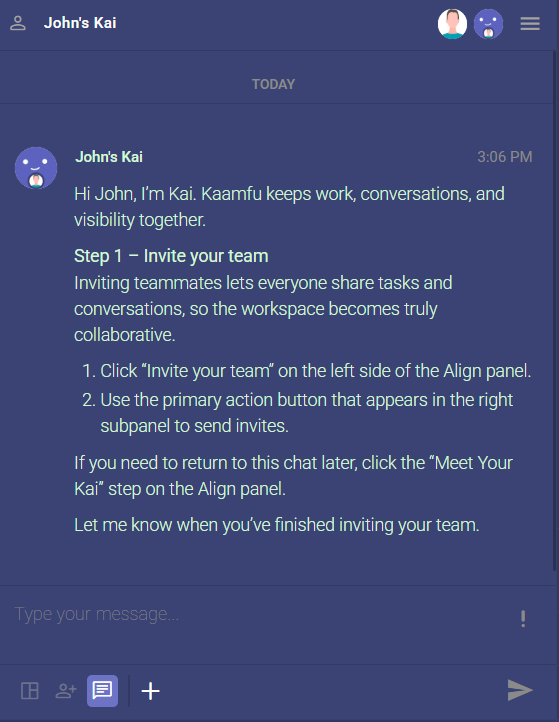
Kai Now Guides You Through Onboarding

Kai has stepped into an active role during onboarding, helping new users understand Kaamfu from their very first session.

After signup on desktop, users now enter Kaamfu directly into the Align panel, where Kai begins onboarding through the Meet Your Kai step. From there, Kai guides users through the core concepts and actions inside the Align panel.

Why This Matters

A user’s first session determines whether Kaamfu feels intuitive or overwhelming.

Here’s what this change enables:

  • Guided start: Users are no longer dropped into Kaamfu without context.
  • AI guidance: Kai explains how the system works as users encounter it.
  • Faster confidence: Users learn by doing, with guidance at the moment it matters.

This positions Kai as a companion in understanding work, not just a layer that observes it.

How It Works

Onboarding now happens directly inside the product, not through external tutorials.

  • After completing signup on desktop, users enter Kaamfu automatically
  • Users land in the Align panel by default
  • The Meet Your Kaistep starts the onboarding flow
  • Kai guides users through key actions and concepts within the Align panel
  • Users move step by step while staying inside the actual working interface

This ensures onboarding happens in context, where learning maps directly to action.
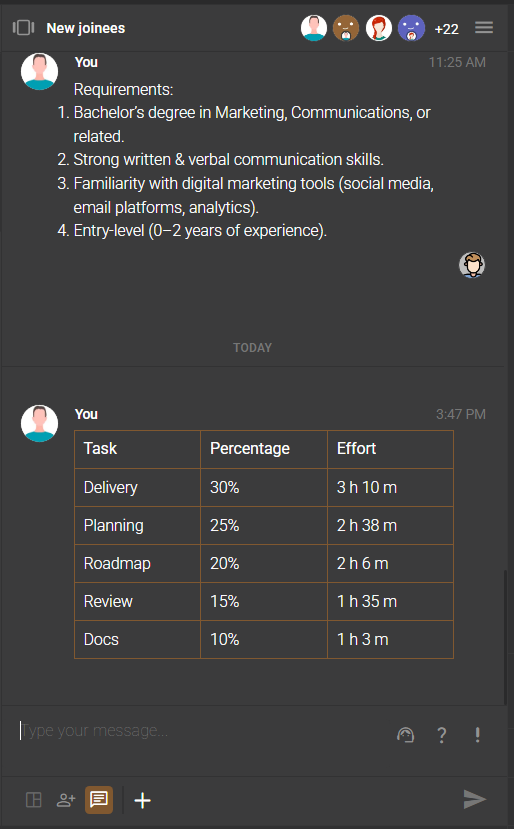
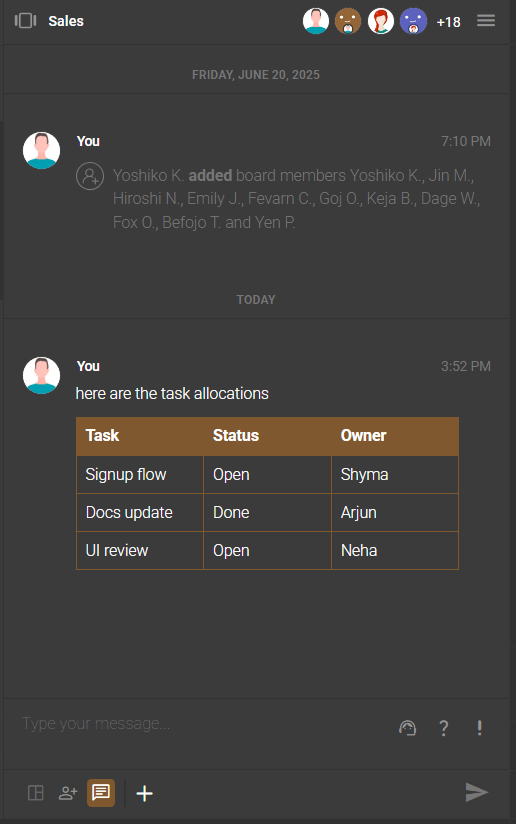
Send tables in your conversations

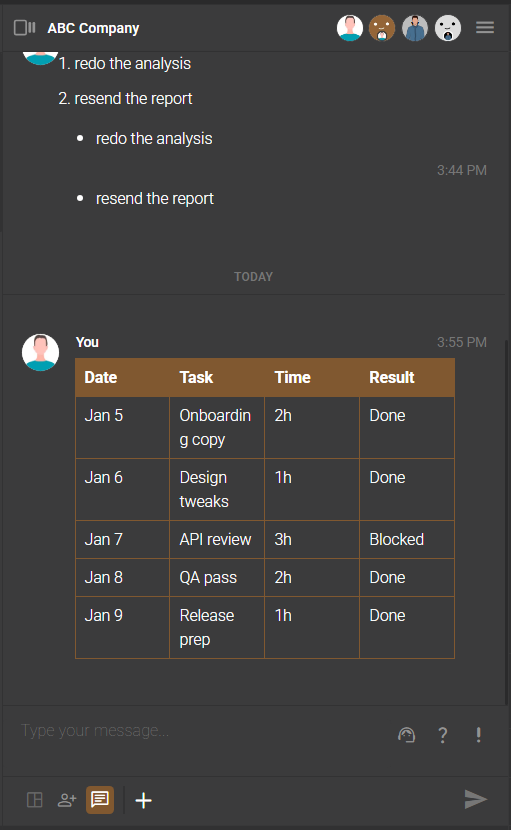
Chat now supports tables with preserved formatting, making structured communication easier.

Users can copy and paste tables directly into Chat messages, and the structure remains intact when shared with others.

Why This Matters

Work conversations often involve structured information, not just text.

This upgrade improves collaboration by enabling:

  • Clearer messages: Tables make data easier to read and discuss.
  • No reformatting: What you paste is exactly what others see.
  • Richer context: Chat can handle structured content without breaking flow.

This makes Chat more aligned with how teams actually communicate at work.

How It Works

Using tables in Chat requires no special setup.

  • Copy any table from another tool or document
  • Paste it directly into a Chat message
  • The table structure and formatting are retained automatically
  • Send the message as usual

Tables appear inline in the conversation and remain readable for all participants.
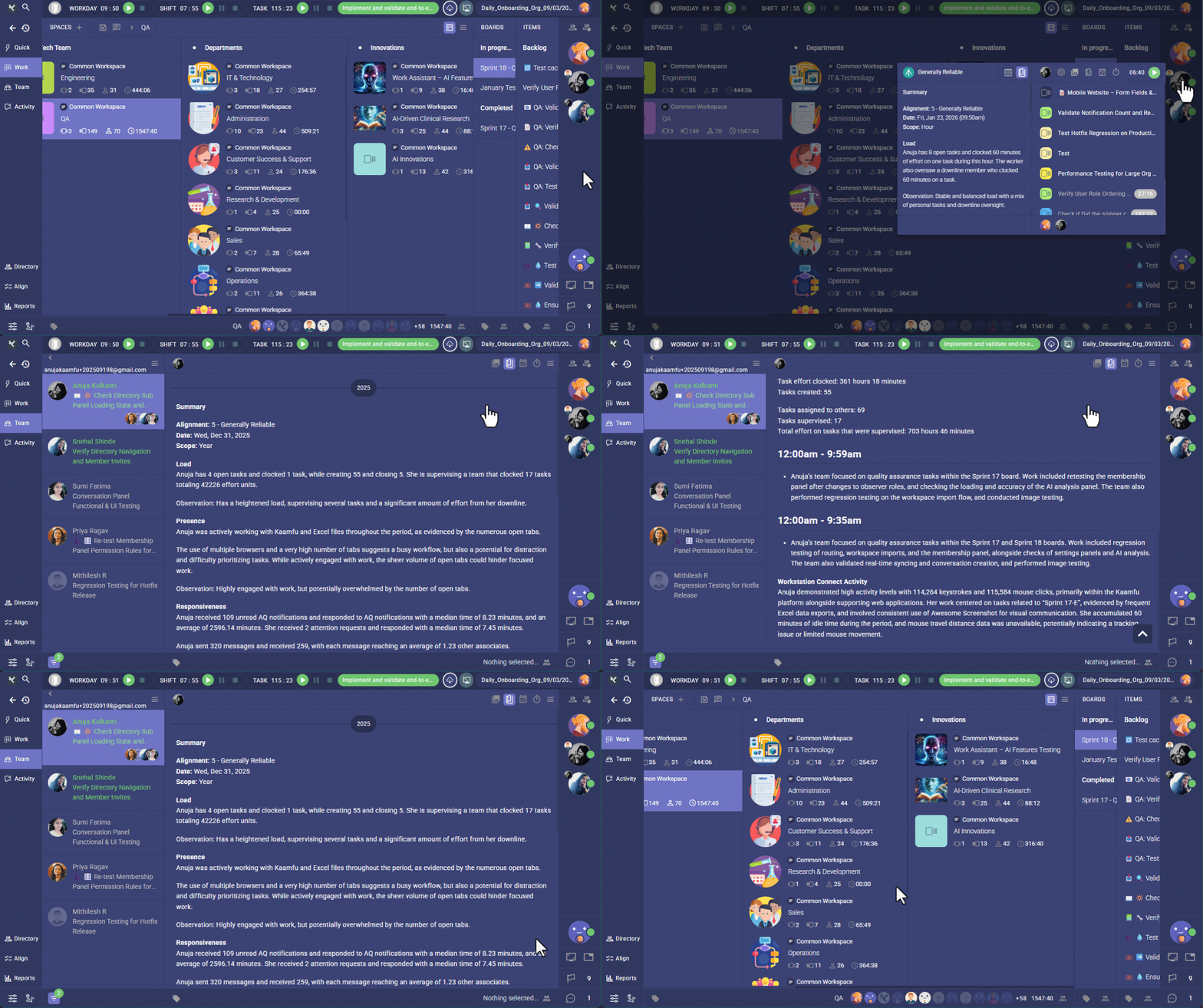
Stories Shortcut Added to Avatar Right Click Menu

Accessing stories is now faster and more discoverable.

The avatar right click menu now includes a Stories icon, allowing instant navigation to Team panel Stories.

Why This Matters

Insights are only valuable when they are easy to reach.

This shortcut improves everyday usage by enabling:

  • Instant access: Stories are now one click away.
  • Less friction: Users jump straight from identity to insight.
  • Higher usage: Stories become part of daily interaction.

This keeps work understanding close to where users already interact.

How It Works

The shortcut is available wherever the avatar menu appears.

  • Right click on your team member’s avatar
  • Click the Stories icon in the menu
  • You are taken directly to the User Story pane in the Team panel
  • View available stories based on your role and permissions

No additional navigation is required.
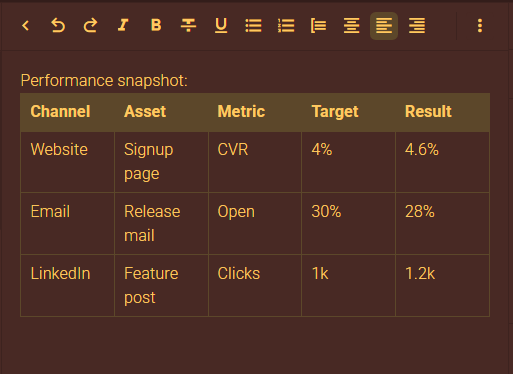
Organize Notes Using Tables

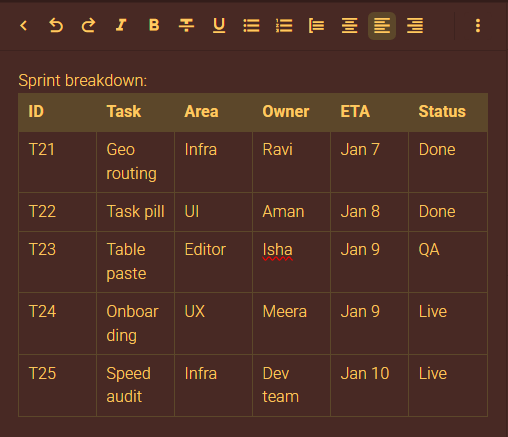
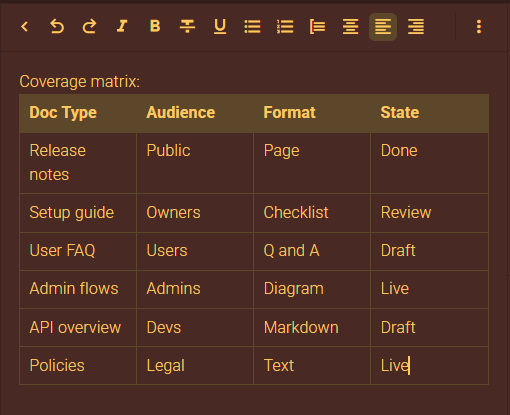
Notes are now capable of handling structured content.

Users can copy and paste tables into Notes, and the formatting is preserved automatically.

Why This Matters

Notes are often used for planning, documentation, and structured thinking.

This enhancement unlocks:

  • Better structure: Tables improve readability and organization.
  • No formatting loss: Notes respect pasted structure.
  • Richer notes: Notes can hold more than plain text.

This makes Notes suitable for real work, not just quick jotting.

How It Works

Adding tables to Notes is simple and friction free.

  • Copy any table from a document, spreadsheet, or tool
  • Paste it directly into Notes
  • The table formatting is retained automatically
  • Continue editing content as needed

Notes now support structured information natively.
Kaamfu 2.1: Introducing Kai, Customizable Themes, and More

Kaamfu 2.1 introduces Kai, along with upgrades to the universal menu, Workstation Connect, and appearance controls. This release is built for real-time clarity, faster team oversight, and a work environment that stays connected from planning to execution.

Together, these updates strengthen Kaamfu as a single environment where work is managed, tracked, and understood.

Kai: Your AI Assistant Inside Kaamfu

Kai is now available across Kaamfu as a built-in assistant. Managers can ask Kai questions in natural language to understand what work is happening, how teams are progressing, and where attention is required—without switching contexts or requesting updates.

Why this matters

Kai operates inside the same environment where work is created, assigned, tracked, discussed, and measured. Kai connects tasks, time, conversations, and activity into actionable clarity.
This makes Kaamfu the first platform where AI work management and worker tracking function together, giving leaders a continuously updated view of execution as it happens.

How it works

Getting updates from Kai takes seconds:

  • Click Kai’s avatar in the right sidebar
  • The chat with Kai opens
  • Send your questions to get team updates and summaries

Kai helps Kaamfu move from recording work to interpreting work.

AI-powered User Story and Alignment Score

The universal right-click menu now opens into an extended pane that defaults to Story View. This view turns the past hour of a worker’s activity into a clear, AI-generated narrative. Alongside it, Kaamfu shows an alignment score that reflects how closely recent activity matches expected work patterns.

Why this matters

Most systems show raw signals and leave the manager to interpret them. Story view turns signals into readable context, making it easier to confirm focus, spot drift, and decide when to step in—without opening multiple views.

What’s included

Story view brings together:

  • Load, showing current open tasks
  • Presence, showing availability and breaks
  • Responsiveness, showing notifications and response behavior
  • Task overview, summarizing what was worked on in the last hour
How it works

Story view opens when you right-click a member’s avatar from the status panel, a conversation, or the Teampanel. The extended pane shows the story by default, and you can scroll through each section to review the last hour.
Story view makes the last hour legible fast, without turning management into surveillance.

Screenshot Carousel and AI Analysis

From the same extended pane, managers can switch to Screenshot View. This view shows a carousel of screenshots captured since the beginning of the day, with each screenshot paired with an AI-generated explanation and its capture time.

Why this matters

Screenshots alone show activity, but not intent. The analysis adds instant context, helping managers understand what’s happening without guessing or switching tools.

How it works

Accessing Screenshot view is simple:

  • Right-click a member’s avatar
  • Click the Screenshot icon in the extended pane header
  • Browse through screenshots carousel left and right
  • Read the analysis and capture time under each image

Screenshot view adds clarity while keeping managers in their workflow.

Themes and Appearance Controls

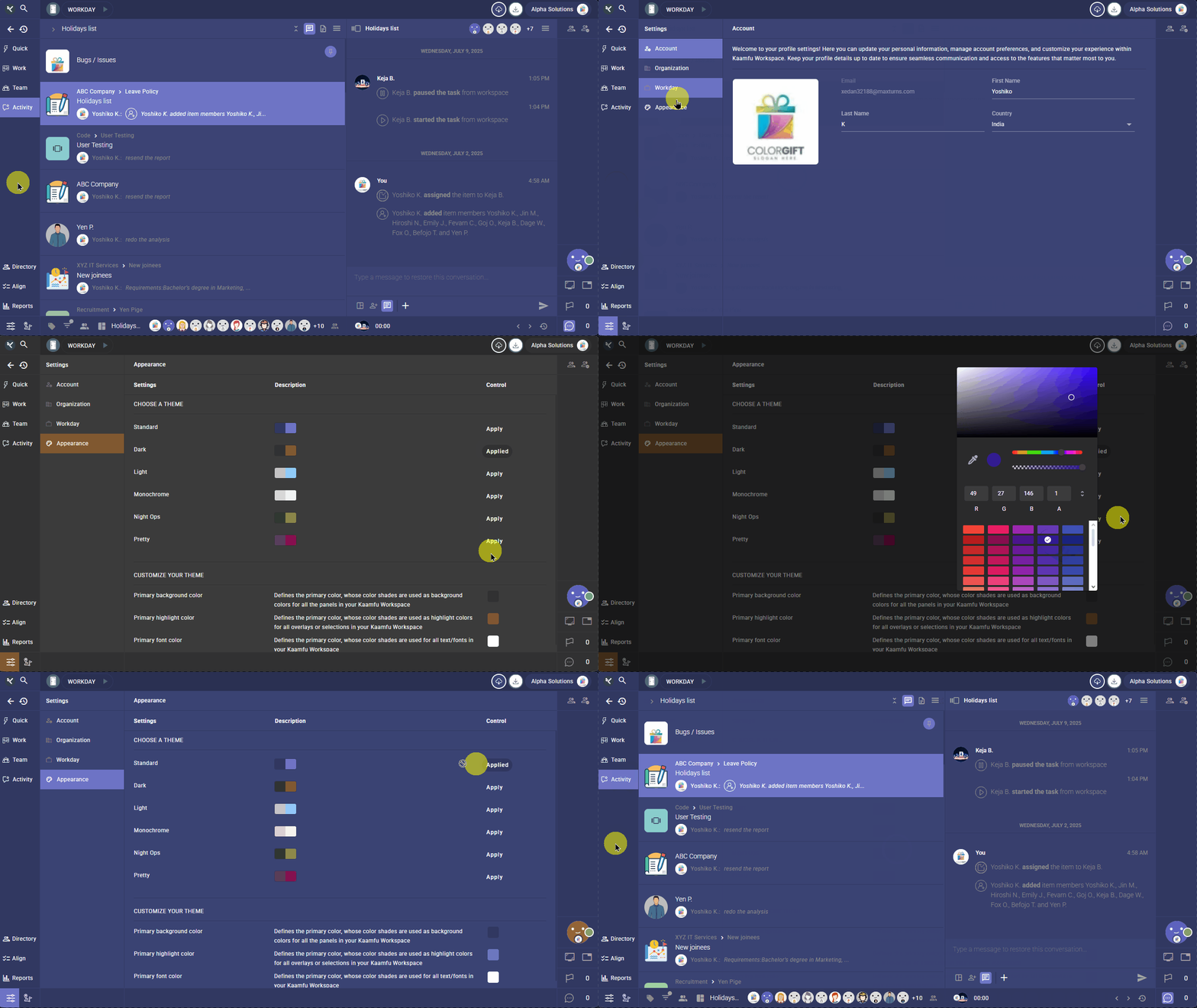
Kaamfu now supports six themes, with color customization available for each. These settings allow every user to tailor the interface to their working style and environment.

Why this matters

Kaamfu is where teams spend hours every day. Appearance affects focus and fatigue. Themes make the workspace easier to scan, calmer to work in, and more adaptable to different preferences.

How it works

Changing your theme by following the below steps:

  • Click Settings in the bottom-left
  • Open the Appearance section
  • Click Apply on a theme
  • Use the controls at the bottom to customize colors.

Themes reinforce Kaamfu as a work environment, not just a dashboard.

URL Capture through Workstation Connect

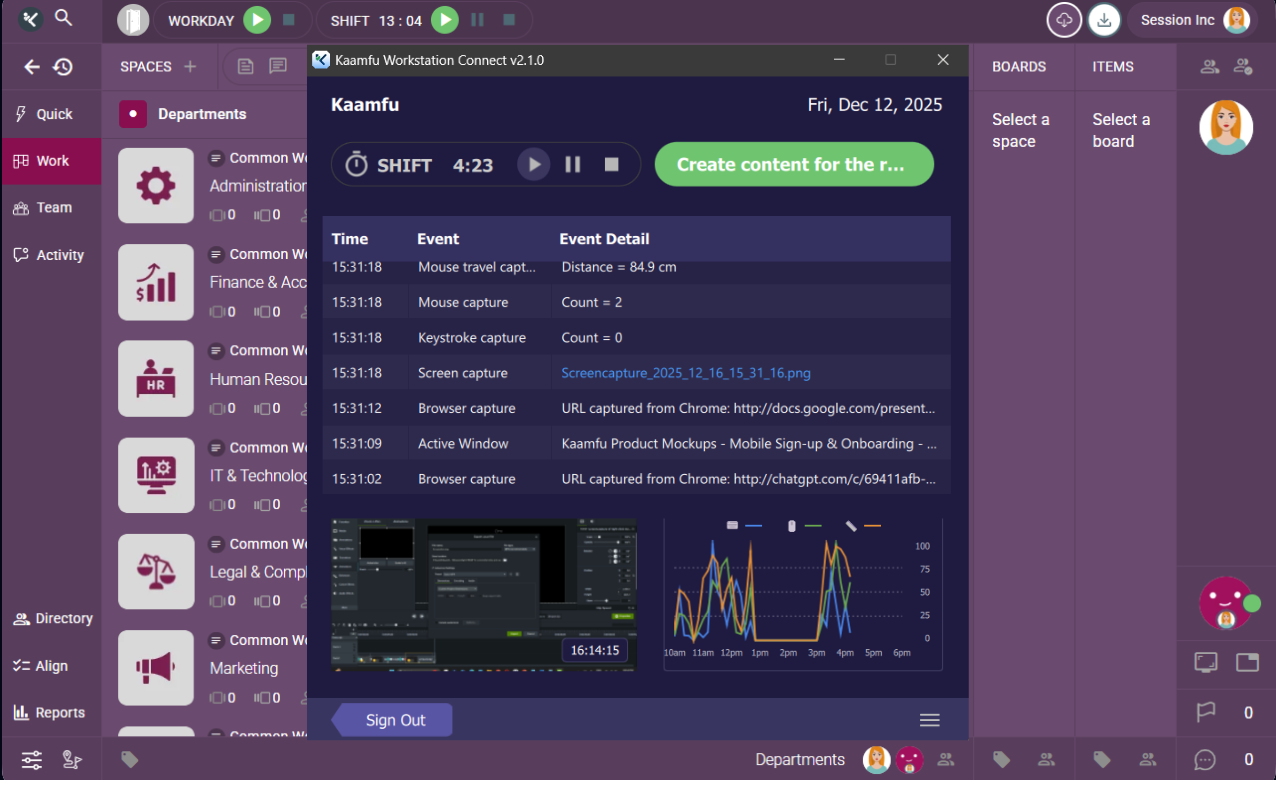
Workstation Connect now captures the browser URL when a worker is active in a browser. These events appear as Browser Capture, along with the browser name and the captured URL.

Why this matters

Browser work is a large part of modern execution. URL capture adds more precision to activity data, making it easier to understand what tools, systems, or documents are in use—especially when screenshots aren’t enough. This brings more clarity to web-based work.

To view captured URLs, open the Workstation Connect app and scroll through the event list until you find a Browser Capture row. The captured URL appears in the Event detail column of that row.

Live Activity Graph in Workstation Connect

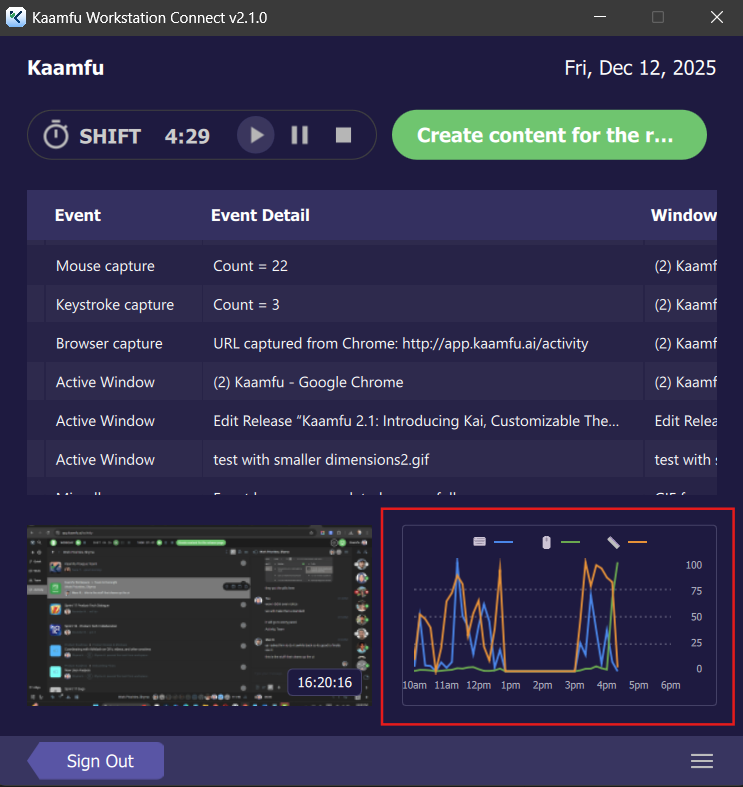
Workstation Connect now includes a live graph alongside the event table. Time appears on the horizontal axis, while activity counts appear on the vertical axis. Hovering reveals a floating panel showing timestamp, keystrokes, mouse clicks, and mouse travel distance.

Why this matters

Raw logs explain what happened. Visual patterns show how work is happening. The graph makes intensity, rhythm, and changes in behavior visible quickly, without scanning rows of data.
This gives managers faster signal with less noise.

To use the activity graph, open the Workstation Connect app and look for the live activity graph next to the screenshot pane. Hover anywhere on the graph to see the timestamp and the live counts for keystrokes, mouse clicks, and mouse travel distance.

Workday Now Has Its Own Running Clock

Kaamfu now includes a dedicated running clock for the Workday itself, in addition to the existing Shift and Task timers. This gives teams a clear, always visible sense of how long the workday has been active, independent of individual tasks or shifts.

Why this matters

Previously, time visibility focused on shifts and tasks in isolation. With a Workday clock, managers and workers can now anchor all activity to a single, shared time frame. This improves situational awareness, makes effort easier to contextualize, and reinforces the Workday as the primary execution boundary rather than a loose collection of timers.

How it works

When a Workday is started, the Workday clock begins running automatically. It remains visible alongside the Shift and Task clocks, providing continuous feedback on total day progression while tasks and shifts start, pause, and stop independently.

This change tightens time coherence across Kaamfu and supports more accurate interpretation of effort, load, and execution patterns over the course of a full workday.

Every Screen in Kaamfu Now Has Its Own Route

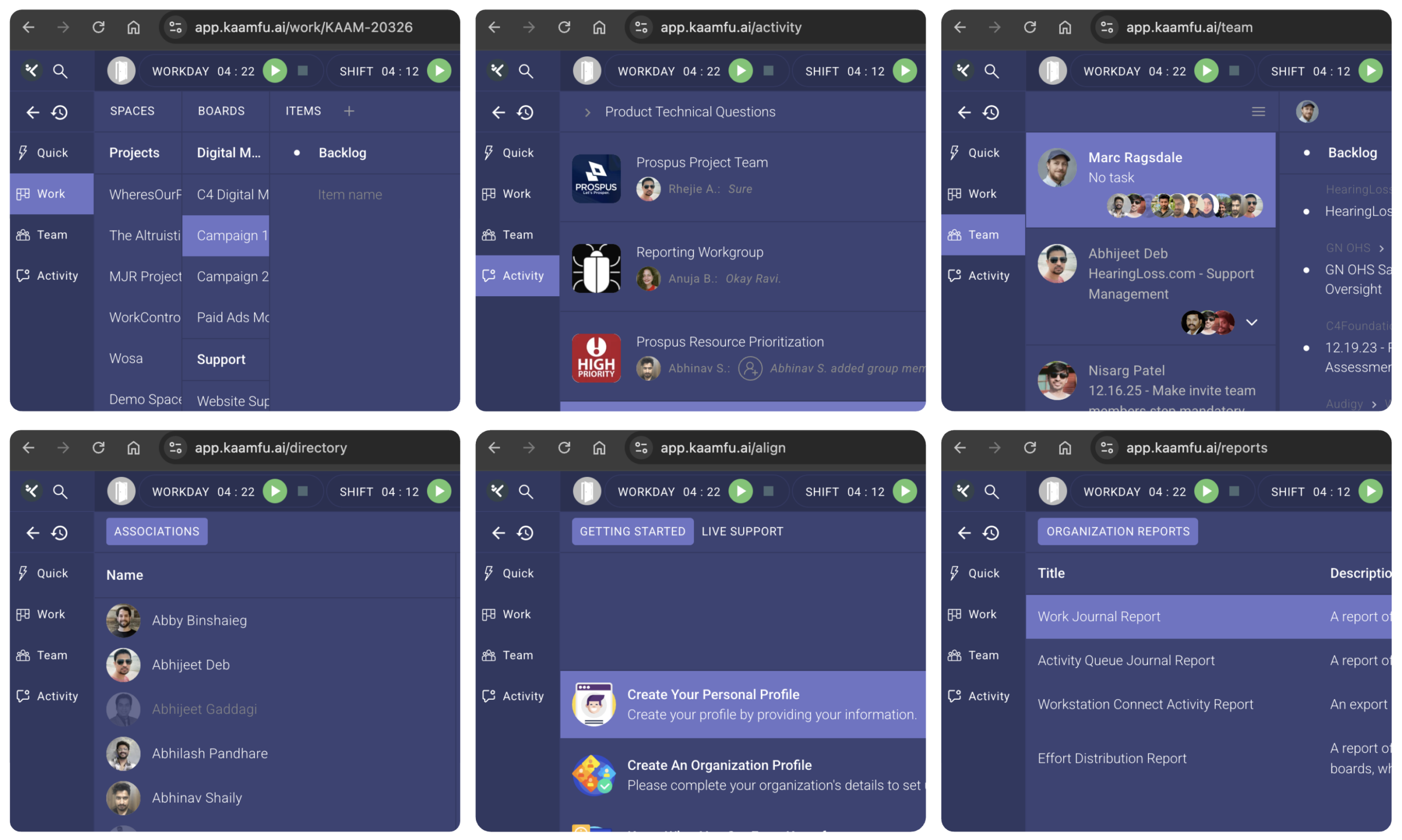
Kaamfu now assigns a unique URL to every major screen, including Work, Activity, Team, Directory, Align, and Reports. Additionally, every item within an organization has its own unique URL. Even though Kaamfu operates as a real-time single-page application, each view is now fully addressable and routable.

Why this matters

In most SPAs, navigation is visual but not truly addressable. By giving every surface its own route, Kaamfu behaves more like an operating system than a traditional web app. This strengthens reliability, clarity, and real-time collaboration at scale.

  • Direct linking to live state – managers can share an exact view of work, activity, or people without recreating context
  • Refresh and recovery safety – reloading the page or recovering from a disconnect returns users to the correct screen and state
  • Real-time navigation consistency – background updates continue flowing even as users move between routed views
  • Browser-native behavior – back, forward, bookmarks, and tabs behave predictably without breaking live execution
  • Foundation for deep linking – tasks, teams, reports, and future AI-driven views can be referenced precisely
  • Scalability for complex workflows – routing supports growth without collapsing into modal-heavy or brittle UI patterns

This routing architecture is a critical step in making Kaamfu a stable, real-time work control system rather than a fragile dashboard layered on top of live data.

Quick Conversations for faster task creation

Creating a new task now starts with a Quick Conversation instead of a blank pre-chat state. This allows you to choose participants and assign the task before the first message is sent.

The result is a more intentional starting point for collaboration.

Why this matters

Many task-related conversations start without the right people included or without clear ownership. Fixing this after the fact adds friction and slows work down.

Quick Conversations help tasks begin with clarity. Membership, assignment, and context are set upfront, reducing follow-up edits and unnecessary back-and-forth.

How it works

Start a new conversation by doing the following:

  1. Go to the Work panel, open your preferred Space, then select a Board
  2. Create a new task or item inside the desired Item Group
  3. Click on the item to open its options
  4. Click the conversation icon from the options pill
  5. The conversation opens in the right panel with the Quick Conversation screen
  6. Select the members you want to include from the list
  7. Assign the task to a member if needed
  8. Enter your message in the message box at the bottom
  9. Press ENTER or click send

The message is sent, and the selected members and assignment appear as updates in the conversation.

Notes are now searchable in global search

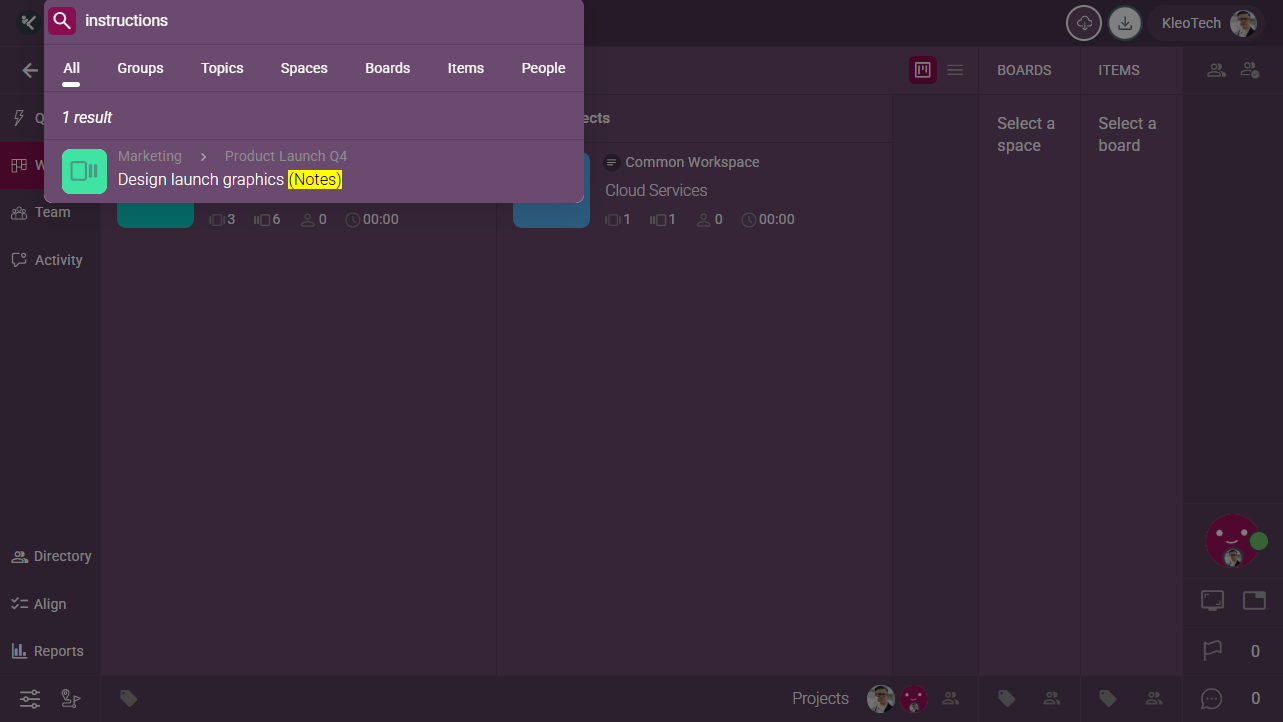
Global search in Kaamfu now includes Notes, alongside Groups, Topics, Spaces, Boards, Items, and People. When a search term matches content inside a note, the result appears directly in the search results and is clearly highlighted.

This update extends search coverage without introducing new tabs or workflows, keeping discovery fast and familiar.

Why this matters

Notes often contain instructions, testing steps, decisions, and reference material that don’t always live inside tasks or conversations. Previously, this information could be hard to surface when you needed it most.

By including Notes in global search, Kaamfu ensures that written context is just as discoverable as structured work. This reduces repeated questions, saves time, and keeps important knowledge from getting buried.

How it works

Search for notes by doing the following steps:

  1. Press CTRL + F on your keyboard to open the global search panel
  2. Enter a word or phrase in the search bar
  3. Review the results shown under the All tab
  4. If matching content exists in notes, those results appear marked as (Notes)
  5. Note results are highlighted in yellow, making them easy to distinguish from other results

Search now reaches both work and context in one place.

Universal IDs can be searched

With Universal IDs now available across Spaces, Boards, and Items, these identifiers are also fully supported in Kaamfu’s global search. Entering a Universal ID takes you directly to the exact object it represents, without navigating through the Work panel hierarchy.

Universal IDs are designed to be both addressable and searchable from day one.

Why this matters

As organizations grow, names alone stop being precise. Similar Space or Board names, renamed projects, or shared references can slow teams down or create ambiguity.

Searchable Universal IDs give teams a deterministic way to locate work, regardless of naming changes or workspace size. When an ID is shared, it always resolves to the same object, in the same place, every time.

This makes Kaamfu a system where work is not only identifiable, but unambiguously retrievable.

How it works

Find spaces, boards, and items using their universal IDs:

  1. Open the global search panel
  2. Paste or type the ID into the search field
  3. Select the matching result
  4. Kaamfu navigates you directly to the corresponding object in the Work panel

Search understands identity, not just text.

Edit your profile from Align

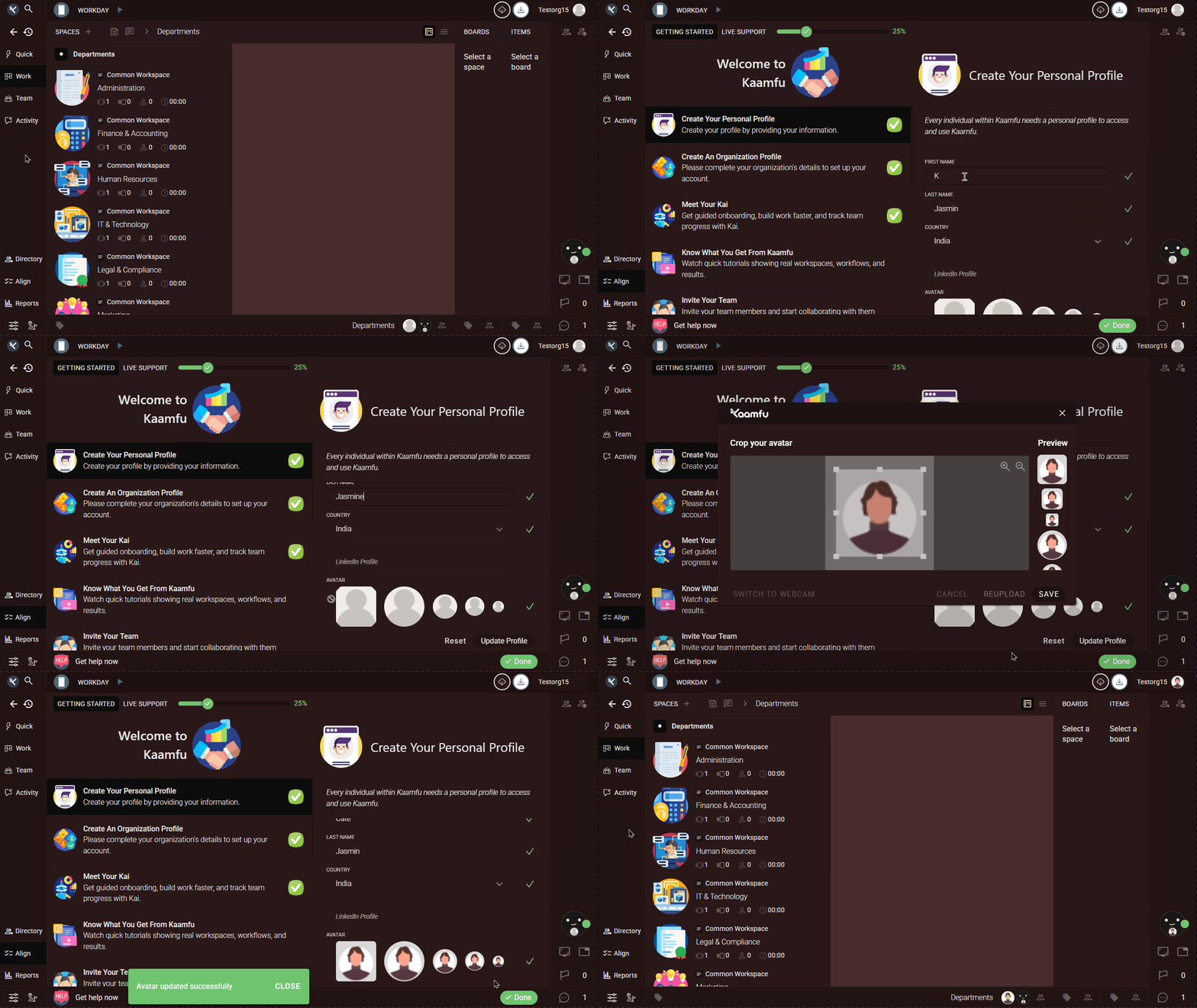
Users can now edit their personal profile directly from Align, within the Create your personal profile step. From this screen, users can update their first name, last name, country, and avatar.

Previously, profile edits were available only through Settings. This update brings profile completion into the onboarding flow.

What can be updated

From the Align step, users can:

  • Update first and last name
  • Select or change country
  • Upload or change their profile picture
Why this matters

Profile information shapes how users appear across the workspace, but it wasn’t previously editable during onboarding.

  • Smoother onboarding: users complete their profile at the right moment
  • Reduced friction: no need to leave Align to access Settings
  • Cleaner collaboration: teams see accurate names and avatars from day one

This change makes onboarding feel complete and intentional.

How it works

Edit your profile as follows:

  1. Open the Align panel
  2. Go to the first step of the checklist on the left side – ‘Create your personal profile’
  3. Edit your first name and last name
  4. Select your country
  5. Upload or change your avatar
  6. Save changes and continue setup

Profile details are now part of the onboarding flow, not a follow-up task.

AI-Powered User Story inside the Team panel

Kaamfu now includes a Stories panel inside the Team panel, giving managers and owners an hourly, AI-generated summary of each team member’s work. From the Team panel, you can select any individual and view their Story alongside screenshots, backlog, and work journal.

Stories update every hour and turn raw activity into a readable narrative of how work unfolded.

What the Story shows

Each hourly Story is structured into clear sections:

  1. Summary showing alignment level, date, and time scope
  2. Load showing open tasks, tasks worked on, and effort clocked
  3. Presence showing activity, focus, and break behavior
  4. Responsiveness showing notifications received and response speed
  5. Task overview summarizing tasks worked on and outcomes
  6. Workstation Connect activity describing tools used and engagement patterns
Why this matters

Stories are designed to help managers understand work without digging through logs or dashboards.

  • Work made readable: activity data is translated into clear, structured summaries that are easy to interpret
  • Hourly awareness: managers gain timely visibility into how work evolves throughout the day
  • Context over surveillance: focus stays on patterns, outcomes, and alignment rather than raw monitoring

Stories give leaders clarity while respecting how modern work actually happens.

How it works

Access user stories in just a few clicks as mentioned below:

  1. Open the Team panel
  2. View the list of team members in your downline
  3. Click on any member
  4. In the header icons, click the Stories icon
  5. The hourly Story appears and updates automatically
  6. Scroll through sections to review work, activity, and alignment

Stories provide a consistent, hourly snapshot of work in one place.

Know what you get from Kaamfu

The Align panel now includes a new step called Know what you get from Kaamfu. This section brings short videos and learning resources directly into the workspace setup flow, helping users understand Kaamfu through real examples.

The content in this step will continue to expand over time, with new videos and links to help documentation added regularly.

What’s included

This section highlights:

  1. Short videos showing real workspaces and workflows
  2. Practical explanations of how Kaamfu is used day to day
  3. Direct links to relevant help documentation
Why this matters

Most users understand software best by seeing it in action rather than reading setup instructions.

  • Faster understanding: users see real outcomes instead of abstract features
  • Stronger onboarding: learning happens inside the product, not outside it
  • Ongoing clarity: content evolves as the platform grows

This step helps users understand Kaamfu’s value before configuring it.

How it works

Access video guides and documentation about Kaamfu:

  1. Open the Align panel
  2. Navigate through the workspace setup steps
  3. Select Know what you get from Kaamfu
  4. Watch the available videos to understand workflows and outcomes
  5. Open linked help documentation if deeper detail is needed

This keeps learning contextual and accessible during setup.

Kaamfu v2.0 Launches in America

Kaamfu is now available to customers across the US. After two years of running our own operations on Kaamfu, a staging rollout in India, and months of market testing, we’re opening the platform to teams who want a more controlled, predictable way to manage work.

A single environment for modern work

Kaamfu brings projects, tasks, time tracking, team communication, and desktop activity into one place, so managers don’t have to stitch together multiple tools to understand what’s going on.

This helps teams:

  • Reduce noise from scattered systems and channels
  • Keep updates tied directly to the work they describe
  • Make decisions based on real, current activity

Proven with teams before launch

Leaders and managers in India have already been running live teams on Kaamfu, using it to track work, understand how time is spent, and keep outcomes on course. Their response has shaped how the product works today. Now, teams in the US can operate in the same environment and benefit from the same level of visibility and control.

What’s coming next

This US launch is the starting point, and we’ll continue refining the experience as more organizations onboard and share how they’re using Kaamfu day to day.

Hint: a lightweight, AI-powered way to get answers from inside Kaamfu is coming soon.

More updates will follow in upcoming releases.

What’s New: Smarter dashboards, Clearer Effort, and Workday Controls in Kaamfu

This release focuses on giving managers a sharper view of how work moves through Kaamfu and how time is spent, while tightening control over when the workday starts and ends. Dashboards become more visual, effort is easier to read at a glance, and workspace time settings are more predictable.

Cumulative Flow Diagram in the board-level dashboard

Board dashboards now include a Cumulative Flow Diagram (CFD) to visualize how work progresses across Item Groups over time. The diagram is interactive, with color-coded groups, hover tooltips, and a collapsible layout, so managers can quickly spot bottlenecks, understand throughput, and review progress without leaving the Board.

Total effort added to Spaces and Boards

Effort is now surfaced directly across the Work panel, so you see where time goes without jumping into separate reports.

  • On Spaces, you will see total effort alongside the count of Boards, Items, and Members.
  • On Boards, total effort now appears next to the number of Items and Members.

This makes it easier to assess workload and progress at every level of the hierarchy.

Workday settings for time and control

Organization Owners now set a workspace-wide timezone, so reporting and scheduling stay consistent across the platform. They can also define who is allowed to start and stop the workday, reducing accidental overlaps or pauses. These controls give owners a clearer handle on when work begins, when it ends, and how it appears in reports.

Kaamfu v1.0 Launches in India

Kaamfu is now available in India as a staging release. This rollout introduces the Kaamfu web platform and our Windows desktop application to teams who want a more unified, predictable way to manage work.

A connected workspace for daily operations

Kaamfu brings work management, contextual chat, time tracking, and desktop activity together in one place. Instead of moving across different tools for updates, communication, and tracking, teams can collaborate and stay aligned inside a single environment.

This helps teams:

  • Keep conversations tied directly to the work they reference
  • Understand how time is being spent throughout the day
  • Reduce context switching and improve clarity

Designed for managers and teams

Managers can track work in real time, follow progress across boards and tasks, and get a clear view of how the day is unfolding without relying on scattered updates. Teams have a consistent space to plan, communicate, and stay focused on their work.

What’s ahead

This staging launch allows us to gather feedback quickly and refine the platform as organizations begin using Kaamfu in their day-to-day operations. We’ll continue improving stability, tightening workflows, and introducing new capabilities as we move toward a broader release.

More updates will follow as Kaamfu evolves with the teams using it.

Click on the unmute icon on the video
Drag