


Kaamfu 2.1.8 builds on the foundation laid in 2.1 with a series of focused improvements that make the platform faster, clearer, and more supportive in day to day use. These updates refine how work is understood, how teams stay informed, and how users are guided through the system from their very first session.
Each enhancement strengthens Kaamfu’s role as a single environment where work is visible, structured, and continuously understood.
Kai Stories Expand Across Timeframes
Kaamfu’s AI Assistant’s user analyses have evolved from an hourly snapshot into a full time intelligence layer.
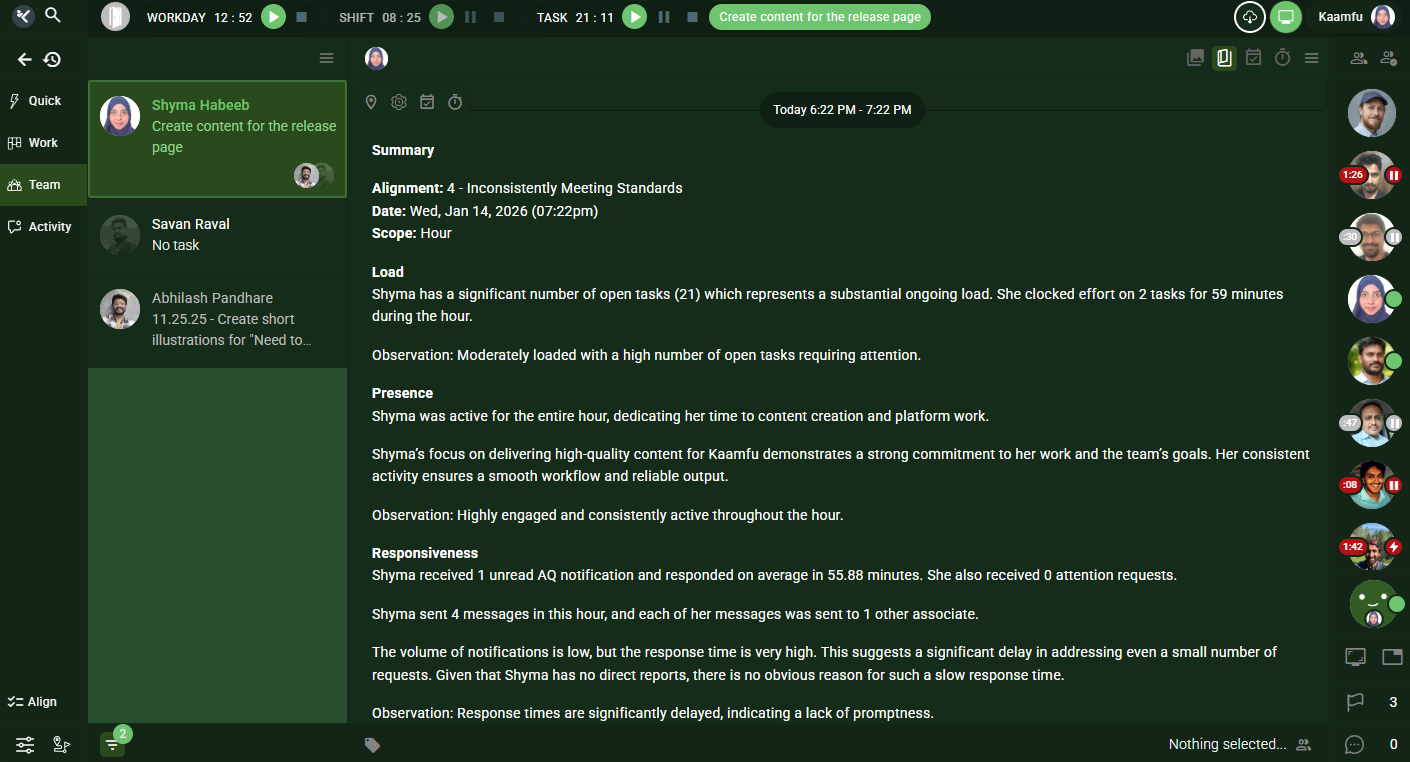
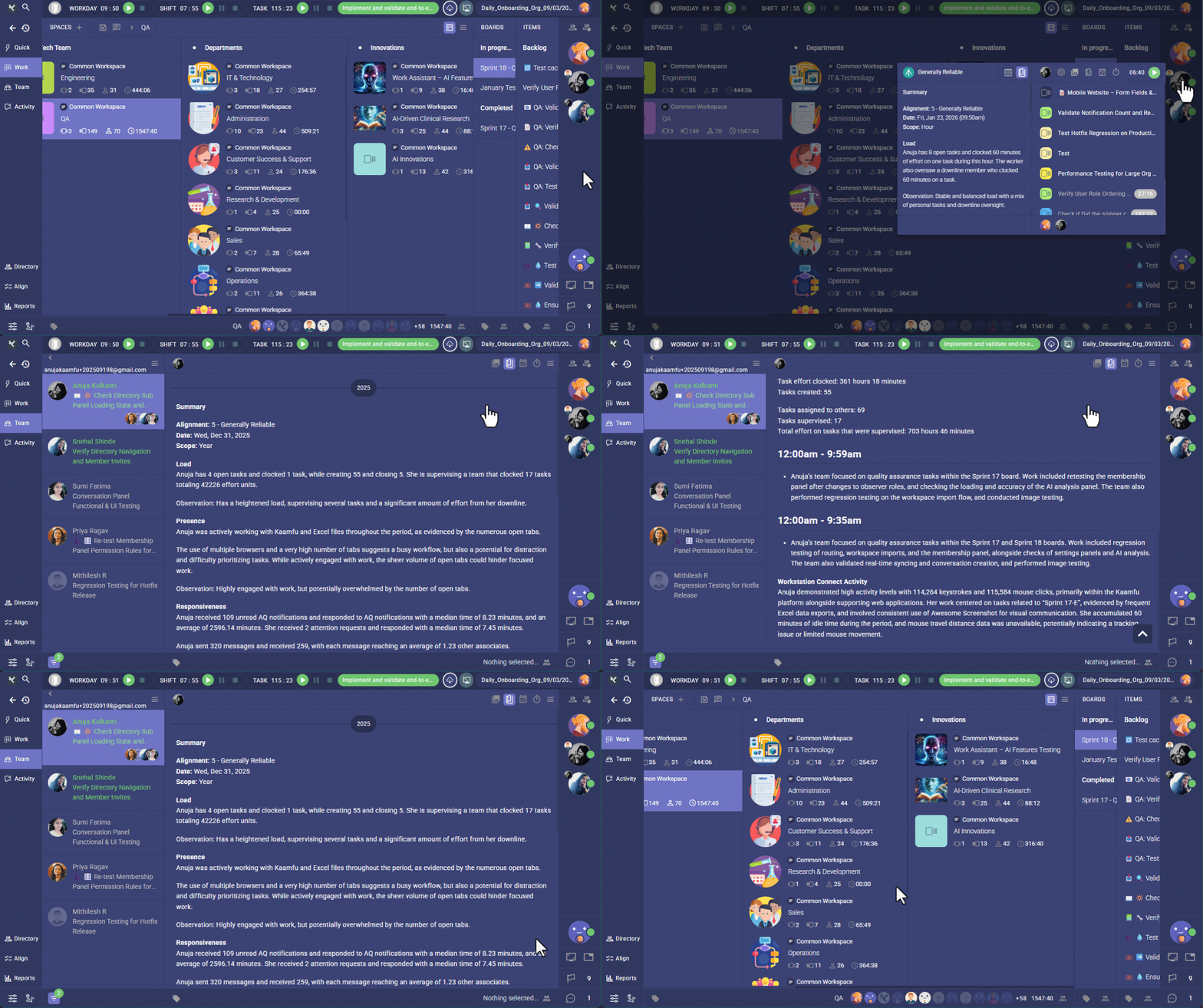
Kai now generates user stories for Day, Week, Month, Quarter, and Year, in addition to the existing hourly view. These stories live in the Team panel, giving managers and teams a deeper understanding of work patterns over time.
This expansion moves stories beyond momentary insight into long range clarity.
Why This Matters
Expanding stories across timeframes sends a clear signal about how Kaamfu understands work.
- Work as a continuum: Teams can now see how effort, focus, and responsiveness evolve across longer periods, not just single hours.
- Managerial visibility with context: Leaders gain meaningful insight without relying on fragmented reports.
- AI that understands work reality: Kai now reflects real work cycles instead of isolated activity snapshots.
This reinforces Kaamfu’s position as a system designed to observe, interpret, and explain work over time.
How It Works
- Log in to your account at Kaamfu
- Go to the Team panel
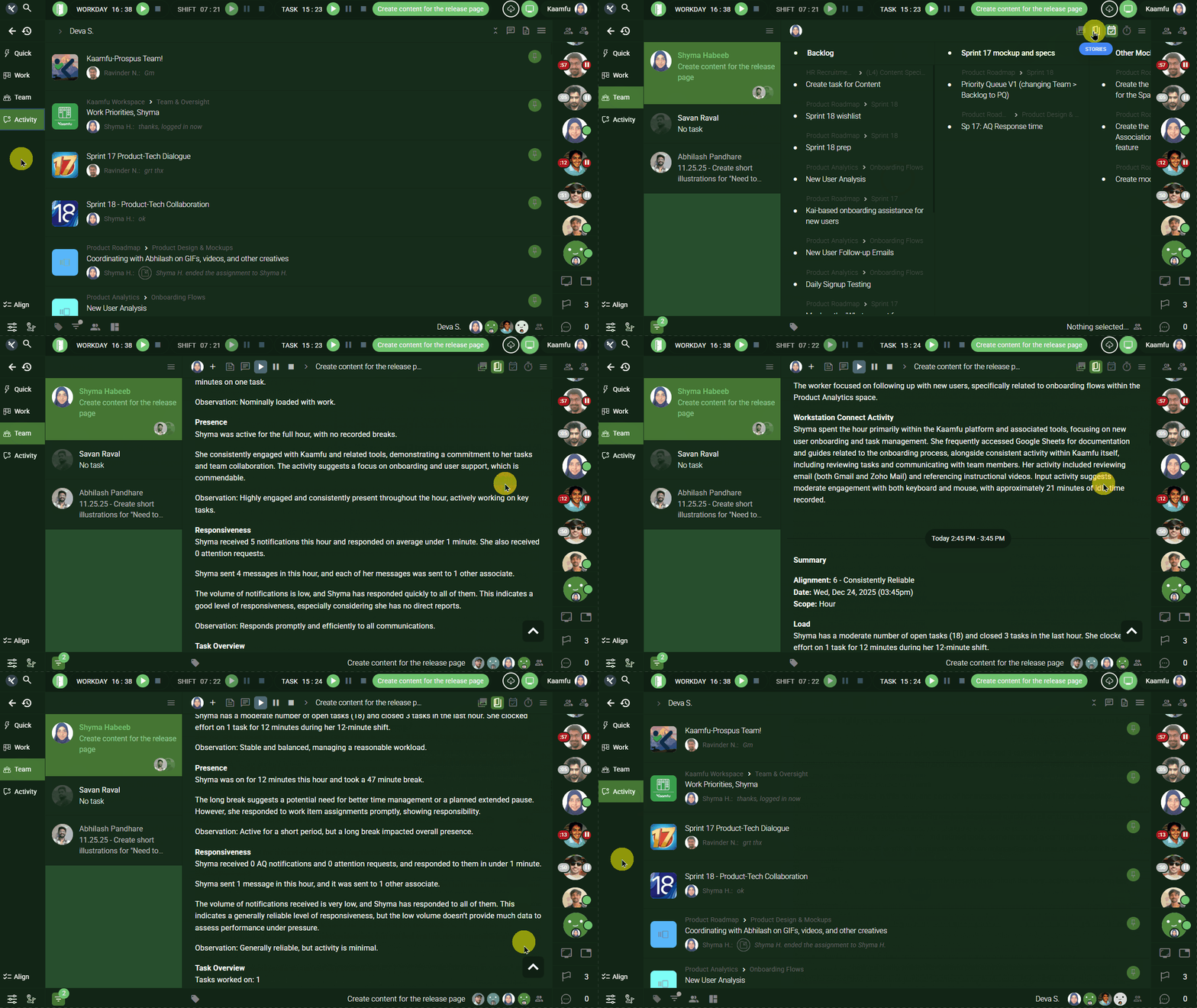
- Click the Stories icon in the panel header
- The Stories panel opens, showing stories for each worked hour of the day
- Scroll down to view stories from previous days
Stories automatically extend backward as you scroll, allowing you to review historical work patterns.
Visibility rules apply automatically
- Organization owners can view everyone’s stories
- Assigners can view stories of their assignees
- Individual users can view only their own stories
What Each Hourly Story Shows
Each hourly story is structured into clear sections that explain what happened and what it means.
Summary
- Alignment score and reliability classification
- Date and time of the story
- Scope of analysis, for example Hour
Load
- Open tasks count and task effort during the hour
- Task creation and closure activity
- Downline effort if applicable
- Includes an observation that explains workload strain or balance.
Presence
- Whether the person was active for the full hour
- Nature of work performed and focus areas
- Includes an observation describing engagement and depth of focus.
Responsiveness
- Messages received and sent
- Median and average response times
- Unread notifications
- Includes an observation about communication effectiveness.
Task Overview
- Tasks worked on
- Effort clocked
- Tasks created
- Includes context on where the work occurred.
Workstation Connect Activity
- Applications and URLs used
- Keystrokes and mouse activity
- Idle time if any
This section grounds the story in real activity signals, creating a complete and explainable view of work.
Task Pill Now Shows All Open Tasks
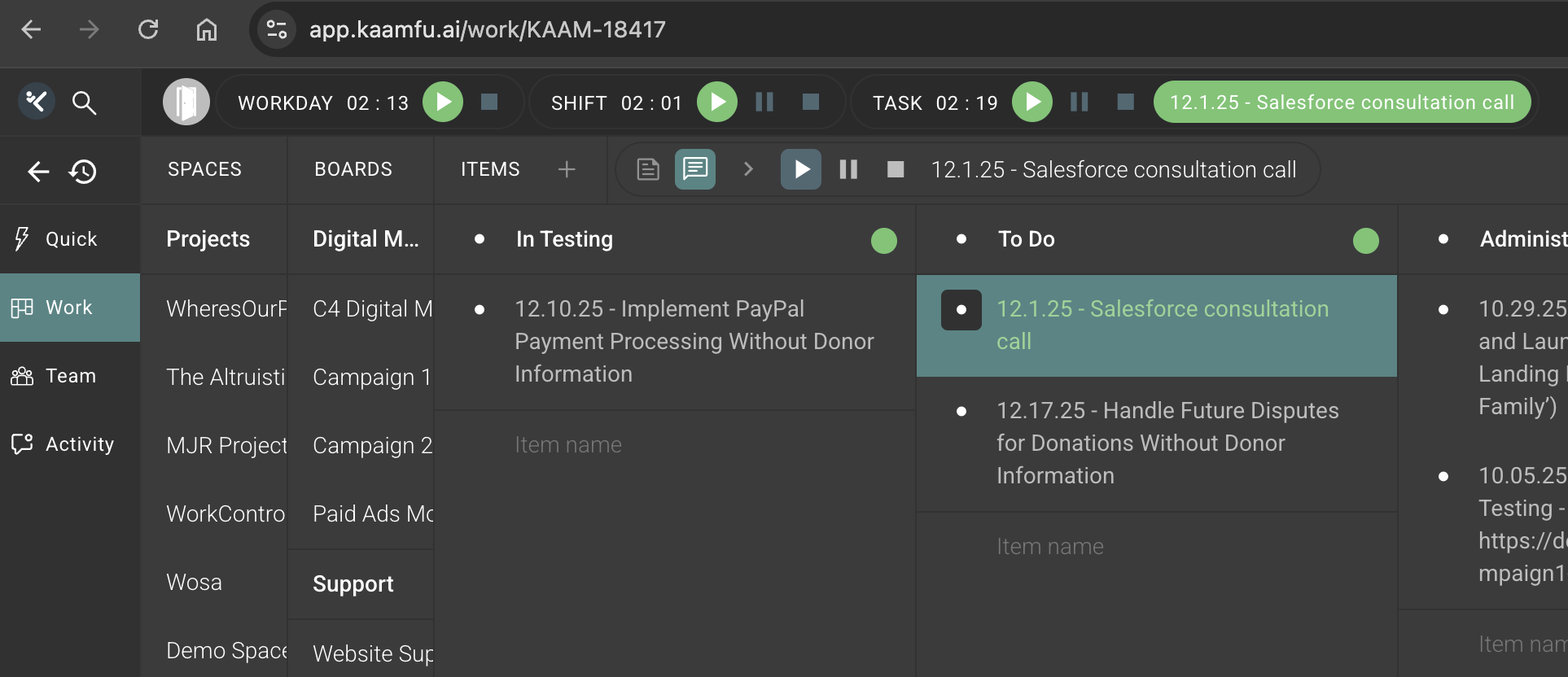
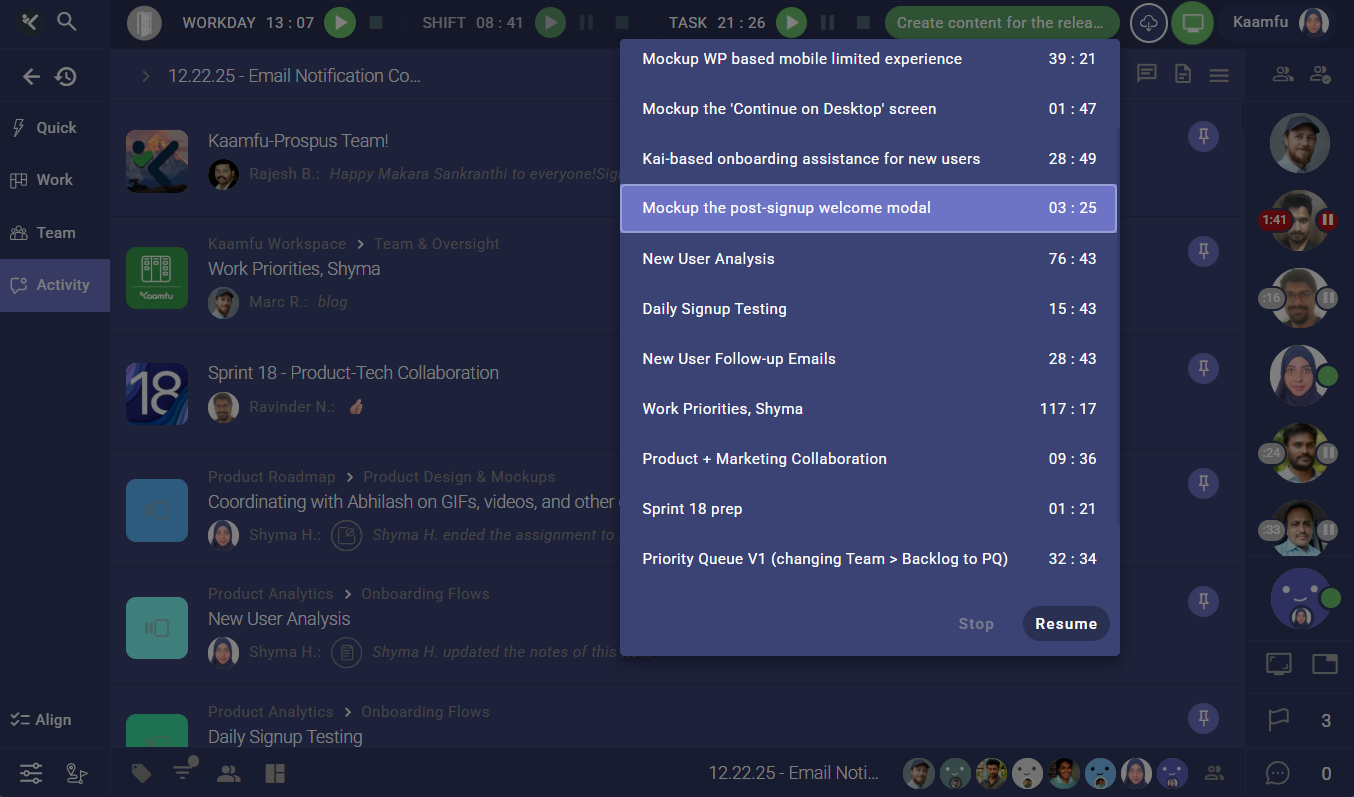
The Task pill in the top time panel has been refined to better reflect active work. Clicking the Task pill now surfaces only your open tasks, so task switching stays focused on what is currently actionable. The top panel continues to show Workday, Shift, and Task pills, each with their own timers.
Why This Matters
This change aligns the interface with how users think about work in progress.
- Clear task focus: Users see only tasks that are still actionable.
- Reduced cognitive load: Closed work no longer interferes with active decisions.
- Better time alignment: Task selection now maps cleanly to task timers.
This keeps attention on what matters now.
How It Works
The Task pill gives you two fast paths, one for managing your full backlog, and one for switching tasks instantly.
Backlog access from the pill
- Click Task in the pill
- Your backlog opens in the Team panel
- The backlog lists all your current open tasks
From there, you can locate tasks in the Work panel, start other listed tasks, and take additional actions available in the backlog view
Quick switching from the pill dropdown
- Click the task name inside the Task pill
- A dropdown opens showing all your open tasks
- Single clickany task to reveal Resume and Stop buttons at the bottom of the list
- Click Resume to switch your current task to the selected task and begin tracking effort
- Click Stop to end the current task assignment
- Double click any task in the list to open its conversation on the right side, without closing the dropdown list
This flow keeps task switching lightweight while still giving you direct access to the full backlog when you need it.
Workday Timer Is Now Visible to Everyone
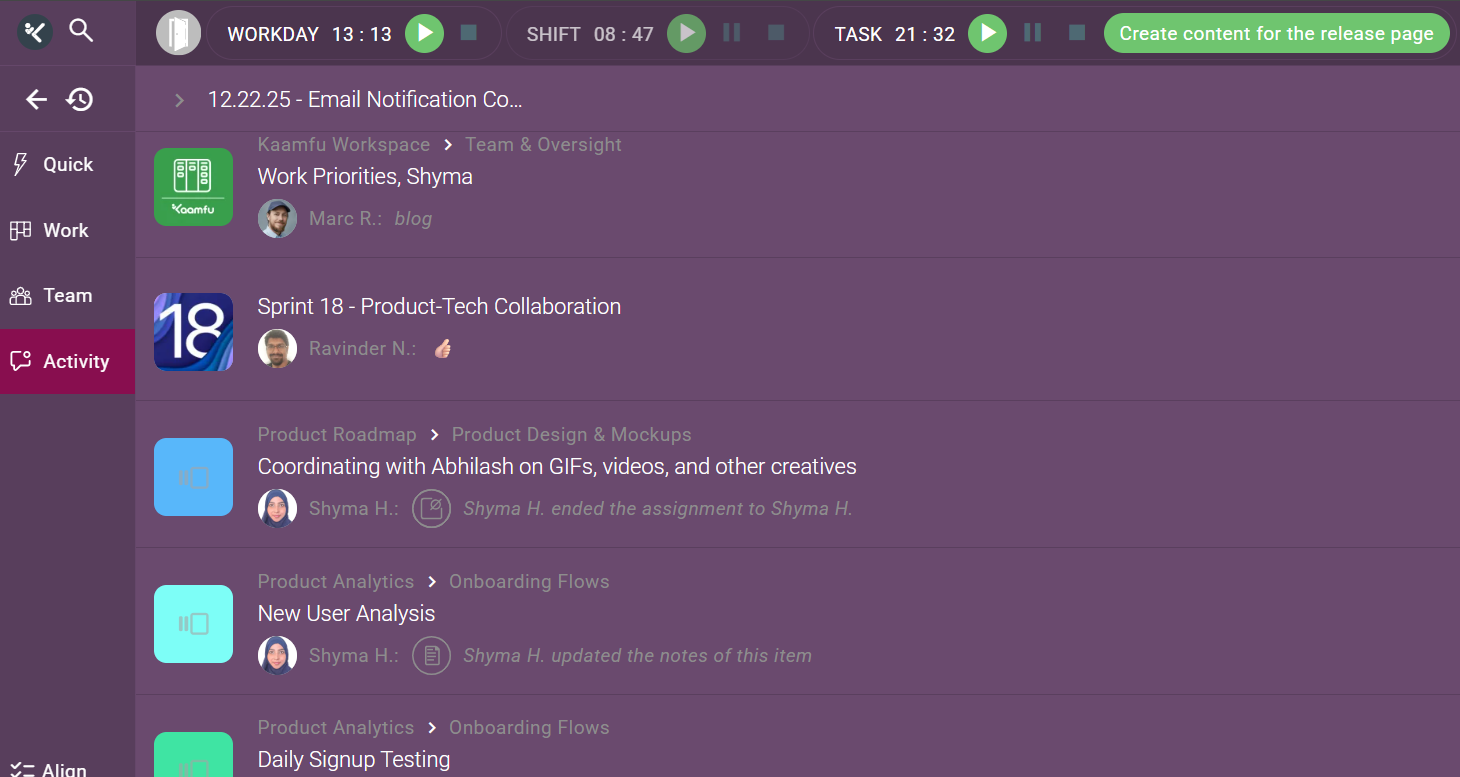
The Workday pill now displays a live timer for all members, not just organization owners and admins.
Previously, only owners and admins could see the workday controls. While they still retain the ability to start and stop the workday, all users can now see how long the workday has been running.
Why This Matters
Visibility creates shared context across the team.
- Shared awareness: Everyone knows how far into the workday the team is.
- Clear boundaries: Work time becomes explicit rather than assumed.
- Leadership without opacity: Control remains centralized while visibility is shared.
This supports healthier, more transparent work rhythms.
Kai Now Guides You Through Onboarding
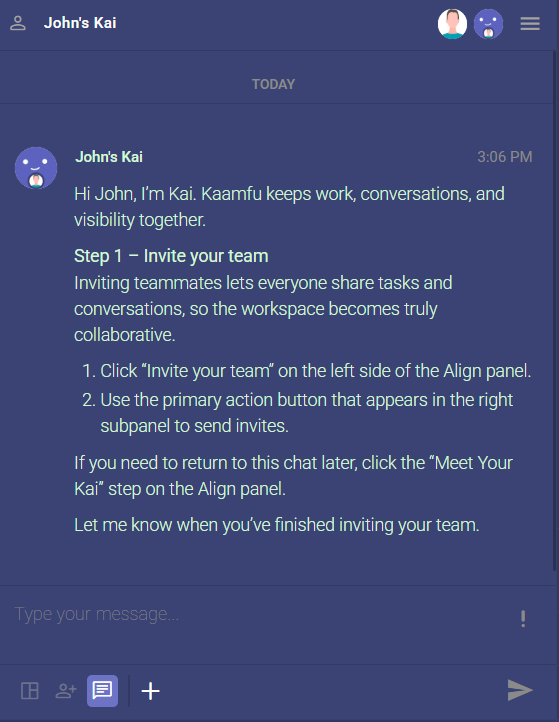
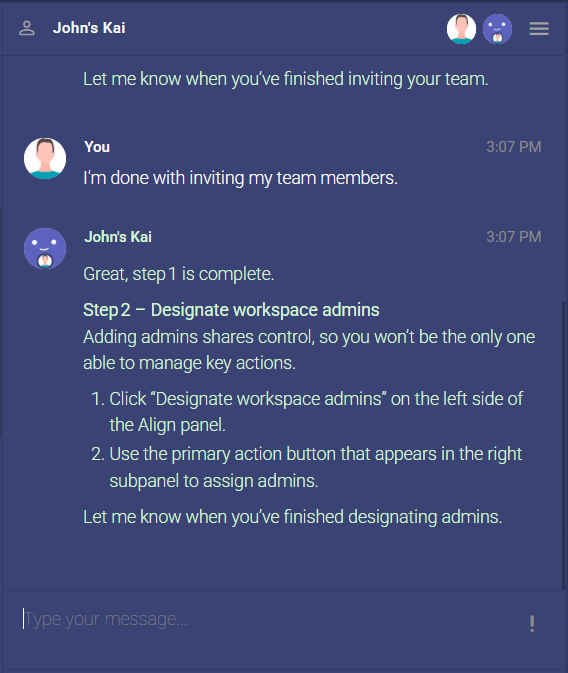
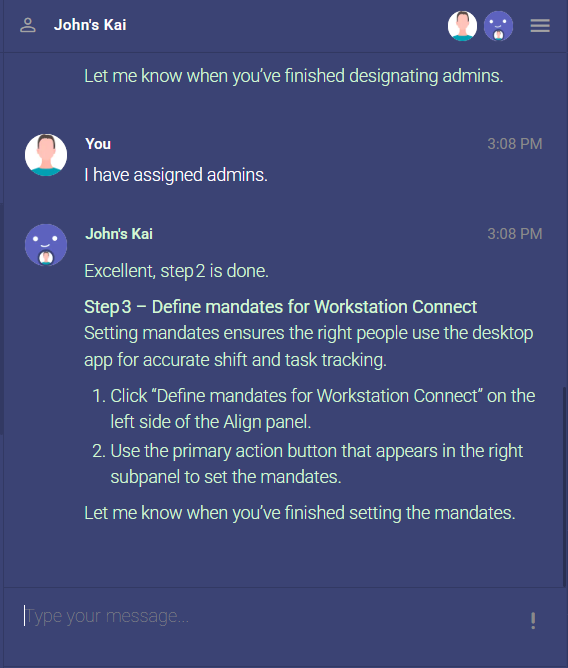
Kai has stepped into an active role during onboarding, helping new users understand Kaamfu from their very first session.
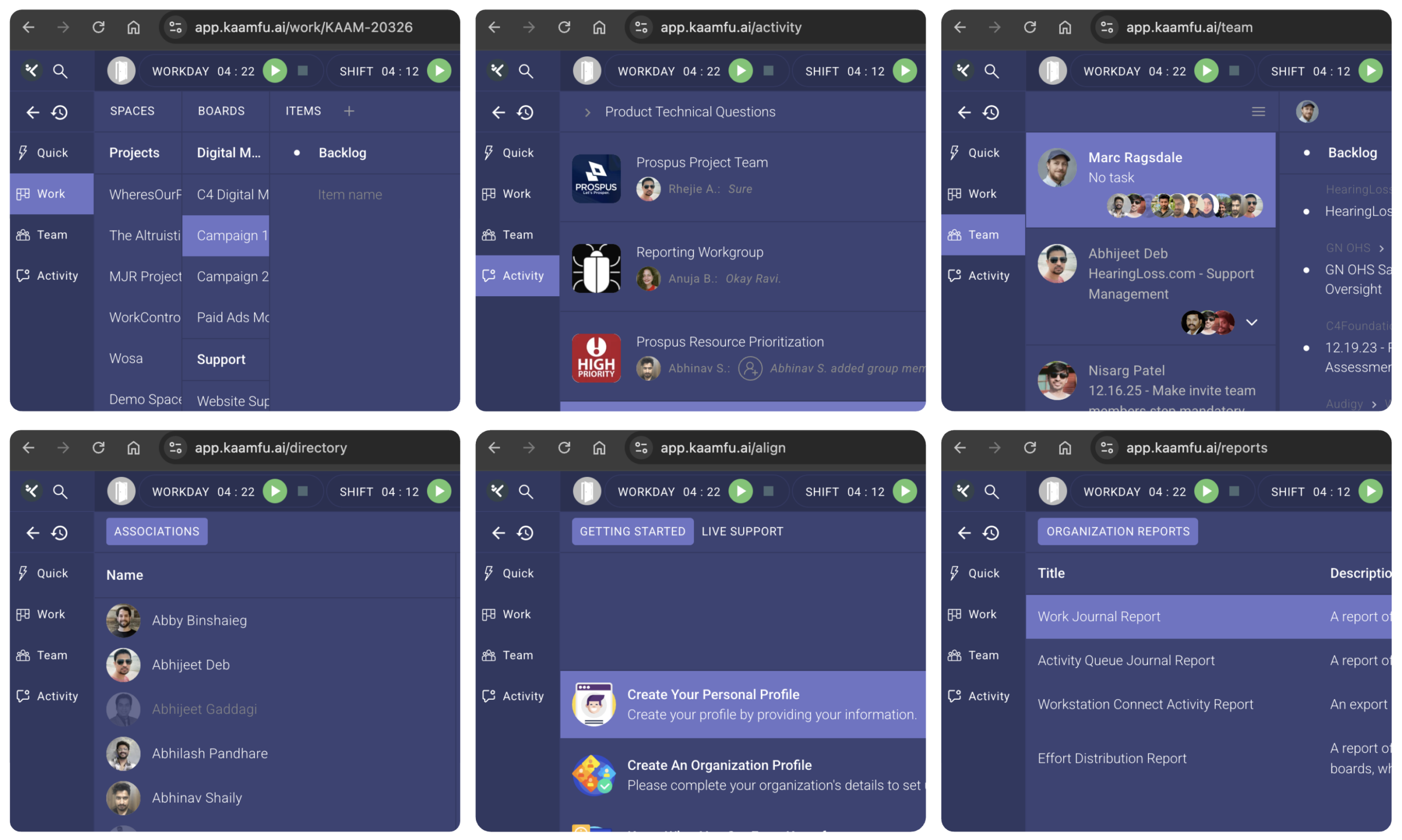
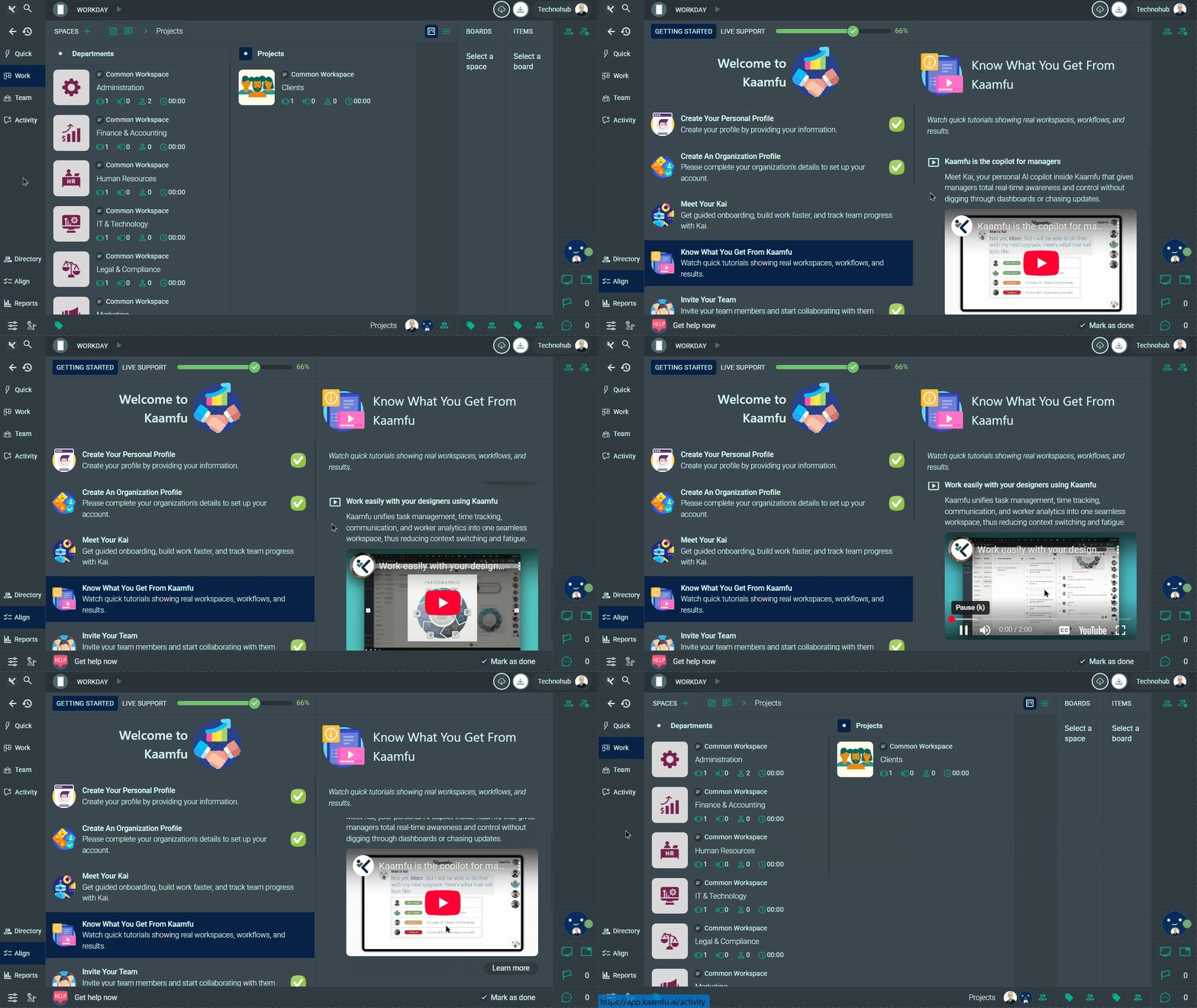
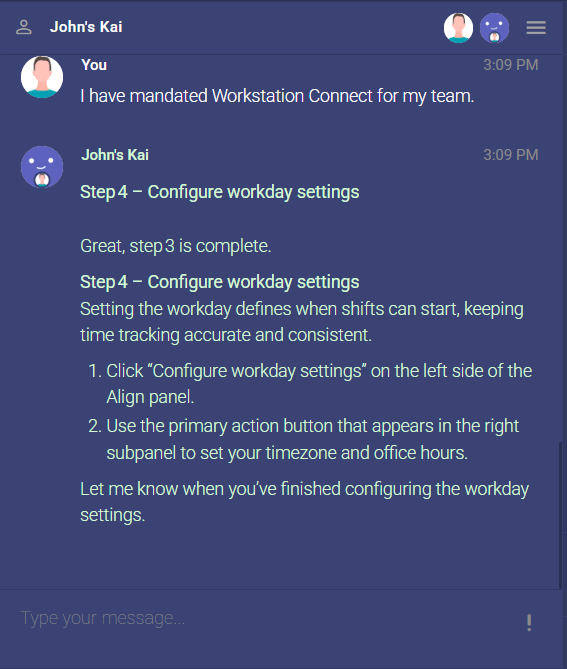
After signup on desktop, users now enter Kaamfu directly into the Align panel, where Kai begins onboarding through the Meet Your Kai step. From there, Kai guides users through the core concepts and actions inside the Align panel.
Why This Matters
A user’s first session determines whether Kaamfu feels intuitive or overwhelming.
Here’s what this change enables:
- Guided start: Users are no longer dropped into Kaamfu without context.
- AI guidance: Kai explains how the system works as users encounter it.
- Faster confidence: Users learn by doing, with guidance at the moment it matters.
This positions Kai as a companion in understanding work, not just a layer that observes it.
How It Works
Onboarding now happens directly inside the product, not through external tutorials.
- After completing signup on desktop, users enter Kaamfu automatically
- Users land in the Align panel by default
- The Meet Your Kaistep starts the onboarding flow
- Kai guides users through key actions and concepts within the Align panel
- Users move step by step while staying inside the actual working interface
This ensures onboarding happens in context, where learning maps directly to action.
Send tables in your conversations
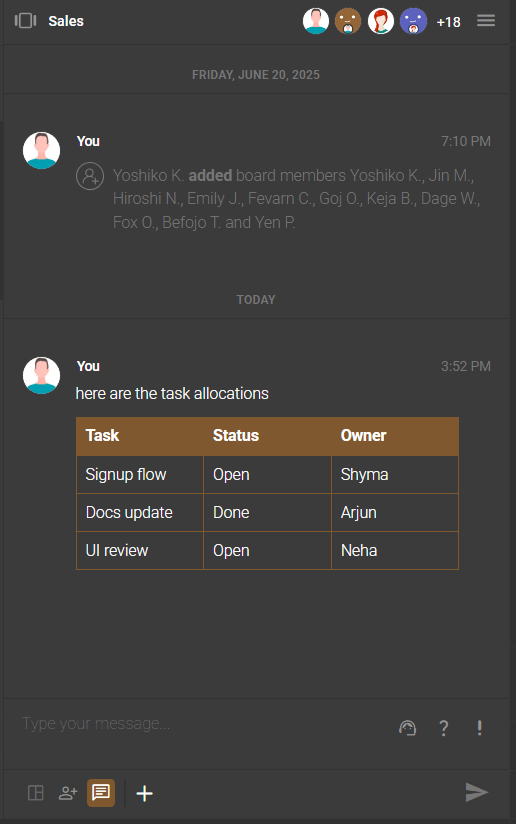
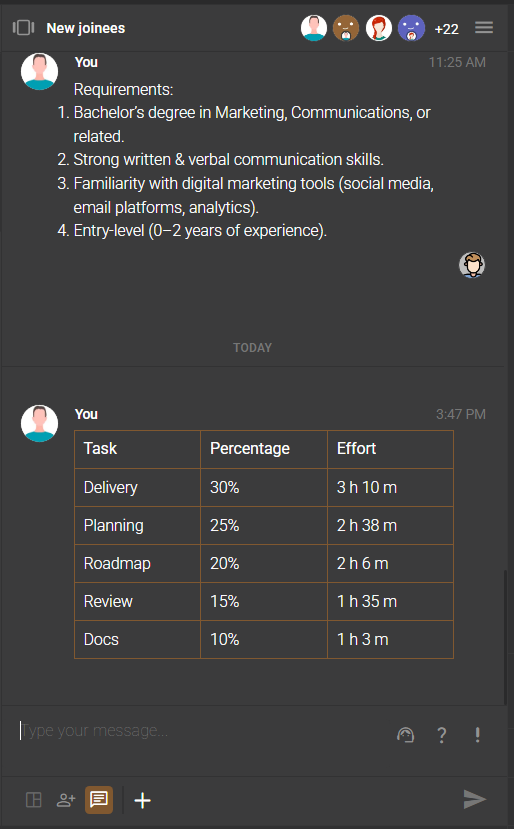
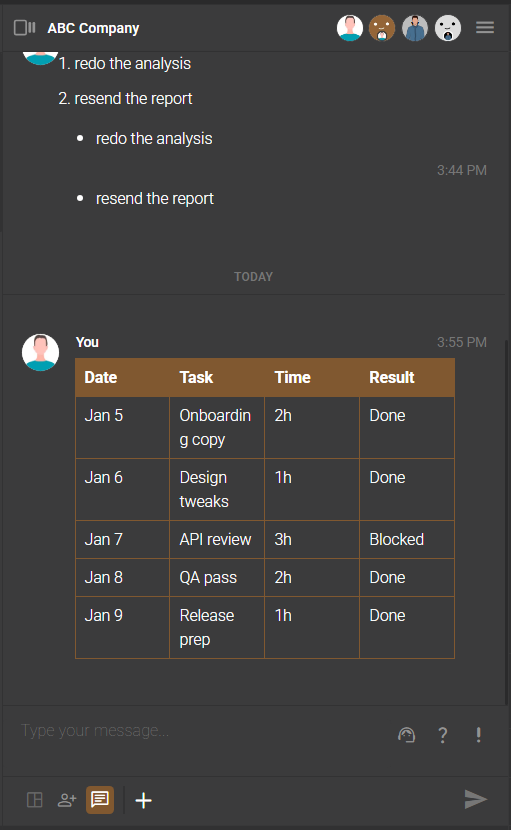
Chat now supports tables with preserved formatting, making structured communication easier.
Users can copy and paste tables directly into Chat messages, and the structure remains intact when shared with others.
Why This Matters
Work conversations often involve structured information, not just text.
This upgrade improves collaboration by enabling:
- Clearer messages: Tables make data easier to read and discuss.
- No reformatting: What you paste is exactly what others see.
- Richer context: Chat can handle structured content without breaking flow.
This makes Chat more aligned with how teams actually communicate at work.
How It Works
Using tables in Chat requires no special setup.
- Copy any table from another tool or document
- Paste it directly into a Chat message
- The table structure and formatting are retained automatically
- Send the message as usual
Tables appear inline in the conversation and remain readable for all participants.
Stories Shortcut Added to Avatar Right Click Menu
Accessing stories is now faster and more discoverable.
The avatar right click menu now includes a Stories icon, allowing instant navigation to Team panel Stories.
Why This Matters
Insights are only valuable when they are easy to reach.
This shortcut improves everyday usage by enabling:
- Instant access: Stories are now one click away.
- Less friction: Users jump straight from identity to insight.
- Higher usage: Stories become part of daily interaction.
This keeps work understanding close to where users already interact.
How It Works
The shortcut is available wherever the avatar menu appears.
- Right click on your team member’s avatar
- Click the Stories icon in the menu
- You are taken directly to the User Story pane in the Team panel
- View available stories based on your role and permissions
No additional navigation is required.
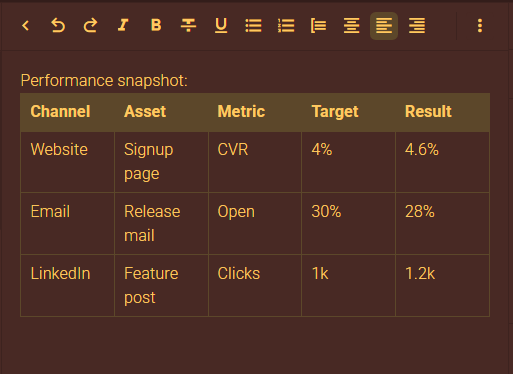
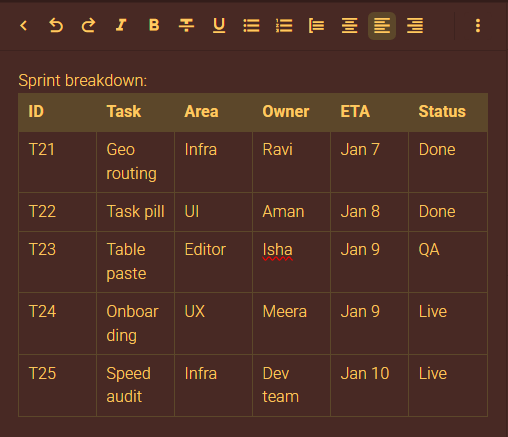
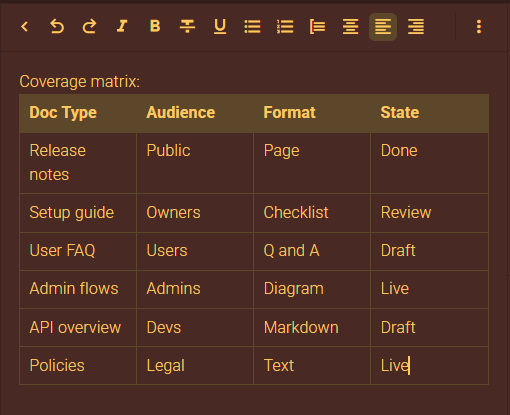
Organize Notes Using Tables
Notes are now capable of handling structured content.
Users can copy and paste tables into Notes, and the formatting is preserved automatically.
Why This Matters
Notes are often used for planning, documentation, and structured thinking.
This enhancement unlocks:
- Better structure: Tables improve readability and organization.
- No formatting loss: Notes respect pasted structure.
- Richer notes: Notes can hold more than plain text.
This makes Notes suitable for real work, not just quick jotting.
How It Works
Adding tables to Notes is simple and friction free.
- Copy any table from a document, spreadsheet, or tool
- Paste it directly into Notes
- The table formatting is retained automatically
- Continue editing content as needed
Notes now support structured information natively.