



 Export PDF
SUMMARY
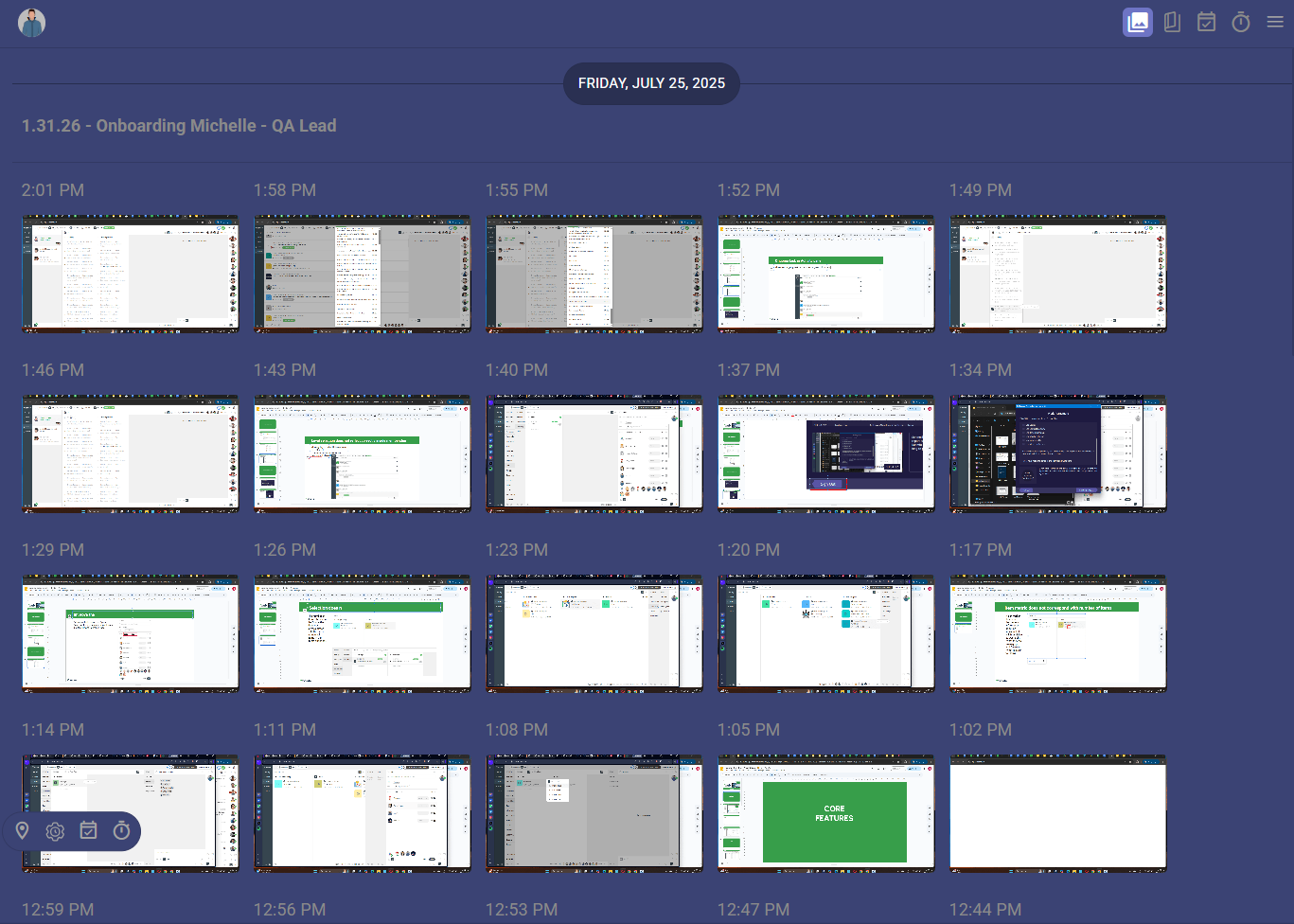
Daily work unfolds almost entirely on screens, yet most organizations only see task updates and final outcomes. The execution that happens between those points remains largely invisible. Desktop Screenshots in Kaamfu introduce a structural shift by capturing visual moments of work and making them accessible inside operational views. Kaamfu connects these screenshots to workers, tasks, and timelines so organizations can understand how work actually progressed.
IN BRIEF
-
Invisible screen activity – Most work happens on screens, but organizations usually see only updates and completed tasks.
-
Report driven visibility – Teams rely on reports and updates that summarize results rather than showing execution.
-
Missing work context – Without execution visibility, it becomes difficult to understand progress, focus, or delays.
-
Desktop Screenshots visibility – Desktop Screenshots capture moments of work activity through Workstation Connect and make them accessible inside Kaamfu.
-
Kaamfu operational context – Kaamfu connects screenshots to workers, tasks, and timelines so work execution becomes observable.
Most modern work takes place on a desktop. Documents are written, designs are created, code is developed, and conversations move tasks forward through digital tools. Yet the systems used to manage work typically capture only the assignment and the outcome.
The period between those two points often remains unclear. Teams can see that work was started and later completed, but the execution itself is difficult to observe. When delays appear or progress slows, there is rarely a reliable way to understand what actually happened during the workday.
Desktop Screenshots in Kaamfu address this structural gap. The system captures moments from a worker’s desktop while work is active and connects those moments to the operational environment where tasks, conversations, and assignments already exist.
These screenshots are captured through the Kaamfu Workstation Connect application. Once workers start their shift through this desktop application, the system automatically records screenshots at regular intervals and synchronizes them with the Kaamfu platform.
Why Desktop Work Needs Visibility
Organizations have long relied on summaries to understand work. Reports, updates, and meetings describe what happened during the day, but they rarely show the actual environments where work occurred.
This becomes more visible in distributed teams. When work happens across different locations, managers no longer see the natural signals that once existed in physical offices. Progress must be interpreted from updates rather than observed directly.
Desktop Screenshots introduce a form of operational evidence. They capture the state of the worker’s desktop during the workday and provide visual context that complements tasks and conversations.
Within Kaamfu, these screenshots are not isolated monitoring artifacts. They exist as part of the operational system, connected to workers, assignments, and the timeline of the workday. This connection allows screenshots to function as context rather than surveillance.
How Screenshots Are Captured Through Workstation Connect
Desktop Screenshots are captured through the Kaamfu Workstation Connect application, a desktop application that links the worker’s computer to the Kaamfu work system.
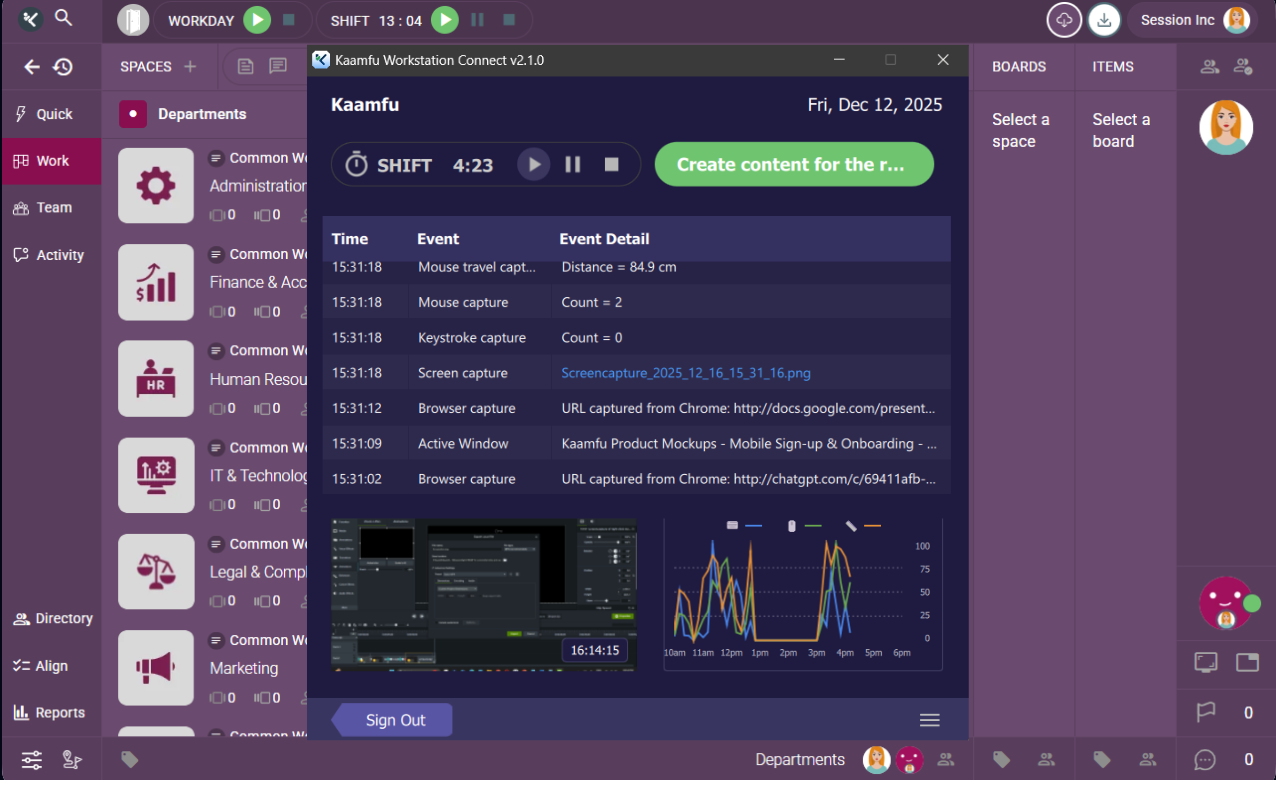
When organizations mandate Workstation Connect, workers install the application and log in using their Kaamfu credentials. Work activity begins when the worker starts their shift through the application. During an active shift, Workstation Connect captures screenshots from the worker’s desktop at regular intervals. These screenshots are automatically synchronized with the Kaamfu platform.
In most configurations, screenshots are captured every three minutes while the worker is actively working. This creates a consistent timeline of desktop activity throughout the workday.
Once synchronized, the screenshots become available inside Kaamfu where supervisors, managers, and organization owners can review them through operational panels. This connection between the desktop application and the web platform ensures that screenshots are automatically recorded and organized without requiring manual action from the worker.
Two Operational Sources for Desktop Screenshots
Kaamfu provides two places where supervisors, managers, and organization owners can review screenshots. Each view serves a different operational purpose.
One source allows quick inspection of a worker’s activity. The other provides a structured timeline of work activity organized around tasks and dates. Together, these views allow leaders to review desktop activity from both a person perspective and a work execution perspective.
Universal Menu: Quick Access to Worker Activity
The Universal Menu opens when a user right clicks on any avatar inside Kaamfu. This menu provides an operational snapshot of that worker’s activity, including shift status, tasks, and other work signals.
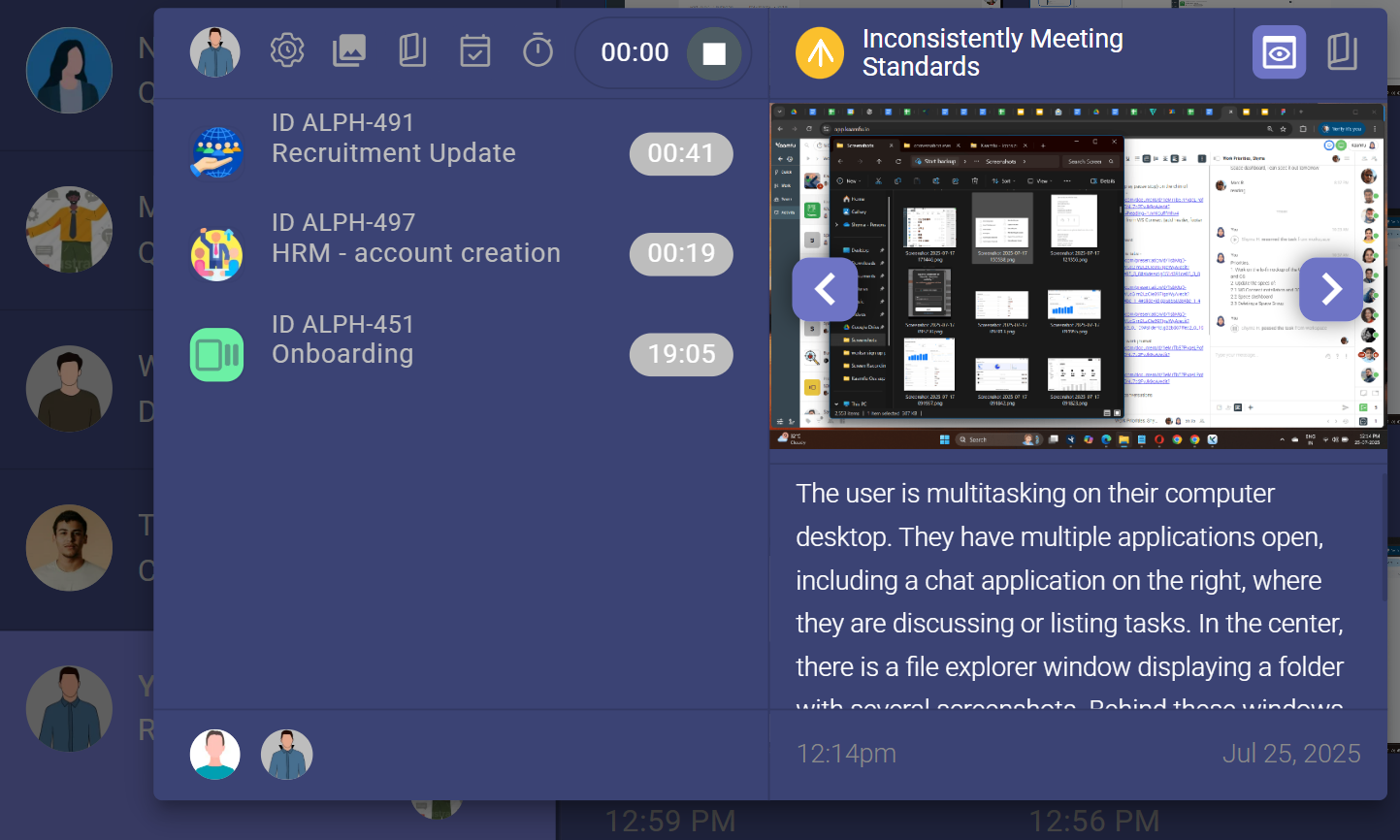
Screenshots appear as a scrollable sequence that can be navigated using left and right arrows. Each screenshot represents a captured moment from the worker’s desktop during an active work session.
Every screenshot includes contextual elements that help interpret what was happening at that moment:
-
Screenshot navigation – Left and right arrows allow screenshots to be browsed like a carousel.
-
AI generated summary – A short description explains what appears on the screen.
-
Timestamp context – The bottom row shows when the screenshot was captured, such as “3 minutes ago” or a specific time and date.
-
Full screenshot inspection – Double clicking a screenshot opens it in the annotation viewer for a larger view.
Closing the full screenshot view returns the user to the extended menu pane, where additional screenshots can be reviewed. This structure allows quick inspection of work activity without navigating away from the current workspace.
Team Panel: Task Based Screenshot Timeline
The second source of screenshots exists inside the Team panel. This panel lists all members of the organization and provides operational details about each worker.
Selecting a person from the team list opens their profile view in the middle panel. From the header of this panel, the screenshots icon opens the screenshot stream for that worker.
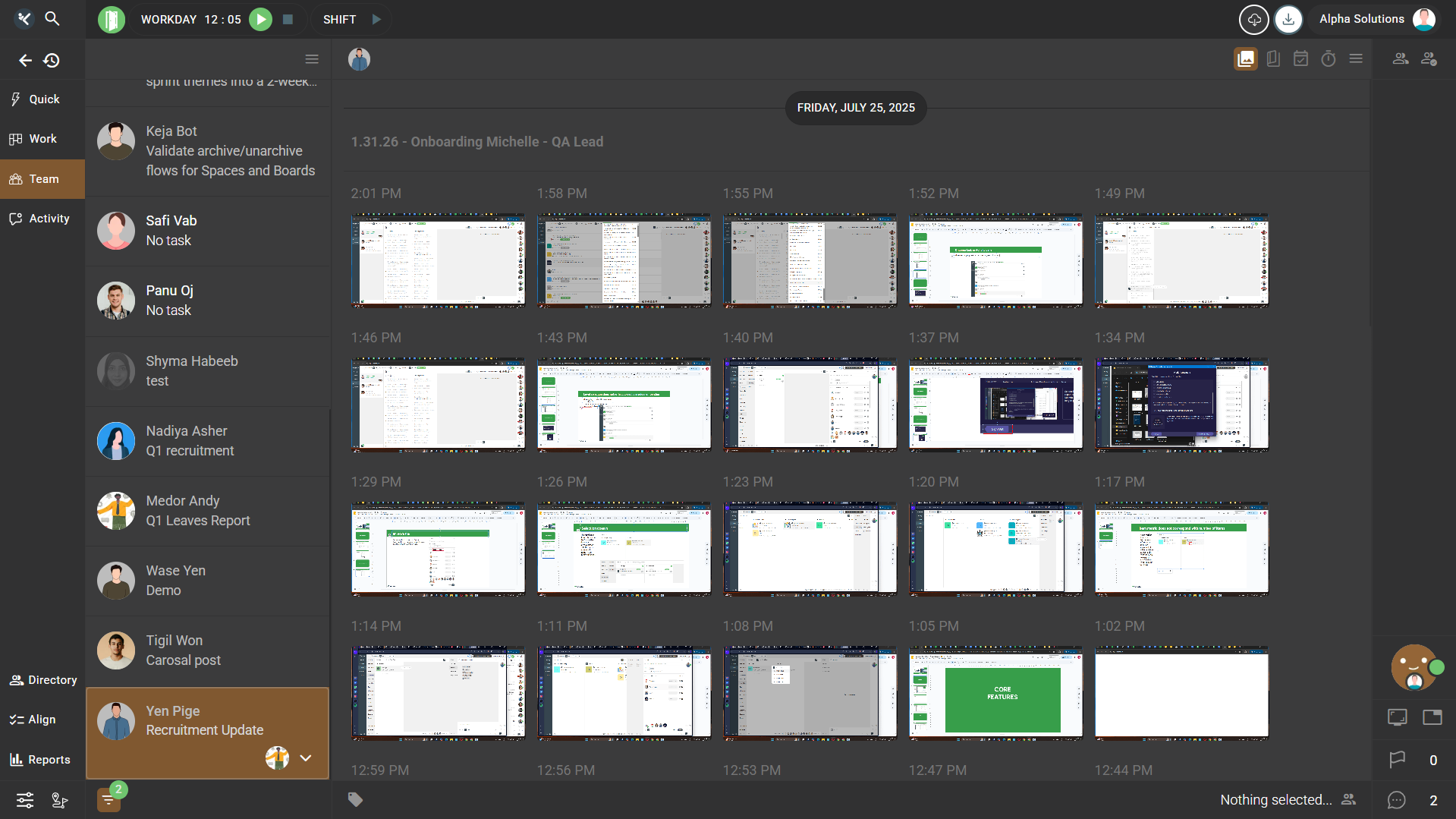
In this view, screenshots appear as a chronological stream rather than a carousel. The system organizes the screenshots using two structural layers:
- By task: Screenshots are grouped by the task the worker was performing when the screenshot was captured. This allows leaders to examine work activity in the context of the assignment.
- By date: Screenshots inside each task group are organized by date. This creates a timeline that shows how work progressed across the workday.
This structure makes it easier to review patterns in work activity and identify how tasks were executed.
The screenshot stream also supports several operational actions.
-
Screenshot review – Individual screenshots can be opened to inspect work context.
-
Screenshot selection – Multiple screenshots can be selected for review.
-
Screenshot sharing – Screenshots can be shared directly into conversations for discussion.
-
Screenshot deletion – Screenshots can be removed when they are no longer required.
These capabilities turn screenshots into an operational record rather than a simple gallery of images.
Screenshots as Part of the Work System
Many monitoring tools store screenshots in separate dashboards that sit outside the work environment. This separation limits their usefulness because the images are disconnected from the work they represent. Kaamfu integrates screenshots directly into the operational system where work is already managed.
A screenshot can be reviewed alongside the task being performed, the conversation that guided the work, and the timeline of the worker’s shift. This connection allows leaders to see not only what work was done, but also how it happened.
The result is a clearer understanding of execution. Instead of relying on assumptions, teams can review visual evidence of the work process itself. Desktop Screenshots therefore function as operational context inside the broader Kaamfu environment.