



 Export PDF
SUMMARY
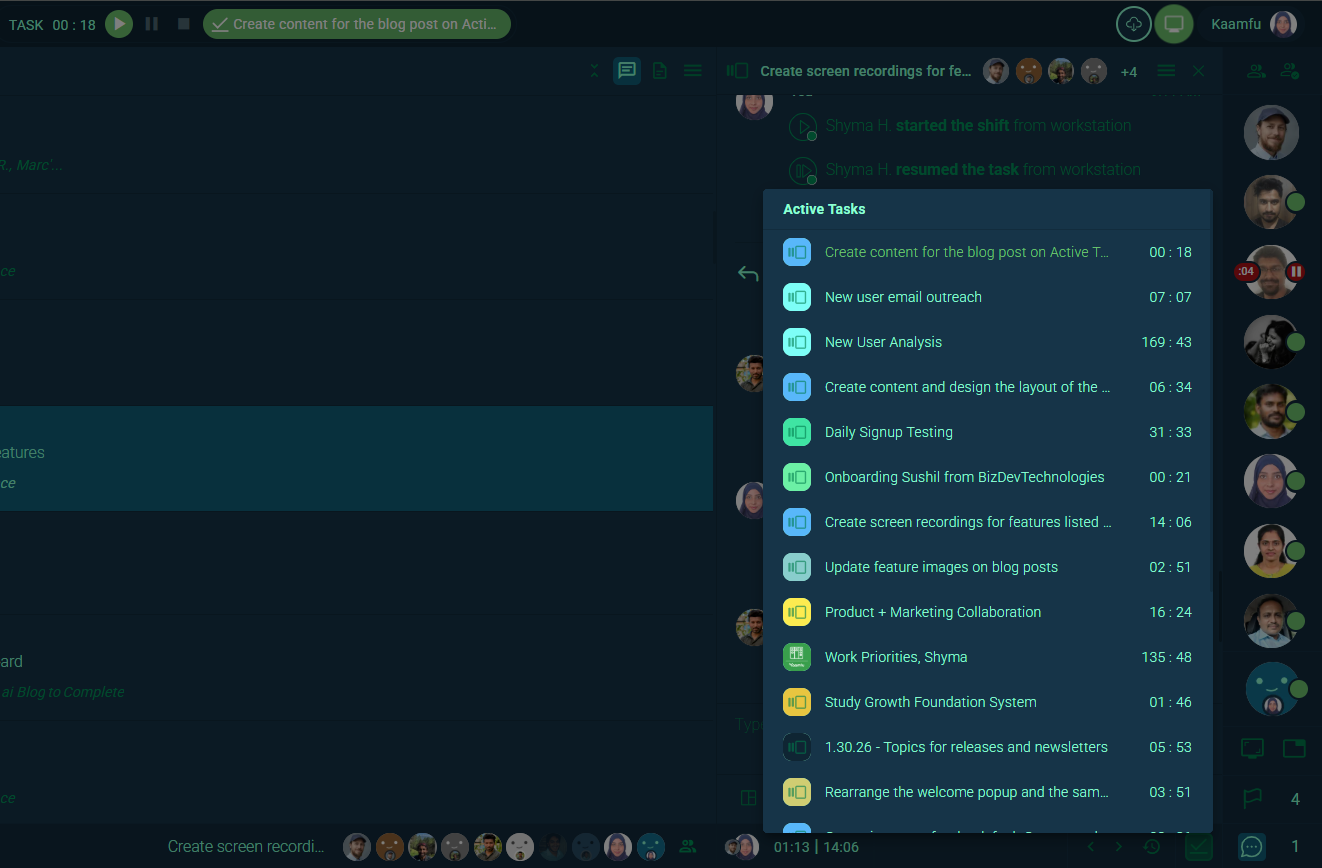
Work gets interrupted constantly, and when attention shifts, the active task drops out of view. Over time, that pattern erodes the effort data teams depend on. Kaamfu now surfaces the active task across multiple points in the product, so it stays visible no matter where a team member is working.
IN BRIEF
- Interruptions break focus – Switching context mid-task is unavoidable, and most tools offer no path back to what was running.
- Navigation adds friction – Returning to an active task requires leaving wherever you are, which most people skip under pressure.
- Skipped steps compound – Missed stops and starts accumulate into unreliable effort data and gaps in team visibility.
- Embedded indicators fix this – The Active Task icon now appears on the Conversation Panel chin and Shift Bar, always one click away.
- Kaamfu keeps work visible – Kaamfu surfaces the active task where users already are, so awareness requires no extra navigation.
Teams lose track of active tasks constantly. A message arrives, attention shifts, and whatever was running quietly falls out of view. Most tools treat this as a user problem and offer no structural fix. The result is effort data that drifts from reality and accountability signals that degrade throughout the day.
Kaamfu addressed this by embedding the active task into the surfaces where work already happens. The conversations panel and top panel (shift bar) now all carry the active task menu. Staying aware of what is running no longer depends on remembering to check.
The Problem with Out-of-Sight Tasks
The conversations panel is where most of a user’s day is spent. Discussions, file sharing, team coordination – it all runs through chat. Before this release, it was also where the active task was least visible. Opening a conversation to respond to a teammate put the running task out of sight immediately.
Checking the active task meant leaving the panel, interrupting the flow it was designed to support. Under pressure, most people skipped that step. The gap between what was running and what a user consciously knew was running grew throughout the day.
The Active Task Menu
Kaamfu built the Active Task Menu to keep the running task in view without requiring any extra navigation. The menu is always accessible from wherever a user already is in the product. It shows every task the user is managing in one place, along with the effort logged against each one.
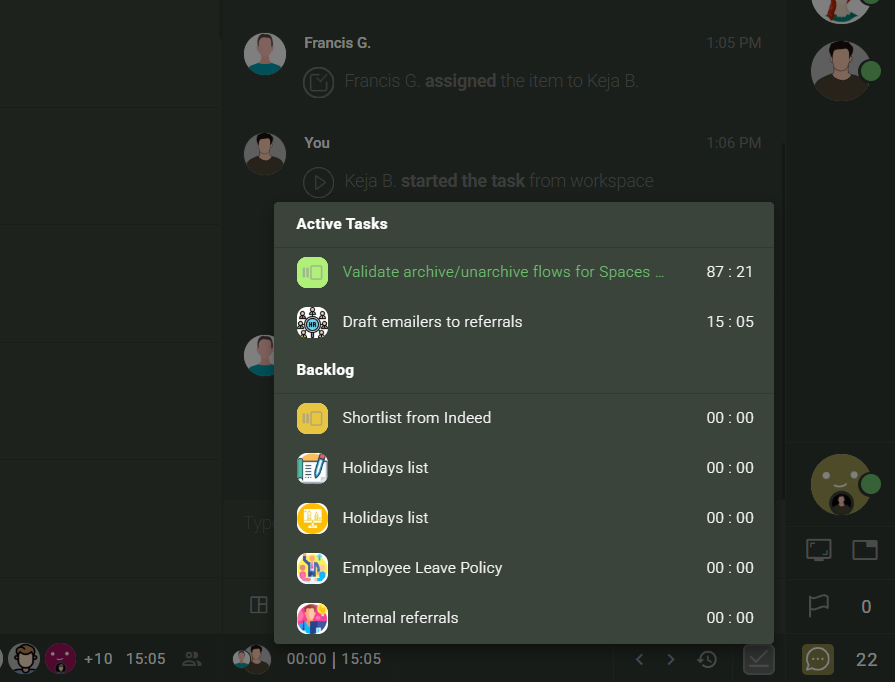
The menu separates assigned work into two clear lists. Active Tasks shows items the user has already started, each with time logged. Backlog shows assigned items where no time has been clocked yet, each showing zero effort. The distinction is immediate and requires no interpretation.
Switching between tasks, stopping work, or starting something new all happen directly from the menu. The Shift Bar and the KAI layer update in real time as effort moves between tasks.
How the Active Task Menu Works
The menu is divided into two sections: Active Tasks and Backlog. Each section surfaces different information and supports different actions depending on where a task sits in the user’s workday.
Where to Access the Menu
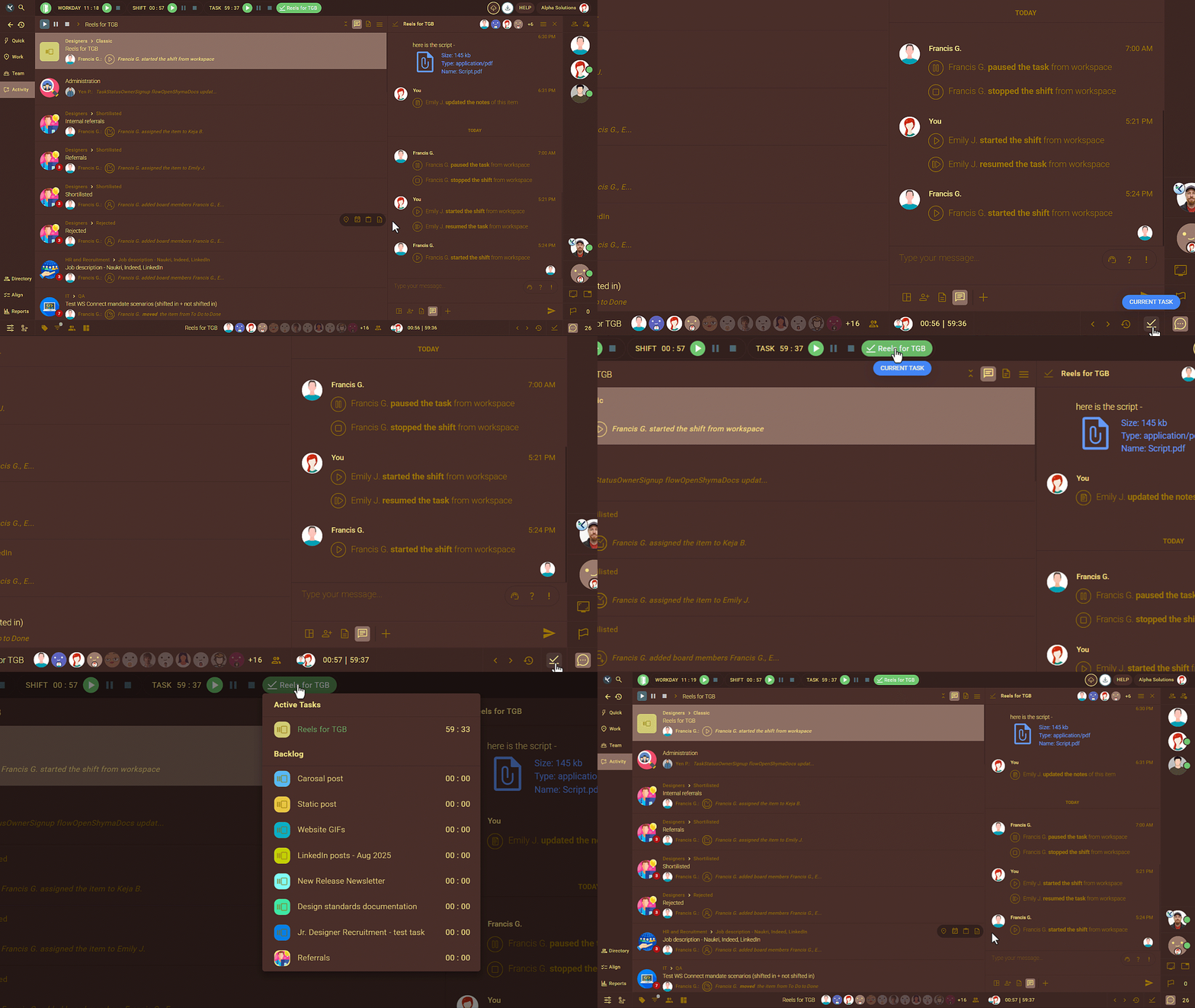
The menu is accessible from two places in Kaamfu. The first is the Conversation Panel chin, the persistent strip at the bottom of the panel. It is visible regardless of which conversation is open, so the menu is always one click away during the part of the day spent in conversations.
The second access point is the task pill in the Shift Bar, the top panel that tracks shift activity. Both entry points open the same menu, giving users access from whichever part of the product they are already in.
What You Can Do from the Menu
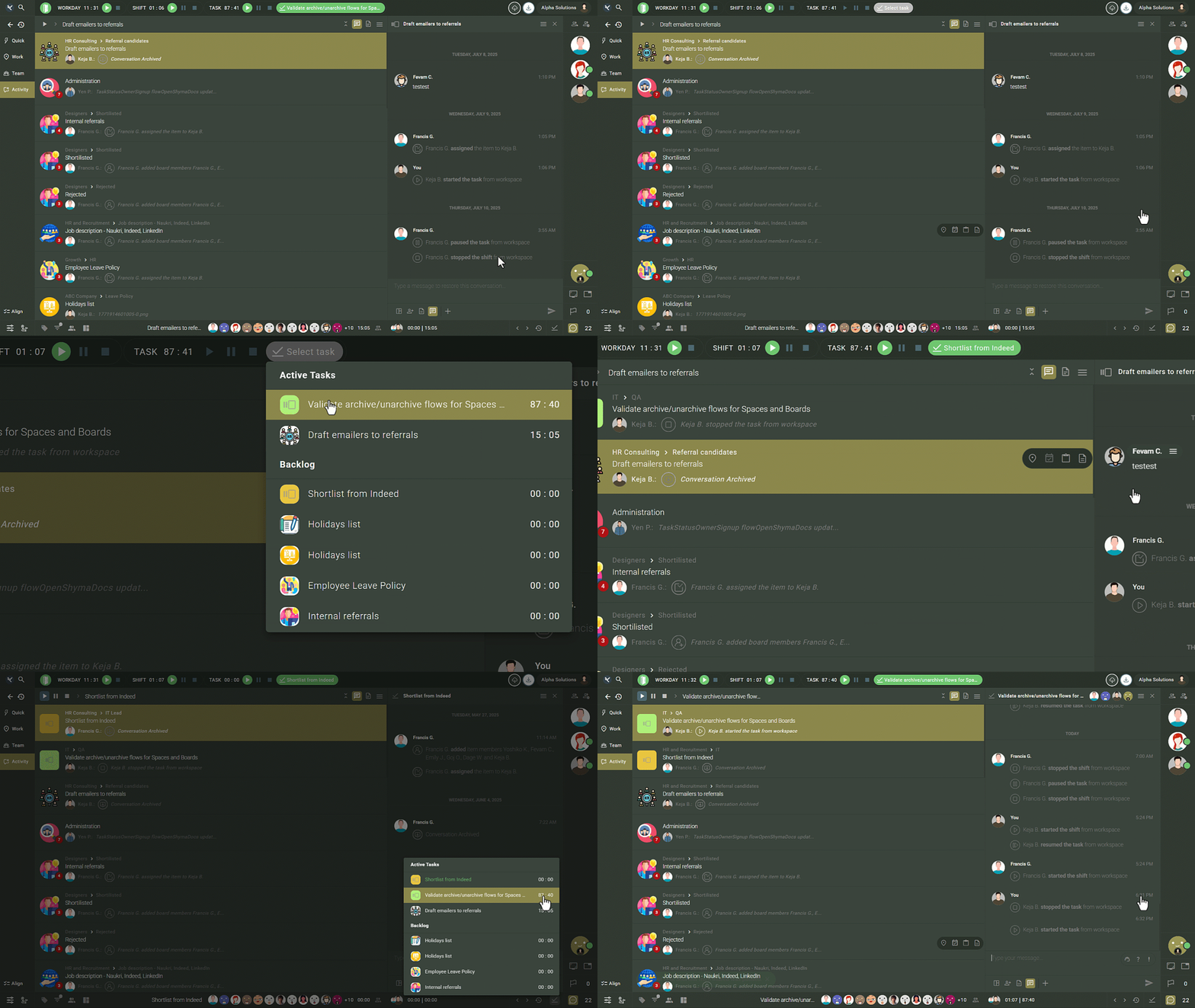
Clicking a task in Active Tasks reveals action buttons contextually. If it is the currently running task, a Stop button appears. If it is a paused task, a Resume button appears instead. Double-clicking any task in Active Tasks opens its conversation directly in the Conversation Panel.
Clicking a task in the Backlog reveals a Start button. Clicking Start pauses whatever is currently running and begins logging effort against that task immediately. Switching priorities takes two clicks, and the effort data updates in real time.
What the Active Task Menu Solves
The menu was built to reduce the friction of managing multiple tasks and conversations in a single workday. These are the specific problems it addresses.
- Getting back to your current task’s conversation – A user can start a task, move through a teammate’s conversation, join a group discussion, and get pulled in multiple directions. To return to the running task’s conversation, they double-click the task pill in the Shift Bar and the conversation opens immediately. No searching, no scrolling, no navigation.
- Knowing which task is currently running – The current task appears at the top of the menu in green in both the chin and the Shift Bar. The visual distinction is immediate. There is no ambiguity about what is active versus what is paused.
- Reducing mouse travel – Before this menu, finding the current task required scrolling to the top panel while the mouse was typically in the Conversation Panel. Finding another active task meant navigating to the Work or Team panel. The menu consolidates everything in one place, accessible from wherever the user already is.
- Locating and acting on any active or backlog task quickly – Active Tasks and Backlog sit together in one scrollable menu. A user can find any assigned task, check the effort logged against it, and start, stop, or resume it without leaving the panel they are working in.
- Switching task priority without losing context – Clicking a Backlog task and hitting Start pauses the current task and begins logging effort against the new one. The switch is two clicks. Everything that was running is preserved and resumable.
- Keeping effort data accurate across a busy workday – When switching between tasks, group conversations, and team oversight is constant, effort tracking breaks down without a fast path back to task control. The menu keeps that path short enough that users actually use it.
Keeping the active task in view is a precondition for everything else that depends on accurate task tracking. The changes in this release do not ask team members to develop new habits or check additional screens. They place the information where attention already sits and let the existing workflow carry the accountability forward.
Teams that track work accurately produce data that actually reflects how work gets done. Kaamfu is designed around that relationship, and surfacing the active task across the Conversation Panel chin, the Shift Bar, and the effort display is the structural step that makes it easier to maintain.