



 Export PDF
SUMMARY
Leaders frequently face a structural disconnect between the need for operational visibility and the desire to avoid constant team interruptions. Traditional management relies on disruptive status updates or manual reporting rituals that break deep work cycles. The Universal Menu by Kaamfu resolves this tension by embedding real-time work context directly into user avatars. This architectural shift allows stakeholders to access progress and alignment data instantly without ever sending a ping.
IN BRIEF
- Fragmented work visibility – Managers often lack immediate insight into active tasks without interrupting their teams for manual status updates.
- Constant status pings – The conventional approach relies on messaging, meetings, and reporting tools to extract necessary project context.
- Interruption kills productivity – Manual check-ins create cognitive friction and pull contributors away from high-value work to explain their progress.
- Embedded context access – Strategic visibility now lives within the collaboration layer to provide data without requiring a single notification.
- Kaamfu horizontal integration – The system positions context as an ambient property of the workspace to eliminate the need for disruptive reporting.
How do you understand what someone is actually working on without calling a meeting, sending a message, or waiting for a report? Most tools force leaders to choose between visibility and interruption. At Kaamfu, we believe work context should be available by default, not extracted through updates, pings, or status rituals.
The Universal Menu removes that tradeoff by making real work context instantly accessible, directly from the people doing the work. With a single right click, Kaamfu surfaces tasks, activity, progress, and alignment exactly where collaboration is already happening.
What the Universal Menu is
The Universal Menu is a right-click menu that appears when you interact with a person in Kaamfu. It turns every avatar into a live access point for that person’s work context.
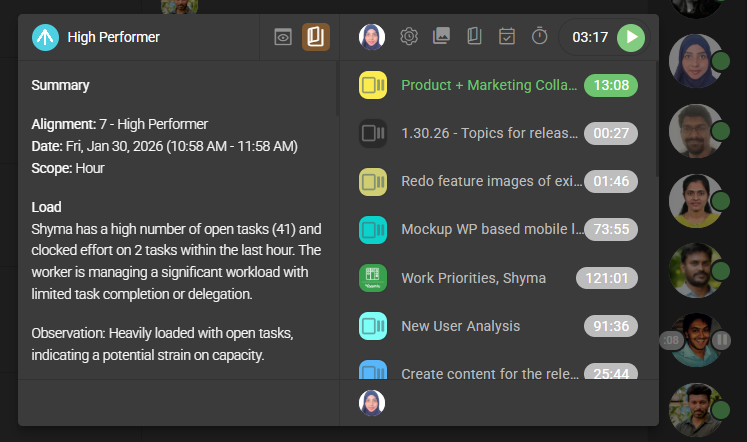
Instead of navigating across multiple panels, leaders and teammates can understand what is happening by right clicking an avatar and seeing relevant information immediately, governed by clear permission rules.
Why this matters
Work visibility should not depend on status updates or constant check-ins. The Universal Menu solves this by making work context available without creating noise or pressure.
- No interruptions: Leaders can check progress without pinging or pulling people into updates.
- Faster understanding: Tasks, effort, and activity are visible in seconds.
- Built-in boundaries: Visibility is automatically limited to assignments and shared context.
- People-centric design: Work follows individuals, not dashboards or reports.
How it works
The Universal Menu reveals work context in layers, starting with quick access and expanding into deeper detail as you explore.
- Right click an avatar anywhere it appears to open the Universal Menu.
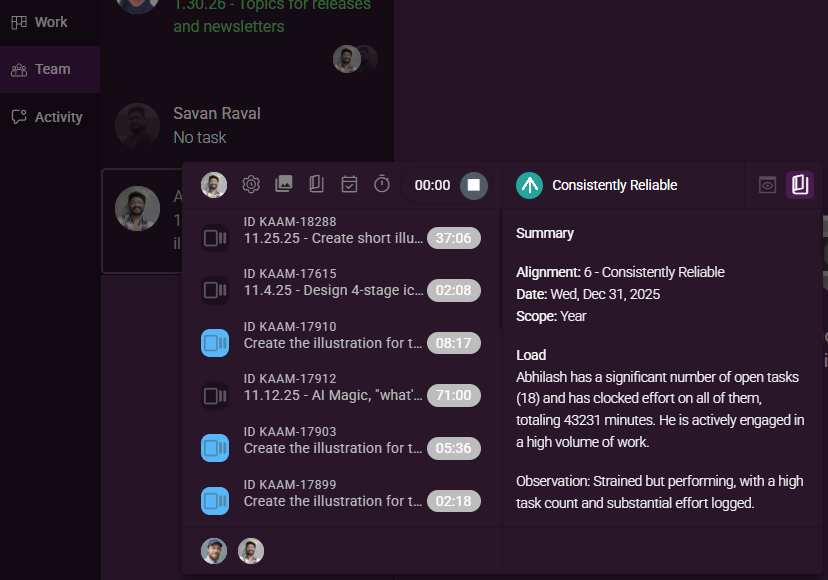
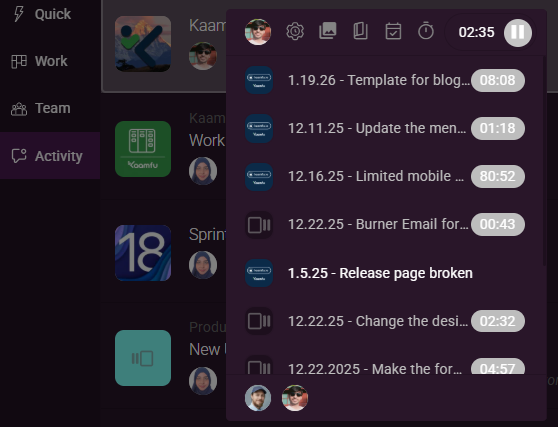
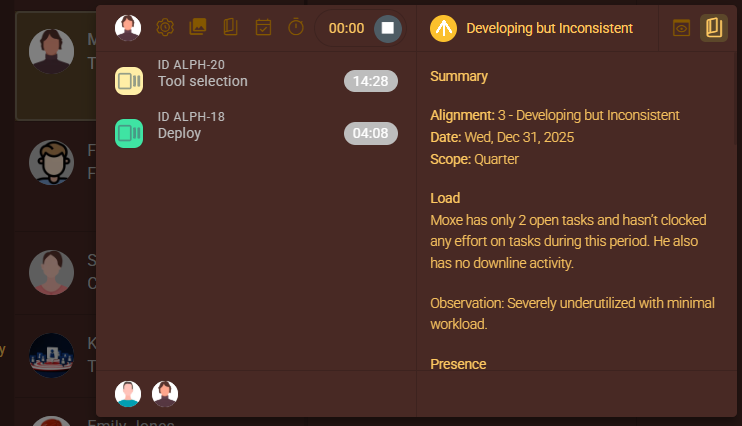
- Use the top shortcuts row to access productivity, stories, backlog, work journal, and screenshots.
- Review relevant tasks in the task list and click any task to open its chat in the conversation panel.
- View the reporting row below the task list to understand the user’s reporting structure.
- Open the extended pane to see the user’s AI-generated story and alignment summary when available.
- Toggle the view in the extended pane to switch between AI stories and desktop screenshots.
- Browse screenshots using arrow controls, open them in full view, and see AI-generated summaries with timestamps.
No configuration. No setup. Just right click.
Where the Universal Menu appears
The Universal Menu is available wherever people appear in Kaamfu. You can open it by right clicking an avatar in:
- The Workline in the right sidebar
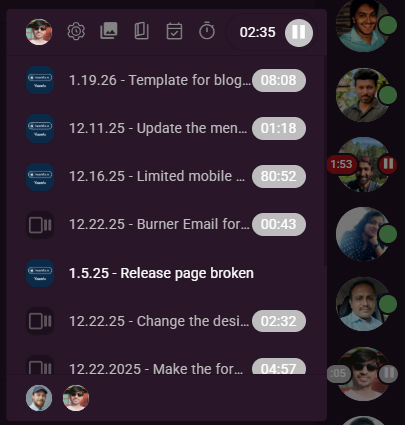
- The Activity panel
- The Work Panel
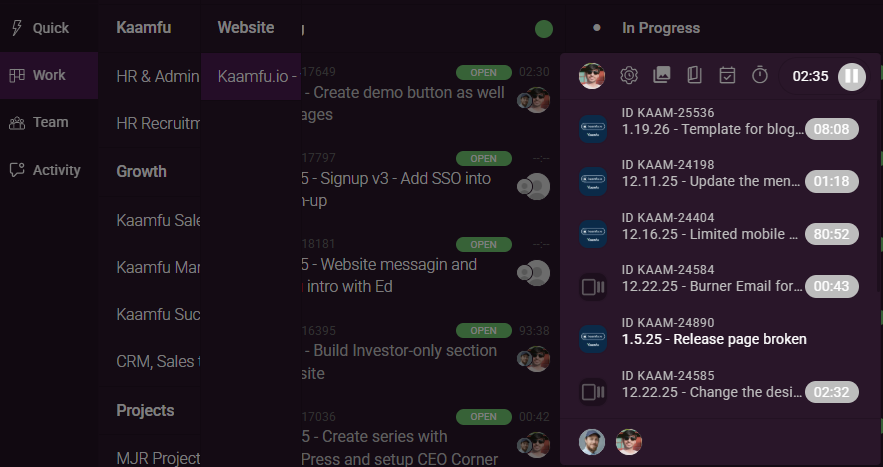
- The Team panel
This ensures work context is always accessible at the moment collaboration happens.
Universal Menu layout
The Universal Menu is structured to surface the most important information first, while allowing deeper insight when it is relevant. Each section of the menu answers a specific question about the person you are viewing.
Top shortcuts row
The top row provides instant access to the most critical work views related to a person.
- Productivity: Opens a workday overview showing effort distribution and time usage.
- Screenshots: Opens captured desktop screenshots, visible only for yourself or people you assign tasks to.
- Stories: Opens hourly AI-generated summaries of work, responsiveness, and alignment.
- Backlog: Opens the user’s open and pending tasks.
- Work Journal: Opens shift history, hours worked, breaks, and workday details, based on role and assignment.
If the user is actively working, this row also displays a green effort pill with the live task timer.
Task list and shared context
The task list shows what you are working on together, and nothing more.
- Assigners see all tasks assigned to the user.
- Non-assigners see only tasks from shared conversations.
- When no shared context exists, a placeholder clearly explains that there are no common conversations.
This keeps visibility precise and intentional.
Reporting row
Below the task list, the reporting row shows the user’s topline.
This row displays avatars from the org owner down to the user’s assigners, making reporting relationships immediately visible without navigating elsewhere.
Extended pane for AI stories and screenshots
When you right click your own avatar or the avatar of someone you assign tasks to, the Universal Menu expands into an extended pane for deeper insight.
This pane includes:
- An AI-generated story summary highlighting work patterns and outcomes.
- A color-coded alignment indicator with a numerical alignment score.
- Toggle controls to switch between story view and screenshot view.
- A screenshot carousel with left and right navigation.
- Full-screen screenshot viewing with annotation handling.
- AI-generated summaries with timestamps and dates for each screenshot.
All of this appears without leaving your current screen.
Key takeaway
The Universal Menu makes visibility effortless. By attaching work context directly to people, it lets leaders stay informed, teams stay focused, and work move forward without interruption.